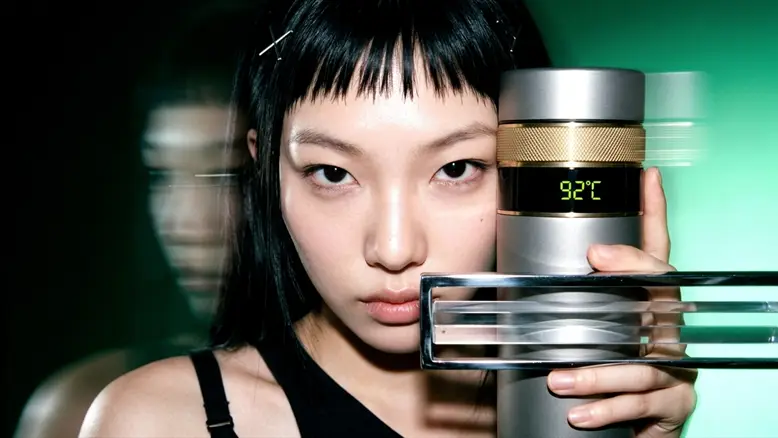
A beauty reel can get away with pure mood, but a product demo video has a stricter job: showing buyers how a feature works, what materials it is built from, and why the upgrade matters without distorting buttons, threads, or screen readouts. Using an AI product video generator to build hardware or consumer-goods demos succeeds when you separate clean multi-angle industrial reference plates from controlled camera choreography.
Here is how to direct a crisp, multi-shot product feature demo on PixTV—illustrated with a precision Grade-5 titanium thermal brew tumbler featuring diamond-knurled brass hardware and a flush 92°C OLED temperature band.
Anatomy of a High-Converting 3-Shot Product Demo
Demo Shot Role | Visual Goal | Recommended PixTV Model Pairing |
|---|---|---|
Shot 1: Industrial Reference Reveal | Lock silhouette, inner threading & surface machining | Multi-view reference sheet → |
Shot 2: Macro Craftsmanship Callout | Prove diamond-knurled brass & crisp | Macro detail crop → |
Shot 3: Real-World Context Proof | Show true scale & steam on a believable work desk | Image-to-image scene transfer → |
Step 1: Lock Hardware Geometry & Surface Machining on a Clean Studio Sheet
When demonstrating technical products—audio gear, smart kitchen tools, or wearables—plastic-looking textures kill buyer trust instantly. Start by building a clean neutral-cyclorama reference sheet specifying real machining finishes (matte bead-blasted Grade-5 titanium, diamond-knurled brushed-brass collar, flush black OLED band reading "92°C"):
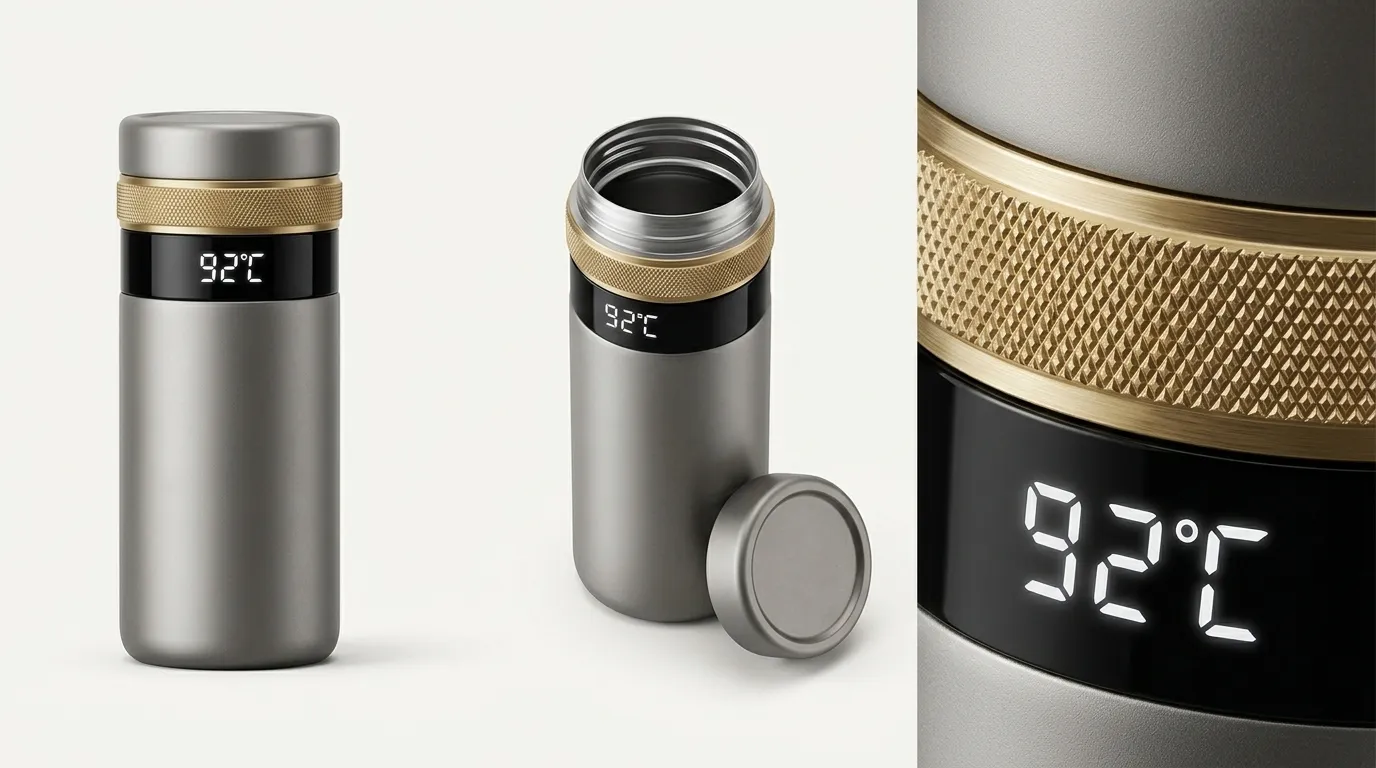
Clean 3-view studio industrial hardware reference sheet on soft off-white cyclorama, 16:9 widescreen. Left: full standing front view of a cylindrical matte bead-blasted Grade-5 titanium smart tumbler with a diamond-knurled brushed-brass collar and flush black OLED band reading "92°C". Center: elevated 45-degree open-lid view showing threaded stainless vacuum inner rim and detached cap. Right: directional side-lit macro close-up of the diamond-knurled brass texture and glowing "92°C" display.
Wire your approved hardware plate into Kling 4.0 (16:9, 720p) for a steady, vibration-free motorized slider move:
Ultra-steady motorized macro slider camera gliding slowly from left to right past the matte titanium tumbler. Crisp studio rim light travels smoothly across the diamond-knurled brass collar while the glowing "92°C" OLED readout remains razor-sharp and undistorted.
Step 2: Transition From Studio Bench to Real-World Usage Without Losing the SKU
Shoppers need to see both close-up craftsmanship and how the product sits in everyday life. Instead of writing a brand-new text prompt that invents a different tumbler, pass your studio hardware reference into an image-to-image edit node to restage the environment while keeping every millimeter of hardware geometry locked:
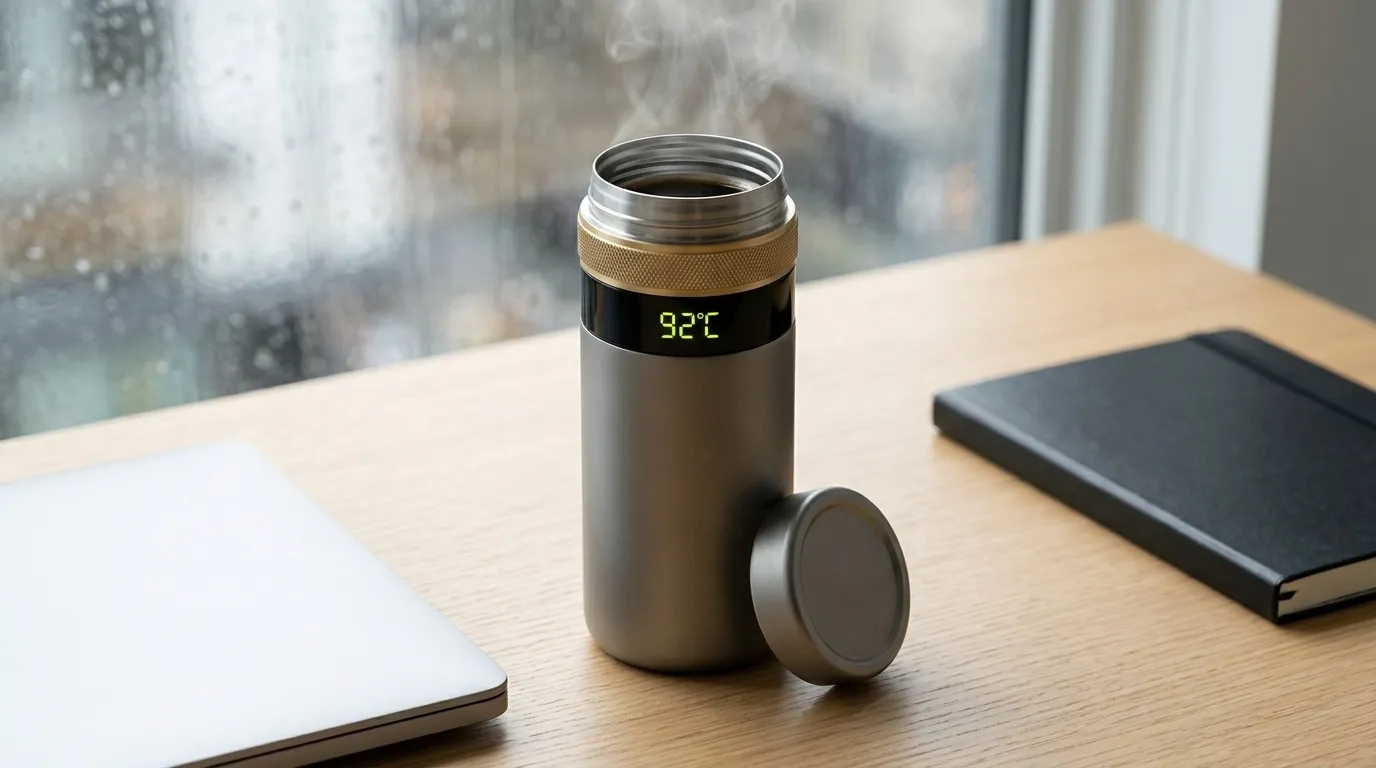
Grounded Leica macro product lifestyle photograph, 16:9 widescreen. Keep the matte bead-blasted titanium tumbler, diamond-knurled brushed-brass collar, detached cap, and glowing "92°C" OLED display completely identical. Place the open tumbler with delicate wisps of hot coffee steam on a warm pale Nordic oak desk beside a sleek silver aluminum laptop corner and black hardcover notebook, rainy city window bokeh in natural overcast daylight.
From there, turn product photos into videos with sound by connecting the oak-desk frame to Seedance 2.5 (720p)—letting gentle coffee steam curl upward while soft rain patters against the window in the background audio track. (For single-image e-commerce setups, see our single-photo product video tutorial and product B-roll guide.)
Frequently Asked Questions
How do I prevent buttons, knurled rings, and small displays from morphing in AI product demos?
Never rotate a technical product more than 30–45 degrees in a single image-to-video pass unless you supply both a starting frame and an ending frame. Short horizontal slider glides, rack focuses, and rim-light sweeps showcase industrial detail cleanly without forcing the model to guess hidden sides.
Should I generate product demo drafts at 720p or 1080p?
Iterate and approve camera motion at 720p first—it renders faster, uses significantly fewer credits, and already looks crisp across standard web blog and landing-page embeds. Reserve higher-resolution passes only when archiving hero full-screen master cuts.