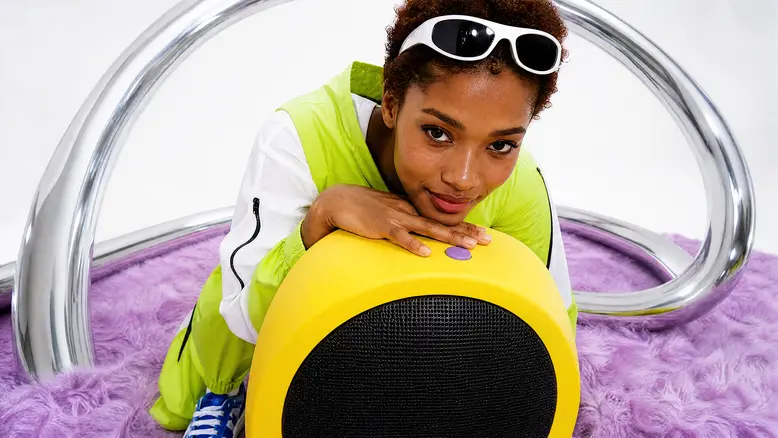
A product loop succeeds at the join. The last moment needs to lead back into the first without a visible jump in the object, camera, light or movement. Generating an attractive clip is only one part of that job.
Plan the return before you generate. This guide uses a lemon-yellow portable speaker with one black circular woven grille and one lavender top button. The target is a restrained left-right swivel that keeps the product recognizable while the sequence repeats.
The chrome hoop on the cover visualizes a return path; the workflow plans a small speaker movement on a fixed surface.
Why the return matters more than the first frame
Two similar still frames do not guarantee a seamless loop. The speaker can occupy the same position at both ends but arrive with a different speed. A moving highlight or changing contact shadow can expose the cut even when the housing matches.
Choose an action you can inspect and repeat. A small swivel offers a clearer starting point than a speaker traveling across the set and somehow returning unseen.
Prepare the loop in PixTV
Use the image canvas to prepare a reference and planned states. Develop the moving shot in the video canvas, then test and assemble it in the video editing canvas. Check which generation and editing controls your current route provides.
The product B-roll guide helps when a loop will sit inside a longer product edit. Decide whether this shot needs to repeat or simply serve as a short insert.
How to plan and build the loop
1. Choose a repeatable movement
Start with a gentle swivel around a stable position. Keep the camera locked and the main light fixed. Avoid combining rotation, travel and a camera orbit in the first attempt. Every extra changing element creates another condition at the join.
For the speaker, preserve the matte yellow housing, one black circular grille and one lavender top button. There are no extra controls or attachments to invent during motion.
2. Describe the return in a shot plan
| State | Speaker and camera | Check |
|---|---|---|
| Start | Speaker near a neutral pose; camera fixed | Housing outline, grille and button |
| Middle | A small, controlled swivel | Stable shape and believable contact shadow |
| Return | Speaker approaches the starting state | Position, orientation and movement through the join |
This is a plan for the action, not proof that a generated clip will complete it. Keep the displacement small enough that a failed return is easy to identify.
3. Prepare a stable visual reference
Use a clean image with readable edges and a simple setting. Keep the crop, support surface and light direction consistent across planning frames. If the physical product matters, establish its appearance from approved product photographs.
4. Write one motion brief
Locked camera looking slightly down at the yellow portable speaker on a white plinth. Preserve one black circular woven grille and one lavender top button. The speaker swivels gently left and right around one position and approaches its starting pose. Fixed side light and stable contact shadow. No forward travel, new controls, changing camera angle or lighting shift.
Specify the intended action, then inspect what the model produces. Asking for a return does not guarantee a closed motion cycle.
5. Choose the available input route
If the selected route provides first and last frame controls, test them with consistent references. Matching endpoint images still leaves timing and highlight movement to review. If those controls are unavailable, start from one reference and look for a usable repeating section during editing.
Do not build the workflow around a control you cannot find in the current interface.
6. Test the actual join
Place two copies of the candidate section back to back. Watch the boundary several times at normal speed, then inspect nearby frames. Check housing position, grille angle, top button, brightness, highlights and contact shadow. Listen too if the clip contains audio.
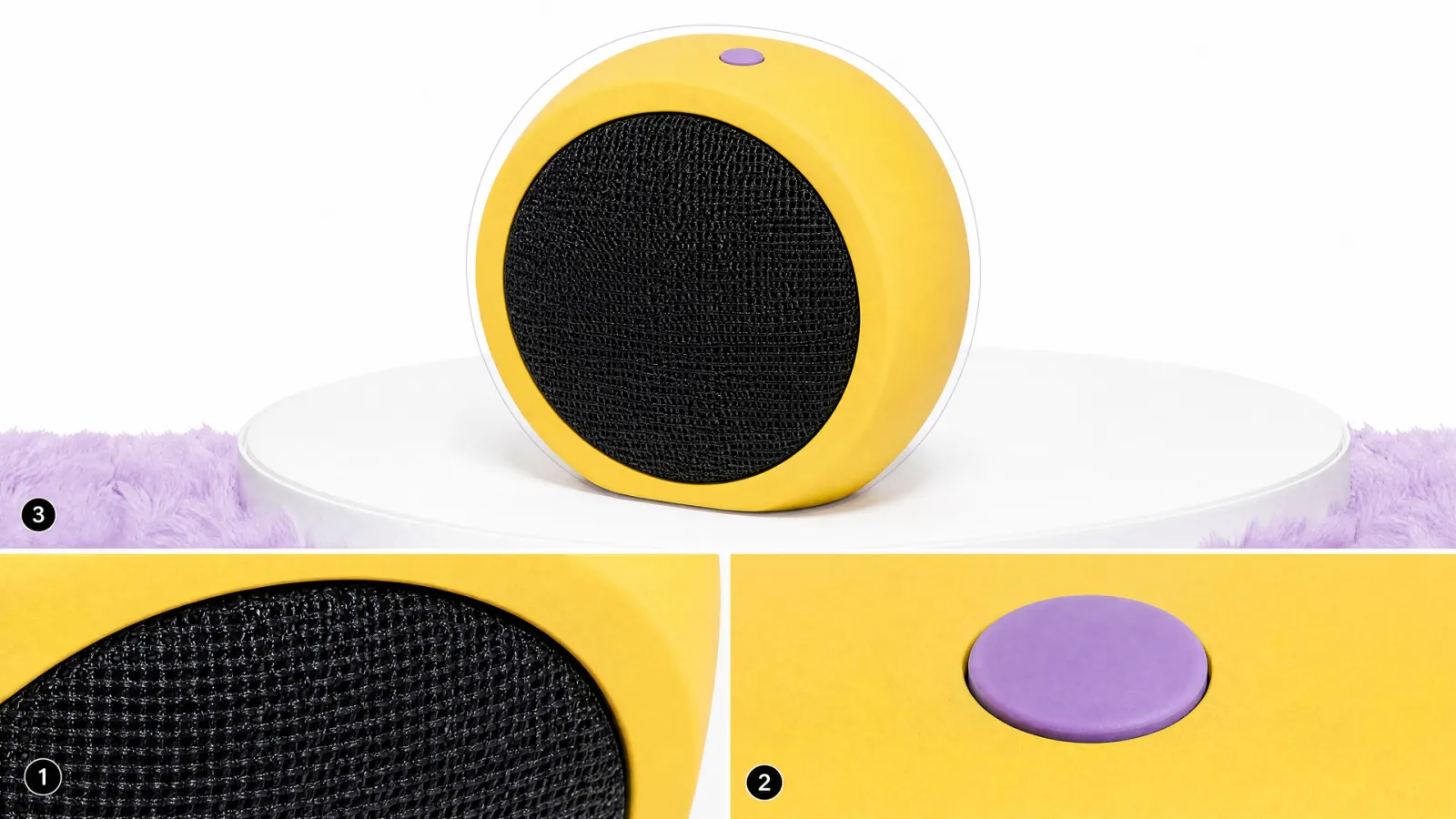
Static join plan: inspect the housing outline, grille and single top button. A matched still does not verify motion.
A jump in speed can matter more than a small positional difference. If the return fails, shorten the motion, try another section, or regenerate with a simpler action.
7. Finish the edit and sound boundary
A short blend may help a small transition, but reject double product outlines or ghosted reflections. Reversing a clip can work for some restrained mechanical motions; water, pouring, smoke and other directional actions often reveal the reversal. Review the physics rather than applying a universal trick.
Check music, ambience and any voice at the boundary. Export the assembled result and watch that file repeating in its intended placement.
Turn the plan into a usable product asset
Keep an approved version and record the exact section that loops. Make crop variants from that version, checking each boundary again after reframing. Changes in framing can make a previously subtle jump more noticeable.
Loops can suit product cards, short social posts and background placements where a restrained repeat serves the design. A complete sales story may need a normal sequence with a beginning and an ending instead.
Compare production routes by usable output and review time. A simpler locked shot can require fewer revisions than an elaborate return. Keep rejected tests in the cost record.
Start with one small return
Open PixTV with one product reference and one repeatable action. Plan the start, movement and return, then judge the exported join. The loop is ready when the repetition works in motion.
Frequently asked questions
Does matching the first and last frame make a seamless loop?
No. Position is only part of the join. Motion speed, light, reflections and sound can still change abruptly. Watch two copies back to back at normal speed, then inspect the surrounding frames to locate the discontinuity.
Do I need first and last frame controls?
They can help when the selected route offers them, but they are not the only approach. You can also generate a restrained clip and select a usable section in editing. Neither route removes the need to check the exported repeat.
Can I reverse any product clip to create a loop?
No. A reversal may suit some small, reversible motions, but it can make falling objects, water, smoke or pouring behave unnaturally. Inspect the action itself. If the reverse looks wrong, simplify the movement or use a different section.
Will a crossfade hide every bad join?
No. A blend can create two visible product outlines or duplicate reflections. It may soften a small mismatch, but it cannot repair a fundamentally different pose or lighting state. Judge the product through the blend, not just the overall smoothness.
How long should the loop be?
Use enough time for the chosen action to feel natural and return cleanly. There is no useful universal duration. Start with the destination and the movement, then select a section that repeats comfortably without a long pause or abrupt change in pace.
What should I do about audio?
Check the sound join separately. A visually smooth repeat can still click, cut off a word or restart ambience abruptly. Use a suitable audio section and review the final export in its real placement, including any player behavior that affects repetition.