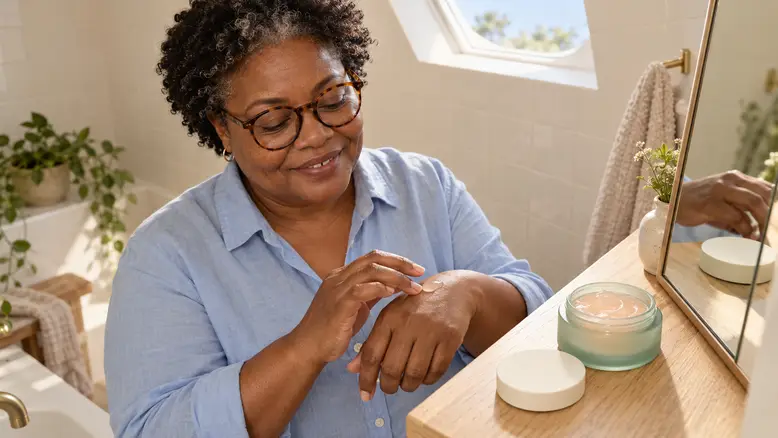
Turn a skincare product photo into a video ad by separating package recognition, texture, and use into individual shots. Prepare references for each state, direct a simple movement, and assemble the accepted clips around one supported message. A convincing beauty scene needs the same jar and material throughout; an attractive skin change is not evidence that a product works.
What should a skincare video actually show?
The package tells the viewer which product is being discussed. Texture shows an observable material. A use shot places it in a routine. These are different jobs, and a single ambitious shot can struggle to complete all three while preserving the item.
This original scene plan uses a shallow frosted sea-glass jar with a flat ivory lid and pale-peach gel. Nia, a mature woman with short natural curls and tortoiseshell glasses, examines a small dab on the back of her hand in a cream-tiled washroom. The concept concentrates on handling and appearance, without promising a change to her skin.
Plan the shots around the material
A gel should not behave like spray, loose water, or rigid glass. Start with the real product's visual references and keep the action close to what those references establish. If the actual material is a cream, do not use a transparent gel simply because the lighting looks better.
| Shot | Production job | Critical check |
|---|---|---|
| Closed package | Identify the product | Lid fit, jar width, and color |
| Open texture | Show the material | Surface, thickness, and behavior |
| Use staging | Place it in a routine | Amount, hand contact, and package continuity |
Use the same light direction and setting across the sequence. A jar can reflect its surroundings, but changes in the background should not turn frosted packaging into clear glass or opaque plastic.
What to prepare before generation
Gather a sharp overall product photo, a correct open-package view, and a texture reference. If a real person will appear, use material you have permission to use. For a fictional character such as Nia, save the approved appearance and keep it stable throughout this article's sequence.
Choose the message and the next action before writing the motion brief. A simple concept could show the jar, a small lift of gel, and a close view of the product beside a hand. Product ingredients, measured benefits, and use directions should come from the actual product information, not from the generated scene.
Prepare any important label as a separate finishing asset. If the supplied photo has text that must remain readable, check it through the entire clip rather than assuming the first frame settles the issue.
Build the ad in PixTV
Step 1: Approve the package states
Use image generation to prepare the needed compositions from accurate materials. Compare the closed and open jar side by side. The body, rim, proportions, color, and lid must describe the same package.
Avoid asking one shot to open a lid whose mechanism the reference does not show. A cut from a correct closed package to a correct open package can communicate the change with less invented movement.
Step 2: Give the package a quiet first shot
Where the selected video generation model accepts a start image, begin with the approved closed jar. Direct a gentle camera approach or a settled hold. Keep enough space for the label or factual copy that will be added later.
Review the whole usable interval. The ivory lid should keep its fit; the shallow jar should not grow taller during the move. The realistic video guide explains why coherent light and modest motion matter.
Step 3: Show one small texture action
Use the open-jar reference for a separate texture shot. A short brief might be:
Close view of the open sea-glass jar. A cosmetic spatula lifts a small amount of pale-peach gel and pauses. The gel forms one short cohesive ribbon under gravity. Preserve the jar rim and body. Soft window light, fixed camera.
Compare the rendered behavior with the real material. If it becomes a large splash, a long elastic strand, or an implausibly solid object, simplify the brief and try again. Use accurate recorded material when generation cannot preserve the needed texture.
Step 4: Stage use without inventing an outcome
Nia's shot shows a small dab on the back of her hand. Her rounded face, natural curls, glasses, and powder-blue shirt should remain recognizable. The hand, jar, and gel must keep a believable scale.
Keep skin appearance consistent across the shot. Do not use an automatic-looking smoothing change as the visual payoff. When a real product benefit is the message, it needs suitable evidence and an accurate representation beyond this creative scene plan.
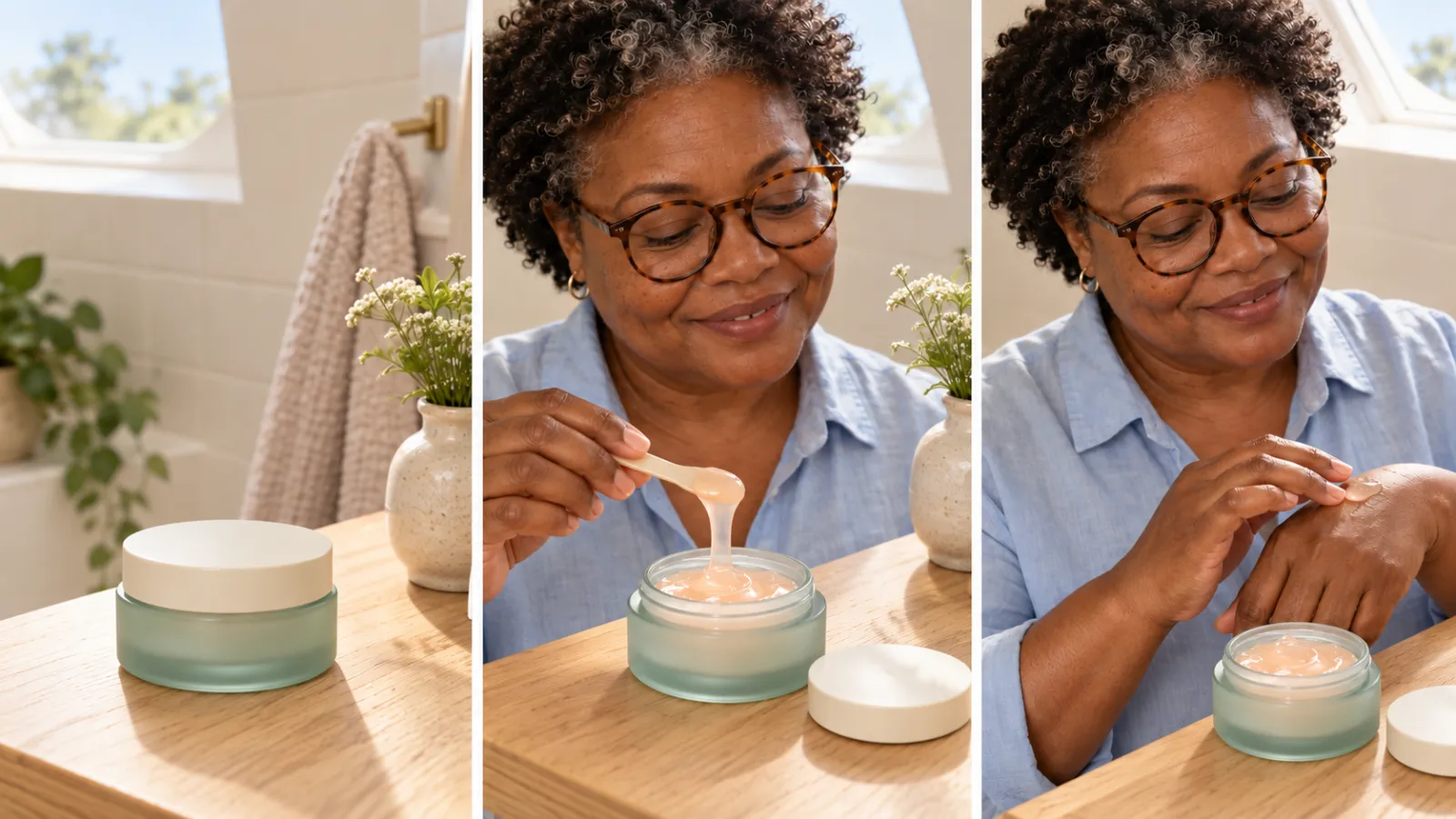
Shot plan: package identification, material detail, and use staging are designed separately so each can be checked.
Step 5: Add the message during finishing
Organize the accepted clips in the video editing workspace, checking the controls available for your finish. Introduce the product, show the relevant texture, then end with one clear next step. Use another editor for a required finishing task that is not available in the current workflow.
Add the product name and verified information as editable text. Check the final version at phone size with and without sound. The image should identify the item even when the narration is muted, and the words should not imply a result the pictures cannot support.
Estimate the whole production
Count reference preparation, attempts for each of the three shots, audio if needed, and assembly. An assumed two attempts per shot means six video generations before further corrections. It is an illustrative work plan, not a PixTV price or an expected success rate.
Check the displayed cost for the chosen settings. A texture action may need a different amount of review from a package hold, so keep the workload by shot rather than assigning every second the same production effort.
Before the ad leaves the edit
Compare the package across every cut. Check lid fit, gel color, texture behavior, hand contact, character continuity, and label accuracy. Read the copy against the actual product information. If the concept is beautiful but the jar or material has changed, return to that shot rather than approving the whole sequence.
Prepare the three references in PixTV first. A correct package, texture, and use view give the video a more reliable foundation than one complicated prompt.
Frequently asked questions
Can I start from a closed-jar photo?
Yes, for a package shot. Open contents, hidden lid surfaces, and texture need accurate additional material. Keep the first concept within what the photo establishes; a model's imagined contents do not establish the real product.
Should I show face application?
Only when the scene needs it and reliable use references exist. Hands and packaging may explain enough. Face application adds amount, placement, skin continuity, and actual directions to the interactions that need checking.
Why does the gel resemble water?
The reference or brief may not establish material behavior. Supply a truthful texture view and describe a small cohesive action. Reduce amount and motion if necessary; an attractive splash cannot substitute for the real material.
Can I show immediate skin improvement?
A generated change does not establish a benefit. Focus this creative on accurate appearance and supported information. Result claims need appropriate evidence and accurate conditions, rather than a synthetic skin change presented as proof.
How should I handle the label?
Use accurate packaging references, inspect existing text throughout movement, and add important copy as editable text. Verify spelling, ingredients, quantities, and offers against current product information. A readable generated label can still be factually wrong.
Can I make several ads from these shots?
Yes, if the same accurate footage fits each message. Keep approved package and texture states, then change one planned element. Review every complete combination; reusing footage saves work but does not remove the need for verification.