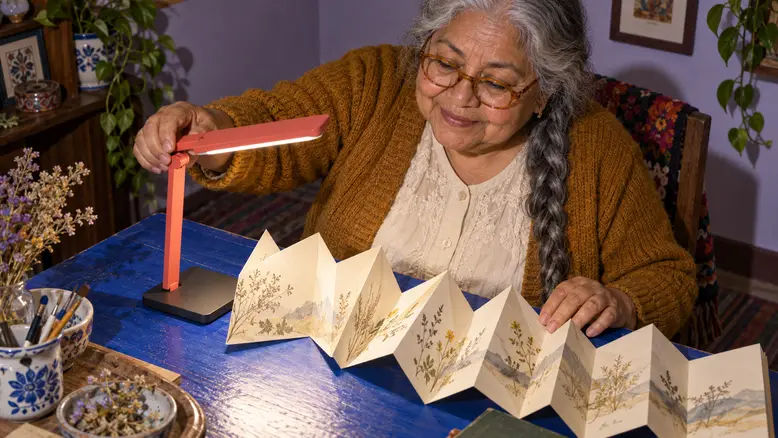
Make an AI UGC-style product ad by choosing one demonstration, preparing accurate product and creator references, writing a short spoken script, and generating the required shots separately. Assemble the accepted footage around the message. The useful starting point is a believable action someone can understand on a phone screen, with a product that keeps its identity throughout the edit.
What makes a product ad feel like creator content?
UGC-style describes a way of presenting an ad: a person, an everyday setting, direct language, and a visible reason to look at the product. It does not make an invented presenter a real customer. A fictional character can explain how an object is used without claiming a purchase, a personal history, or results nobody has established.
The example here is a proposed reading-light ad. Celia, an older creator with a silver braid and round amber glasses, adjusts a coral folding lamp over an accordion-folded botanical booklet. The scene gives the product a job. Her hand changes the head angle; the next shot shows where the light lands. That relationship carries the story more clearly than a stream of compliments.
Choose the ad format before writing the script
A format determines what the viewer needs to see. A demonstration needs a readable action. An explanation needs an object or situation to explain. An unboxing needs genuine packaging references if the packaging matters to the offer.
For Celia's lamp, use a small demonstration. A dramatic room makeover would require many more states to remain consistent, and it would make the effect of one lamp hard to judge. Keep the booklet, table, creator, and product in a limited area so the action is easy to follow.
| Format | Useful starting material | What the picture must establish |
|---|---|---|
| Demonstration | Product photo and usage reference | One understandable action |
| Routine | Product and a plausible setting | Where the item fits in the activity |
| Explanation | Product detail and a focused message | The feature being described |
| Unboxing | Accurate package and contents | What is actually included |
| Creator introduction | Consistent character and product | Who is presenting which item |
Avoid making an unsupported benefit the only reason the opening works. A line such as “The light goes here” can be paired with a visible adjustment. A line promising less eye strain needs evidence beyond an attractive generated scene. The script and the image both make claims, so approve them together.
How the workflow moves through PixTV
Start with image generation when the creator or scene needs preparing. Approve the lamp's silhouette and the creator's identity before using an image as the starting point for video generation. Choose the model according to the inputs and controls actually available in its current panel.
Keep generation and assembly as separate decisions. The video editing workspace is the next place to organize accepted clips; check its available editing controls before planning the finish. Use another editor for any required operation your chosen workflow does not provide.
A speaking face adds a separate dependency. Confirm that the selected workflow supports the audio and visible speech you need. If it does not, direct a silent product demonstration and place a recorded narration over it during editing. A person appearing on screen does not require a visibly speaking close-up.
Build one complete demonstration
Step 1: Lock the product references
Use a clean product photograph with the lamp head, stem, joints, and base visible. Add a real usage view if you have one. Do not ask an image generator to invent the hidden hinge and then treat that invention as the approved product design.
Write down the fixed features: coral body, flat rectangular head, dark rectangular base, and the joint arrangement in the reference. These are review points, not magic words that guarantee preservation. If the moving result changes them, reject that take before it reaches the edit.
Choose a reference in which the hand will have room to move. A lamp already pressed against the edge of a tight crop gives the model little usable space for the adjustment. Solve that framing problem while preparing the starting image.
Step 2: Approve a creator who belongs to this scene
Celia's appearance should stay recognizable: full round face, round amber glasses, long silver braid, ochre cardigan, and cream blouse. Save the approved portrait and the accepted medium scene together. For a repeatable character asset, follow the character reference guide.
Give her a simple performance. Looking from the booklet to the lamp and back is enough. Adding a broad smile, a head turn, a long sentence, a page flip, and a product adjustment to the same short shot creates several opportunities for the face or object to drift.
Step 3: Write a script that the footage can support
Draft the words aloud. Each sentence should correspond to something the viewer can see or understand without guessing. Keep product facts separate from a character's conversational delivery.
An original script direction for this scene is: “Working on the small details? Bring the light over the page. Adjust the head, settle into your reading spot, and take a closer look.” The message asks for a visible action. It does not claim a measured brightness, a battery runtime, or a health benefit.
| Beat | Suggested line | Required picture |
|---|---|---|
| Opening | Working on the small details? | Celia studying the folded booklet |
| Demonstration | Bring the light over the page | Her hand adjusting the lamp head |
| Payoff | Take a closer look | Light falling on the same booklet |
| Next action | Explore the lamp | Accurate product view and an added CTA |
Read the script against this table before generating. If a line needs a picture the plan does not contain, change the line or add the missing shot. Do not hope the editor will find a convincing substitute later.
Decide whether the viewer needs to recognize the hinge, the illuminated page, or the creator's reaction first. That choice determines the opening crop and the next cut. Keep the visual priority in the shot notes so a later revision does not quietly turn a useful demonstration into an unrelated portrait.
Step 4: Generate the smallest useful actions
Direct the adjustment as its own shot. If the selected model accepts a starting image, use the approved lamp-and-hand composition. An example motion brief is:
Close view of Celia's hand beside the coral lamp head. She tilts the head slightly toward the folded booklet, then holds still. The base stays planted. Keep the referenced joint arrangement and product silhouette. The camera remains fixed.
For the reading shot, remove the mechanical action. Ask for a quiet look toward the page and a short settled hold. This gives the editor a usable ending rather than another movement that needs resolving.
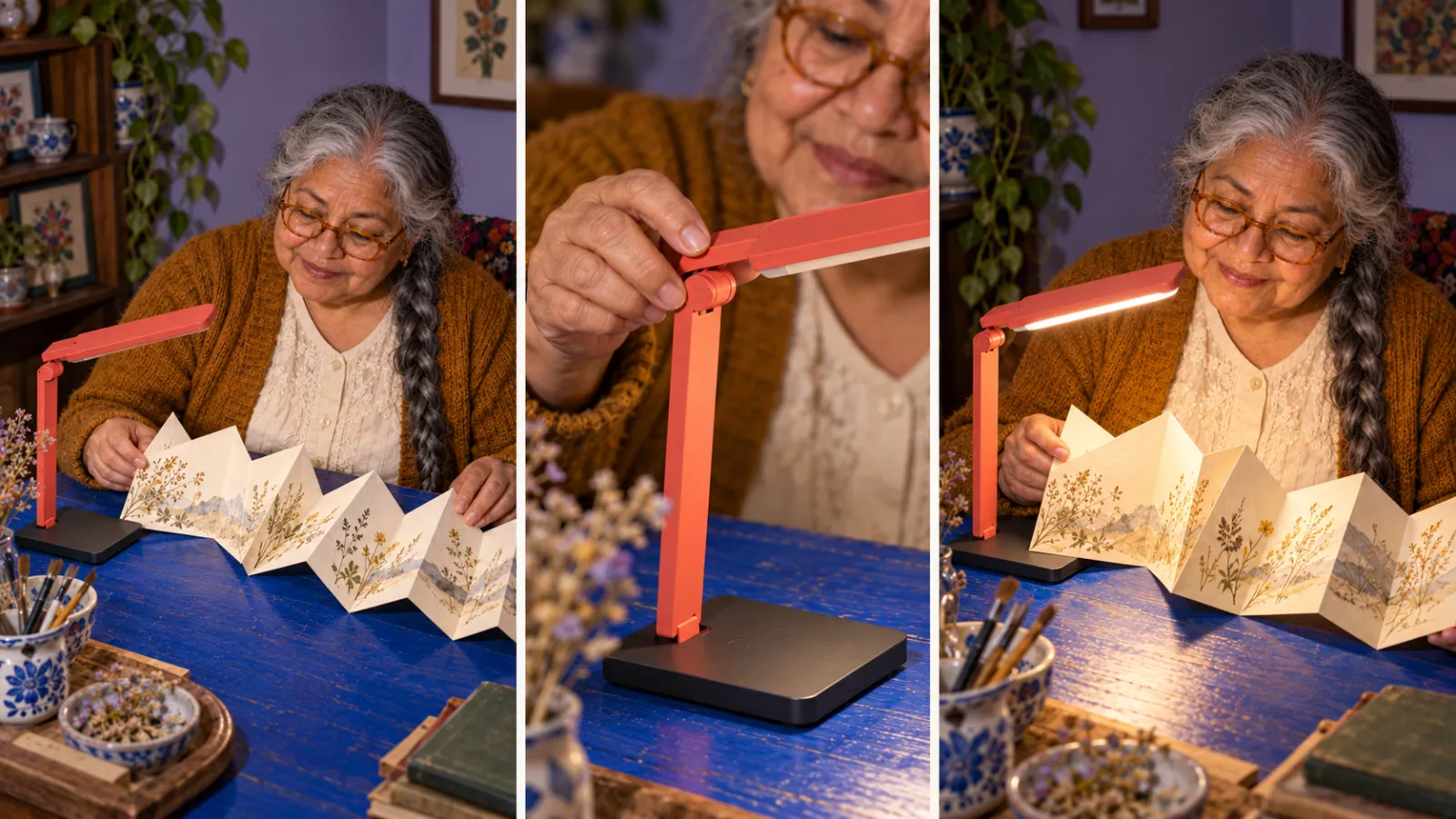
Shot-planning illustration: the opening, adjustment detail, and reading payoff each have a separate production job.
Step 5: Assemble around the narration
Place the narration or approved dialogue first, then fit the shots to the meaning of each line. Cut from the opening to the hand when the script introduces the adjustment. Keep enough of the movement to make the action legible; an attractive frame alone does not establish what happened.
Add captions, the product name, and the final instruction as editable text during finishing. Review their size on a phone-sized preview. Keep important words clear of the product, the hand movement, and the final placement's interface areas.
Listen to the whole edit once without watching. Then watch it without sound. The first pass exposes awkward or unsupported wording; the second shows whether the product action communicates anything by itself.
Expand only after one version holds together
Save the approved references, script, shot list, accepted takes, and edit as a small production package. A folder of unnamed generations is difficult to reuse because nobody knows which product state or wording each file belongs to.
For the next version, change one deliberate element: the opening question, the first shot, or the narration delivery. Keep the rest stable while comparing that choice. Reusing an approved clip can reduce production work, but each new version still needs a full review for product accuracy and message continuity.
What should stay fixed when you compare versions?
Separate an opening test from a creator test. If the face, setting, opening, price, and ending all change, a difference in response cannot be attributed to the first line alone. Production consistency is what makes the comparison interpretable.
| Comparing | Keep stable | Change deliberately |
|---|---|---|
| Opening question | Creator, product, middle, ending | Opening wording |
| First picture | Script, product, later footage | Opening shot |
| Creator presentation | Product, offer, script structure | Approved presenter and delivery |
| Edit rhythm | Message and footage | Shot duration and cut points |
Review the creator's face, glasses, braid, hand contact, lamp joints, and booklet across every version. A fresh generation may look close at first glance while changing the part the shopper needs to recognize. Treat those changes as production errors rather than creative variety.
Budget for accepted footage
Plan the number of accepted shots and the attempts needed to obtain them. As a hypothetical example, four shots at three attempts each means twelve video generations before any narration or finishing work. It is a workload estimate, not a PixTV price quote.
Use the cost shown for the selected model and settings when planning a real session. Add reference preparation, rejected takes, audio, editing time, and any required external tools. Approve a small sample before committing the rest of the production budget.
Start with one scene in PixTV: one product, one action, and a message the footage can honestly carry.
Frequently asked questions
Can I start with one product photograph?
Yes, for a limited concept, provided the important shape and details are visible. Hidden mechanisms, packaging contents, or unseen sides still need reliable references. Keep the first shot close to the supplied view, and review any generated details before treating the result as product advertising.
Does the creator have to speak on camera?
No. A silent demonstration with separately recorded narration can communicate the same message. Visible speaking requires a workflow that supports the necessary voice and facial timing. Choose that route only after confirming the current controls and reviewing the result; a generated portrait does not establish speech support.
Can a fictional creator describe a personal experience?
Do not invent purchases, long-term use, or customer results for a fictional presenter. Write a demonstrator's script around supported product facts and visible actions. If you use a real person's experience, keep its source and permission clear and preserve the conditions that make the account accurate.
How many versions should I make first?
Start with one complete, reviewed ad, then make a small comparison that changes one variable. Three alternative openings can be useful as a production exercise, but the right test size depends on your objective and distribution plan. No number of generated variants guarantees a winning ad.
What should I check before publishing?
Check the whole clip for product and creator consistency, supported wording, readable text, clear audio, correct destination, and fit for the intended placement. Review the current disclosure and advertising requirements for that placement. A polished picture does not establish product accuracy or make the message ready to run.