ByteDance's Seedream 5.5 is now live inside the PixTV image workspace. While plenty of models can produce an eye-catching first draft, commercial teams usually hit a wall on revision four or five—when fixing a sleeve or changing a tabletop quietly blurs the model's face, shifts brand colors, or scrambles bottle label text.
Seedream 5.5 is built specifically for that revision phase. On PixTV, it pairs pixel-locked multi-turn editing, native RGBA alpha transparency, layer decomposition, and sharp multilingual typography with straightforward per-image pricing: 3 credits at 1K and 5 credits at 1.5K or 2K (up to its 2K ceiling). Below is how to run it efficiently on the PixTV canvas—and how to hand your finished 2K frames straight into Seedance 2.5 or Kling 4.0 for motion.
Quick Specs & Credit Math on PixTV
Before running a batch of client variations, here is what Seedream 5.5 supports inside PixTV today and where each tier makes financial sense:
Setting / Capability | PixTV Specification | When to Choose It |
|---|---|---|
Resolution Tiers |
| Covers social ads, e-commerce catalogs, storyboards, and |
| 3 credits / image | Fast composition checks, prompt testing, and early sequential edits |
| 5 credits / image | Mid-resolution layout checks |
| 5 credits / image | Recommended final export — costs the exact same 5 credits as |
Aspect Ratios |
| Native framing without post-crop composition loss |
Reference Inputs | Up to 10+ reference images | Locking product shape, brand palette, or character wardrobe |
Alpha & Layer Support | Native RGBA transparency + layer decomposition | Clean cutouts for glass, hair, smoke, and editable poster composites |
Real-world credit tip: Do not run exploratory drafts at 2K. If a campaign shot takes 10 iterative rounds to nail lighting and copy placement plus 2 final exports, running the 10 drafts at 1K (30 credits) and only exporting the 2 approved masters at 2K (10 credits) costs 40 credits total—saving a third of your budget compared to running all 12 generations at 5 credits. And because 2K and 1.5K share the exact same 5-credit price on PixTV, skip 1.5K for final delivery and go straight to 2K.
Getting Started in the PixTV Image Workspace
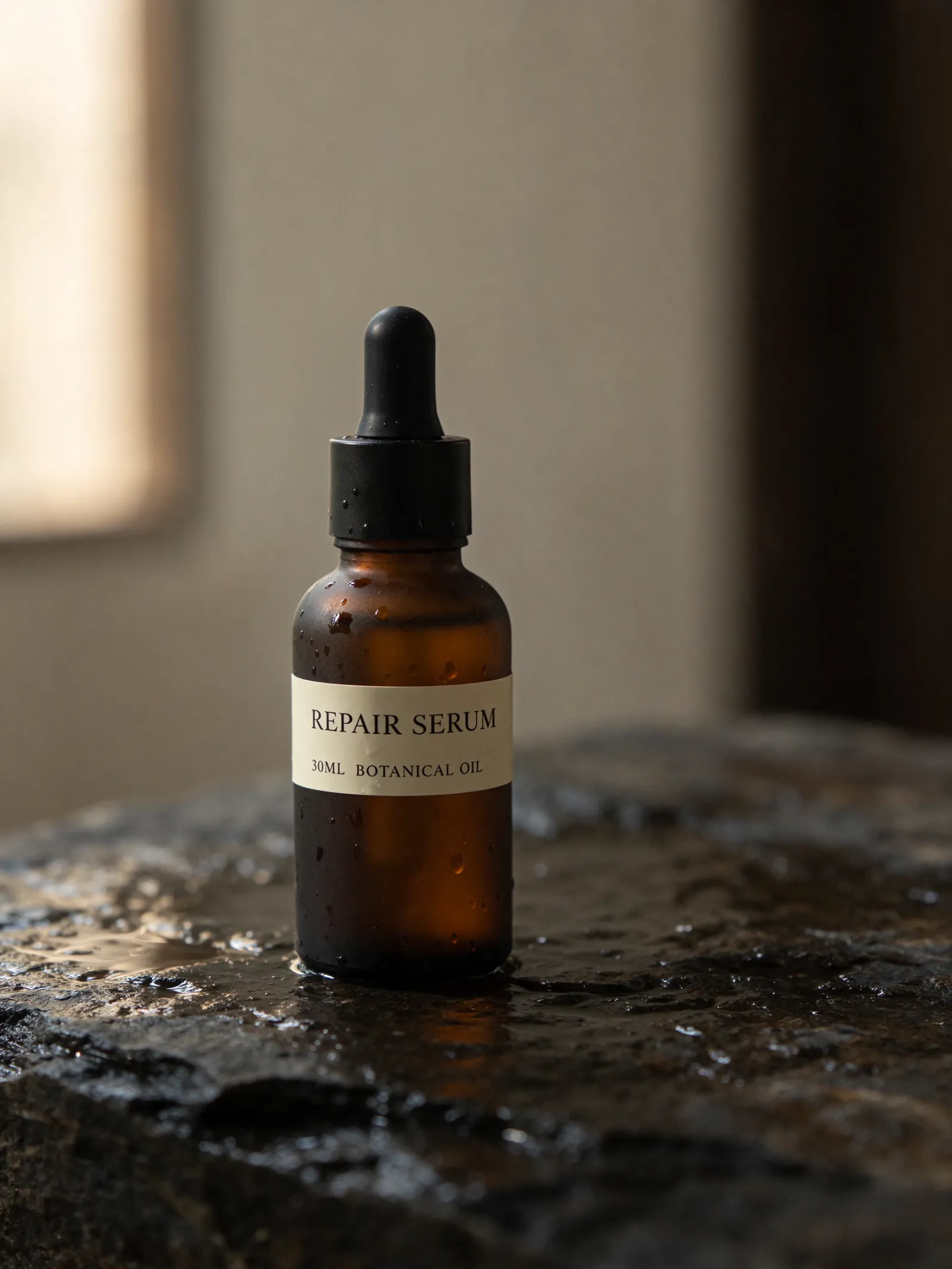
To launch a session, open the PixTV image canvas and select Seedream 5.5 from the model picker. Instead of cramming an entire creative brief into one giant paragraph, break production into three clean stages:
1. Lock the base composition and typography at 1K (3 credits)
Start with a single clear subject, lighting direction, and explicit negative space if your visual needs text. Seedream 5.5 handles English, Chinese, and bilingual headlines reliably when you enclose exact wording in quotation marks and specify font weight and placement.
Commercial studio photograph of an amber frosted-glass dropper bottle standing on dark wet slate. Minimalist cream front label with sharp black serif text reading "REPAIR SERUM" and smaller subtext "30ML BOTANICAL OIL". Soft morning window light from the left, crisp water droplets on the glass, generous negative space on the upper third, realistic studio photography.
2. Revise one variable per turn to prevent image drift
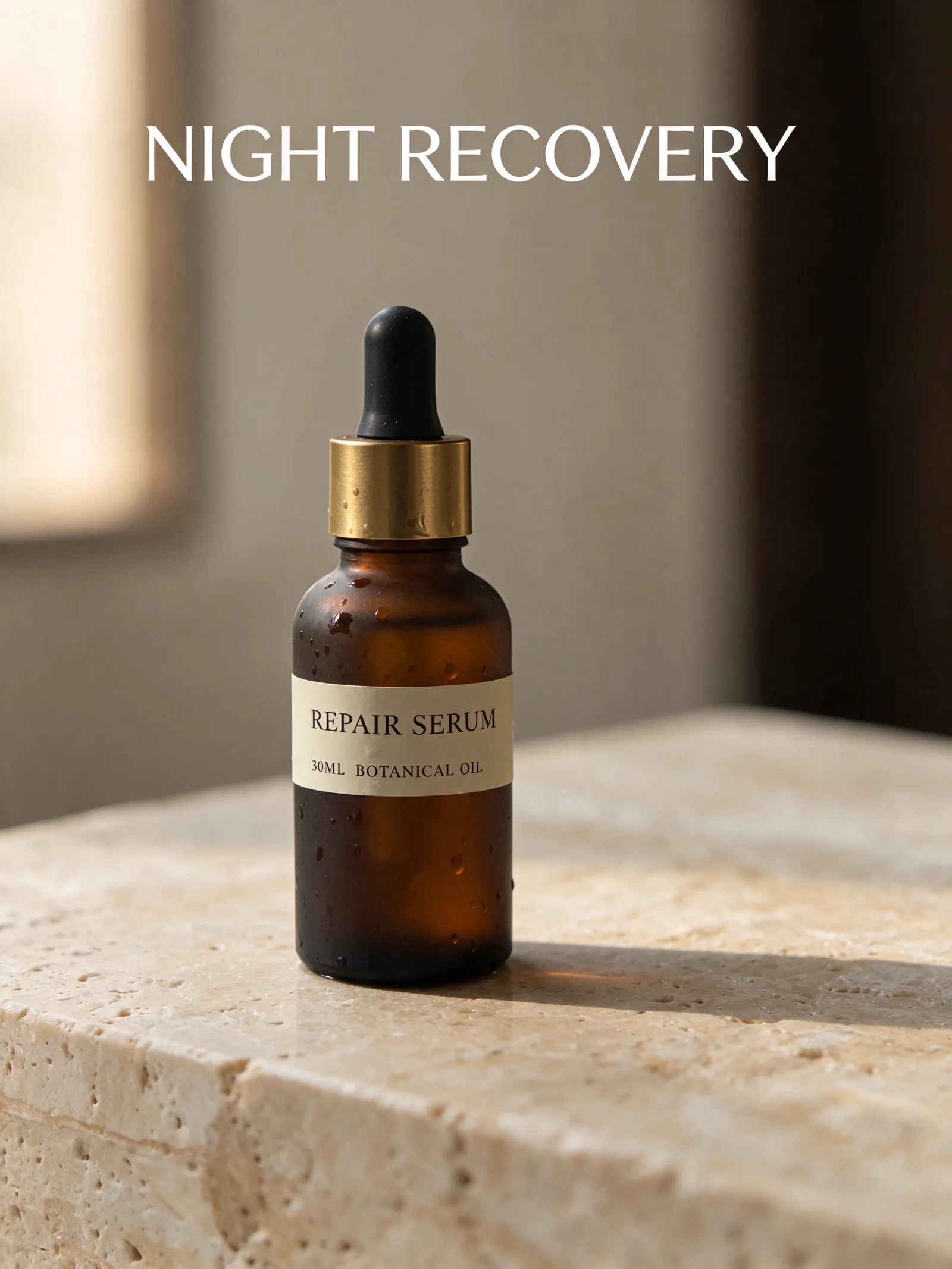
Once the bottle shape and label text read cleanly, use sequential editing instructions rather than rewriting the whole prompt from scratch. Because Seedream 5.5 locks untouched pixels across dozens of turns, targeted edits keep your approved bottle intact:
Turn 2 (
1K, 3 credits): "Keep the bottle and label identical. Replace the dark slate surface with warm travertine stone and add a subtle rim highlight on the brass dropper collar."Turn 3 (
1K, 3 credits): "Keep the bottle, label, and travertine surface unchanged. Add clean white sans-serif headline text in the upper negative space reading 'NIGHT RECOVERY' aligned left."Turn 4 (
2K, 5 credits): Export the approved layout at full2Kresolution.
Where multi-turn edits still fail (and how to fix it)
In our canvas tests, the most common mistake is asking Seedream 5.5 to change camera perspective and rewrite small packaging text in the same turn—for example, rotating a front-facing bottle 45 degrees while simultaneously changing the ingredient line. Doing both at once forces the model to unlock the object geometry, which can soften fine serif letters. Always rotate or restage the angle first, confirm the silhouette, and update label copy in a separate turn.
Generating Native RGBA Assets and Editable Layers
If you build e-commerce banners, game UI icons, or YouTube thumbnails, cutting out translucent objects is notoriously painful. Traditional background-removal tools leave white halos around frosted glass, beverage condensation, veil fabric, or smoke.
Seedream 5.5 generates native RGBA alpha channels—preserving both opaque foregrounds and partial transparency—and supports layer decomposition so background plates and foreground props stay separable.
A chilled ribbed glass tumbler filled with sparkling yuzu soda, ice cubes, and a fresh rosemary sprig, subtle condensation and a small splash at the rim, isolated on a native transparent RGBA background, clean semi-transparent glass refraction, crisp studio rim lighting.

If your team already uses our GPT Image 2.6 transparent background workflow, here is the practical distinction: reach for Seedream 5.5 when your cutout includes refractive glass, liquid splashes, or multi-layer poster elements that need repeated layout tweaks; reach for GPT Image 2.6 or Nano Banana Pro when your final deliverable demands a native 4K print canvas.
Handing 2K Frames Straight Into Seedance 2.5 and Kling 4.0
The biggest advantage of running Seedream 5.5 inside PixTV rather than a standalone image tool is what happens next on the canvas.
Most product morphing in AI video—warped logos, shifting hinge hardware, or changing facial structure—starts because the video generator was fed a low-contrast photo or forced to invent unseen angles on the fly. By preparing a clean 2K starting frame (and, for complex shots, a matching end frame) in Seedream 5.5 first, you hand the video model an unambiguous blueprint:
Generate your
2K(16:9or9:16, 5 credits) hero frame in Seedream 5.5 and verify that logos, hands, and edges are sharp.Connect that frame directly to a PixTV video generation node running Seedance 2.5 (ideal for energetic motion and character rhythm) or Kling 4.0 (ideal for controlled, longer camera moves).
Keep the video prompt focused purely on camera motion and physics rather than re-describing every static detail—see our single-photo product video guide and camera movement prompt guide for ready-to-use motion phrasing.
Frequently Asked Questions
How many credits does Seedream 5.5 cost per image on PixTV?
Seedream 5.5 costs 3 credits for a 1K image and 5 credits for either a 1.5K or 2K image. Because 2K and 1.5K cost the exact same 5 credits, we recommend running early composition and editing turns at 1K (3 credits) and exporting your final master at 2K (5 credits).
Does Seedream 5.5 support 4K resolution on PixTV?
No—Seedream 5.5 maxes out at 2K resolution on PixTV. For social video keyframes, web catalogs, and digital ads, 2K provides crisp detail at a low 5-credit cost. When a project requires native 4K output, you can switch to Nano Banana Pro or GPT Image 2.6 right inside the same PixTV canvas.
How many editing rounds can Seedream 5.5 handle before quality drops?
Seedream 5.5 is engineered for long-chain sequential editing—capable of holding unedited pixels steady across dozens of turns (up to 100 rounds in controlled workflows) as long as each prompt targets one specific adjustment at a time rather than resetting camera angle and lighting simultaneously.
Can Seedream 5.5 write both English and Chinese text in the same image?
Yes. Enclose the exact text strings in quotation marks, keep total word count concise, and specify hierarchy (for example, bold Chinese main headline at the top and smaller English subtext beneath). For dense multi-line copy, place the main headline in Turn 1 and add secondary badges in Turn 2.