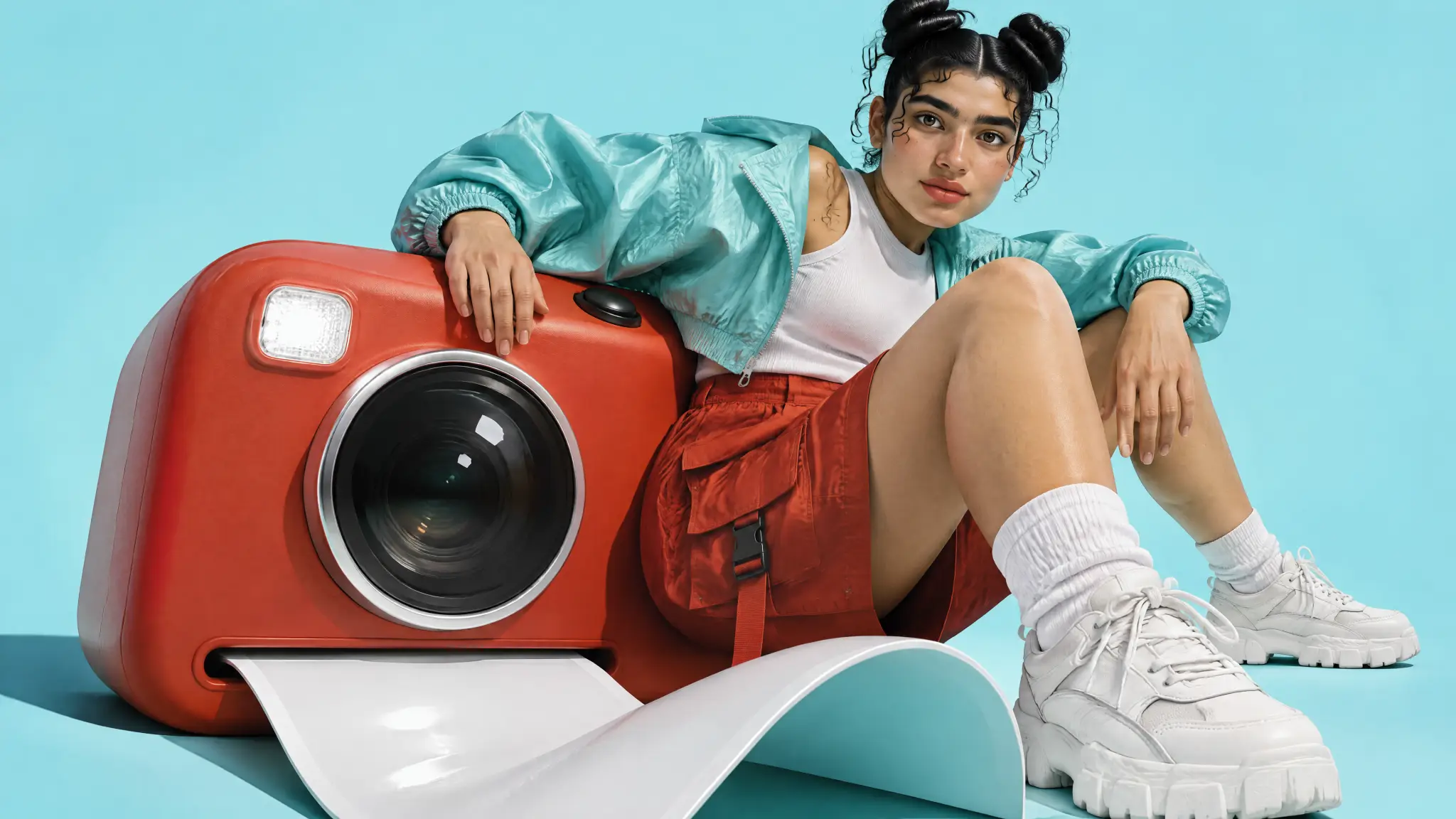
GPT Image 2.6 is now available on PixTV for generating images from a brief and editing existing visuals with references. Choose Sunburst or Flare, set the image format and resolution, and build a still you can use as an ad concept or video starting frame. This guide covers the available controls, a product-image workflow, and what to check before adding motion.
What Is GPT Image 2.6 on PixTV?
GPT Image 2.6 creates and edits still images. In PixTV, it gives a video project a place to start: a product composition, a character scene, or an image for an opening shot. A prompt defines the picture; a reference supplies visual information that a description alone may leave ambiguous.
Sunburst is positioned for detailed visual work, while Flare is positioned for interactive iteration. Both support text and image inputs. Choose by the task, then review the output; those positions do not guarantee that one version wins on every image.
Inputs and Settings
| Control | Available choices | Use it for |
|---|---|---|
| Model | Sunburst or Flare | Select a version before comparing outputs. |
| Input | Text to image or image to image | Create a scene or work from a reference. |
| Resolution | 1K, 2K, or 4K | Match the intended delivery size. |
| Aspect ratio | Square, landscape, portrait, and ultrawide options | Compose for the final placement. |
| References | Up to 10 images, each up to 10 MB | Supply only references with a clear purpose. |
| Quantity | 1 to 4 images | Review a small set before expanding. |
A reference is guidance, not a guarantee of unchanged geometry. For a real product, use an approved product photograph and inspect the output against it.
How to Create and Edit Your First Image
Step 1 Open the image workspace
Open the PixTV image generator and choose GPT Image 2.6. Start with one version so changes to the scene are easier to evaluate.
Step 2 Set the delivery format
Choose 16:9 for this landscape example and 4K for the final still. A vertical placement needs its own composition; cropping a finished landscape may remove the product or leave no room for captions.
Step 3 Describe one clear subject
Our example uses a fictional vermilion instant camera. Define its lens, flash, shutter button, and print slot before describing the backdrop. For an existing SKU, upload the real reference instead of inventing its structure.
A photographic reference of an unbranded vermilion instant camera. Rounded rectangular body, one circular black lens with a silver outer ring, one white square flash at upper-left, one black top shutter button, and a narrow print slot below the lens. Front three-quarter view on a white tabletop, pale ice-cyan wall, soft directional light, natural contact shadow. No lettering, extra controls, people, or props.
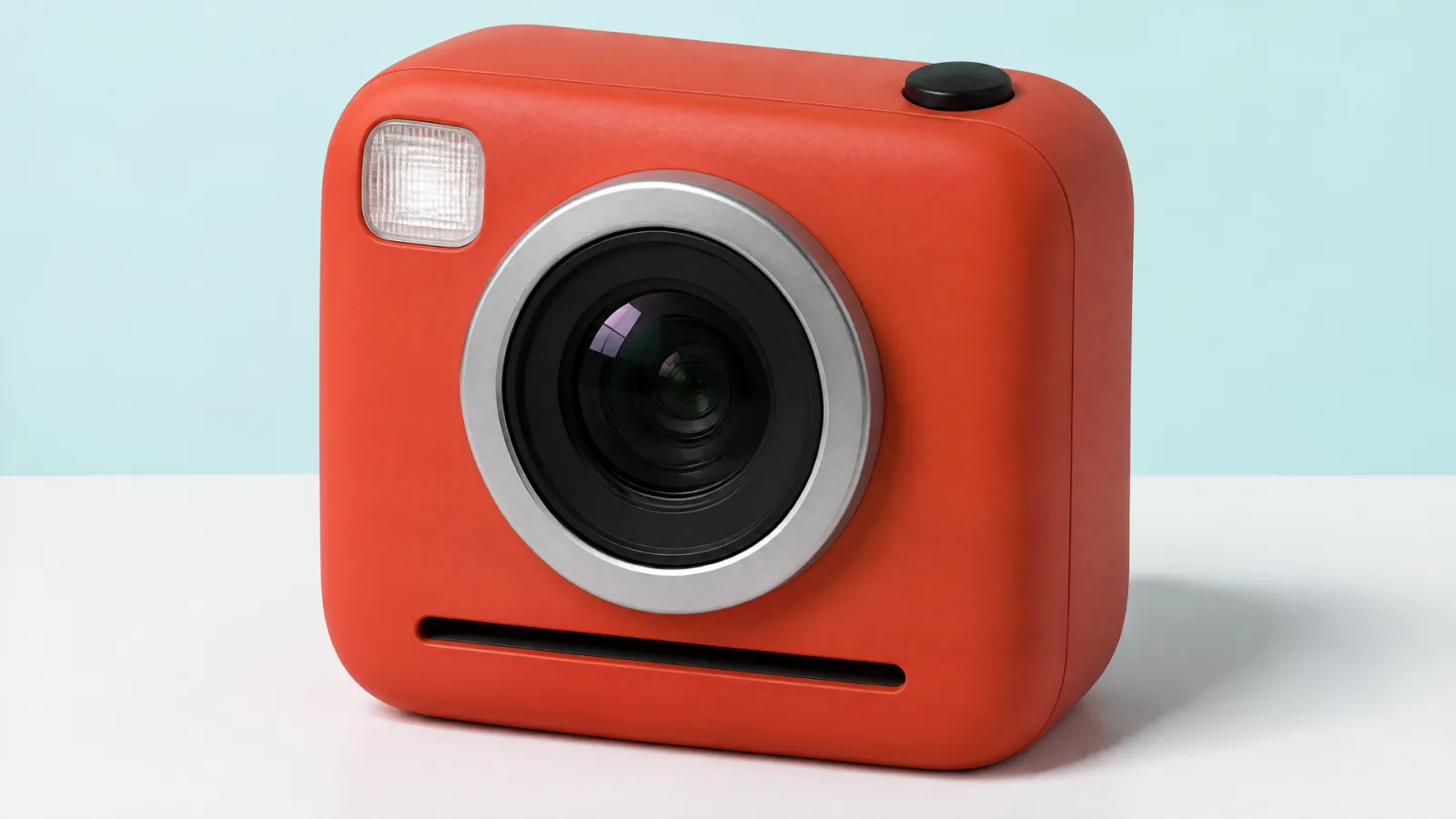
Reference still: inspect the product structure before changing the scene.
Step 4 Use the reference for a controlled edit
Keep the approved image as the reference. Describe the new setting separately from the features that must remain recognizable. Changing one scene relationship at a time makes a failed edit easier to diagnose.
Keep the reference camera, its proportions, lens, silver ring, flash, shutter button, print slot, and viewpoint. Place it on a thick frosted-glass slab above shallow ice-cyan water. White side light, soft fill, one refracted light band in the background. Keep the camera dry and supported. No new controls, lettering, people, or splashes.
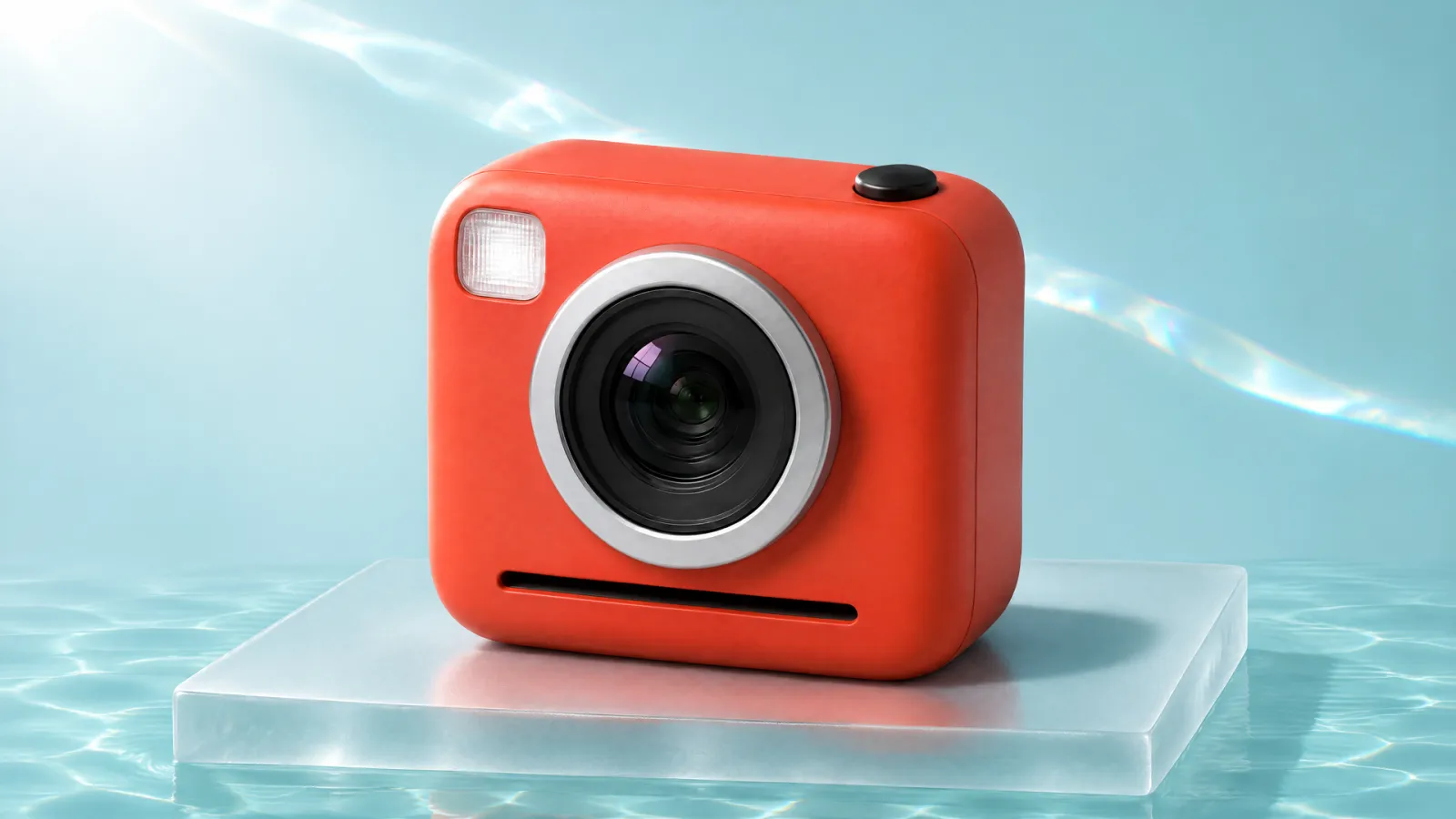
Scene edit: compare the lens ring, flash, shutter button, and slot against the reference.
Step 5 Review the image at two sizes
Check the composition as a thumbnail, then inspect the full-size file. Count the controls, compare the silhouette, and look for broken edges. If only the setting is wrong, revise that instruction while retaining the same product reference.
Step 6 Prepare the next shot
Take the accepted still to the PixTV video generator and choose a model that supports image input. Begin with one restrained action, such as a small push-in. Leave product redesign out of the motion brief. Check the resulting clip separately for shape changes and flicker.
Plan the Cost Before Expanding
Use the cost shown for the selected generation in your account. Model, resolution, quantity, and further edits can affect the work required. A useful production estimate counts the initial images, rejected attempts, scene edits, and video generations separately. Approve one composition before ordering more variants; an attractive thumbnail alone is not an accepted final asset.
Where the Workflow Fits
Product ads need a recognizable object and room for a message. Short dramas need a character, location, and readable starting pose. Anime projects need references that make the intended drawing language clear. In each case, approve the still before spending time on motion.
Before Using the Image in a Video
Check the actual pixel dimensions, product details, hands, contact shadows, and space for the intended crop. Leave final prices, claims, and small typography for the video editing workspace, where they can be reviewed independently. An image that looks convincing in isolation may still be a difficult motion input if it contains reflections, occlusions, or ambiguous edges.
Create your first GPT Image 2.6 image on PixTV. Start with one reference, one scene change, and a clear acceptance check.
Frequently Asked Questions
What can GPT Image 2.6 create on PixTV?
It generates still images from text and edits images using references. Use it for product compositions, character scenes, ad concepts, and starting frames for a separate video-generation step.
Should I choose Sunburst or Flare?
Sunburst is positioned for detailed compositions and editing. Flare is positioned for interactive generation and editing. Try the version suited to your task, then judge the actual output against your brief.
Can I upload a product photo?
Yes. Image-to-image supports reference uploads. Start with a clear product view, describe the requested change, and compare the generated object with the original before using it in a campaign.
Does 4K guarantee a sharper or more accurate image?
No. Resolution sets a delivery option; it does not certify correct text, geometry, or identity. Read the downloaded dimensions and inspect the image at full size.
Does GPT Image 2.6 generate a finished video?
This workflow produces still images. Use an image-capable video model for motion, then review movement, continuity, sound, and the final edit as separate production tasks.
How much does a generation cost?
Check the amount displayed for your selected settings and account before generating. Include retries and reference edits when planning a project, rather than budgeting only for the first attempt.