

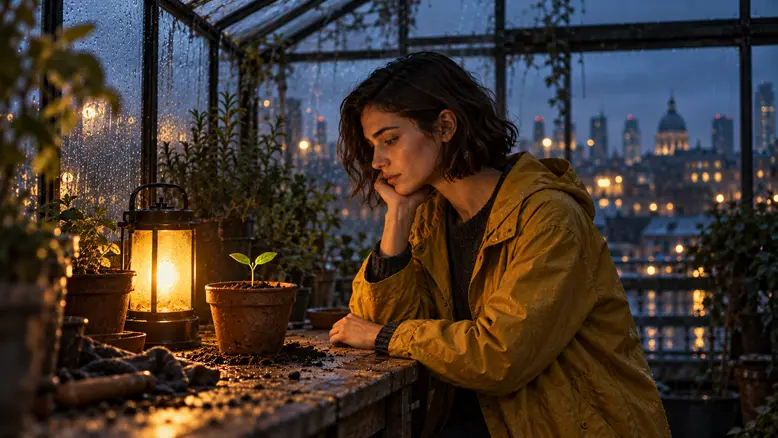
Making an AI short film starts with a script, character references, and a shot list. Build a storyboard, generate the individual shots, then add sound and assemble the final cut. PixTV brings text, image, video, and audio generation into one canvas for this workflow. The main challenge is continuity: making the same character, location, and props remain recognizable as the camera angle and action change.
What Is an AI Short Film, and What Can You Make?
An AI short film uses generated images, video, or sound to tell a complete story. A sequence of attractive clips becomes a film when the shots establish a situation, show a choice, and make its consequence visible. Decide what changes for the character before choosing a visual style.
Start with a format whose continuity you can inspect. A quiet scene with one character gives you fewer moving parts than a crowded action sequence. Different styles need different references:
Style | Prepare | Keep consistent |
|---|---|---|
Live action | Face and location references | Wardrobe, light, props |
Anime or comic | Character sheet and style frames | Hair, linework, palette |
Product story | Product and packaging images | Shape, label, scale |
What You Need Before You Start
Prepare a short script, a target runtime and aspect ratio, approved character and location references, and a list of recurring props. Decide whether dialogue is essential. For a first project, one character, one location, and one visible action give you a sequence you can finish, review, and revise without rebuilding a larger production.
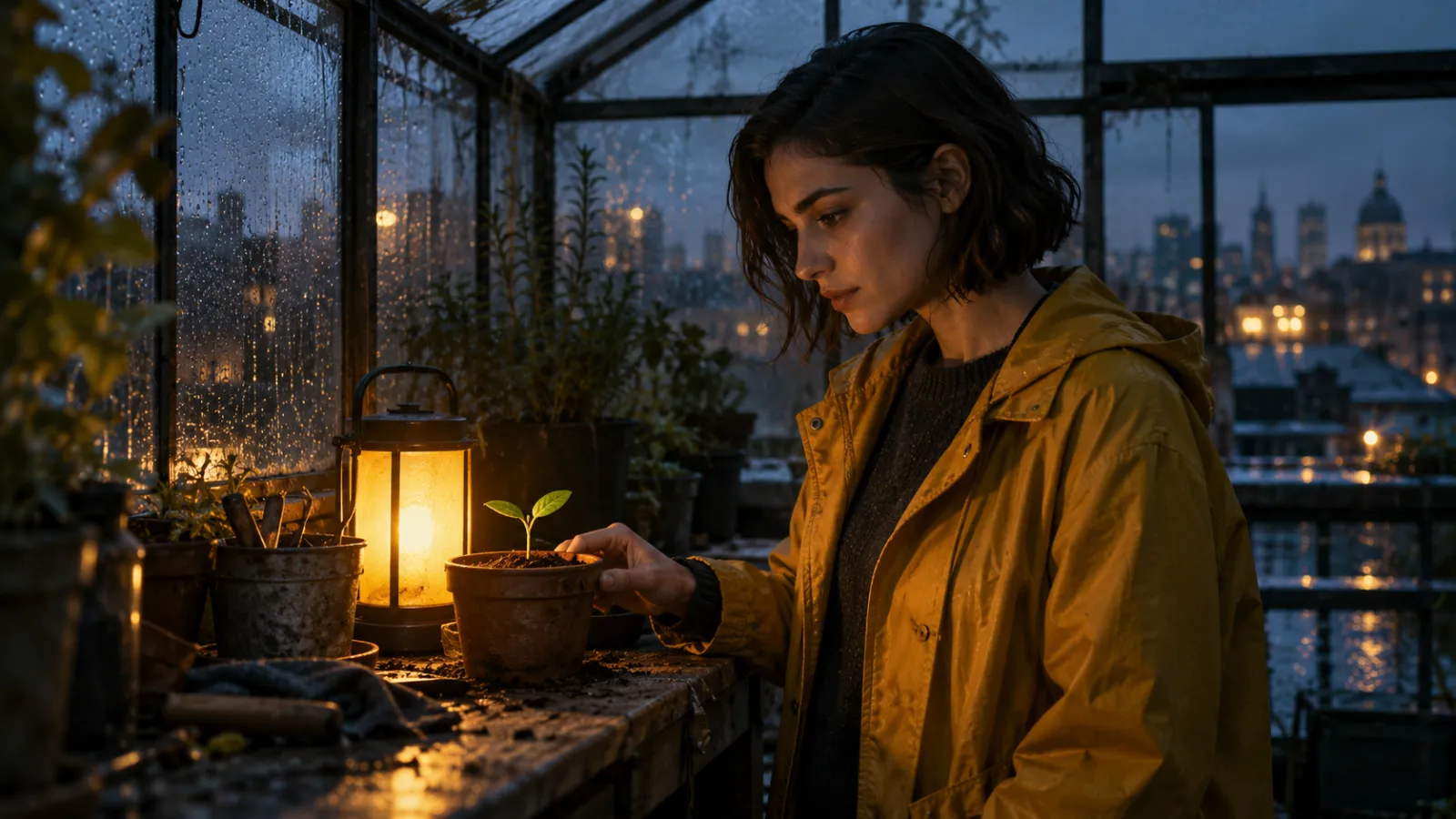
For The Last Light, the brief specifies a rooftop greenhouse after rain, one adult character, one black camping lantern, and a terracotta pot. The plant has two leaves throughout. Keep these details beside the script so an attractive variation does not quietly become a different scene.
How Do You Keep Characters and Shots Consistent?
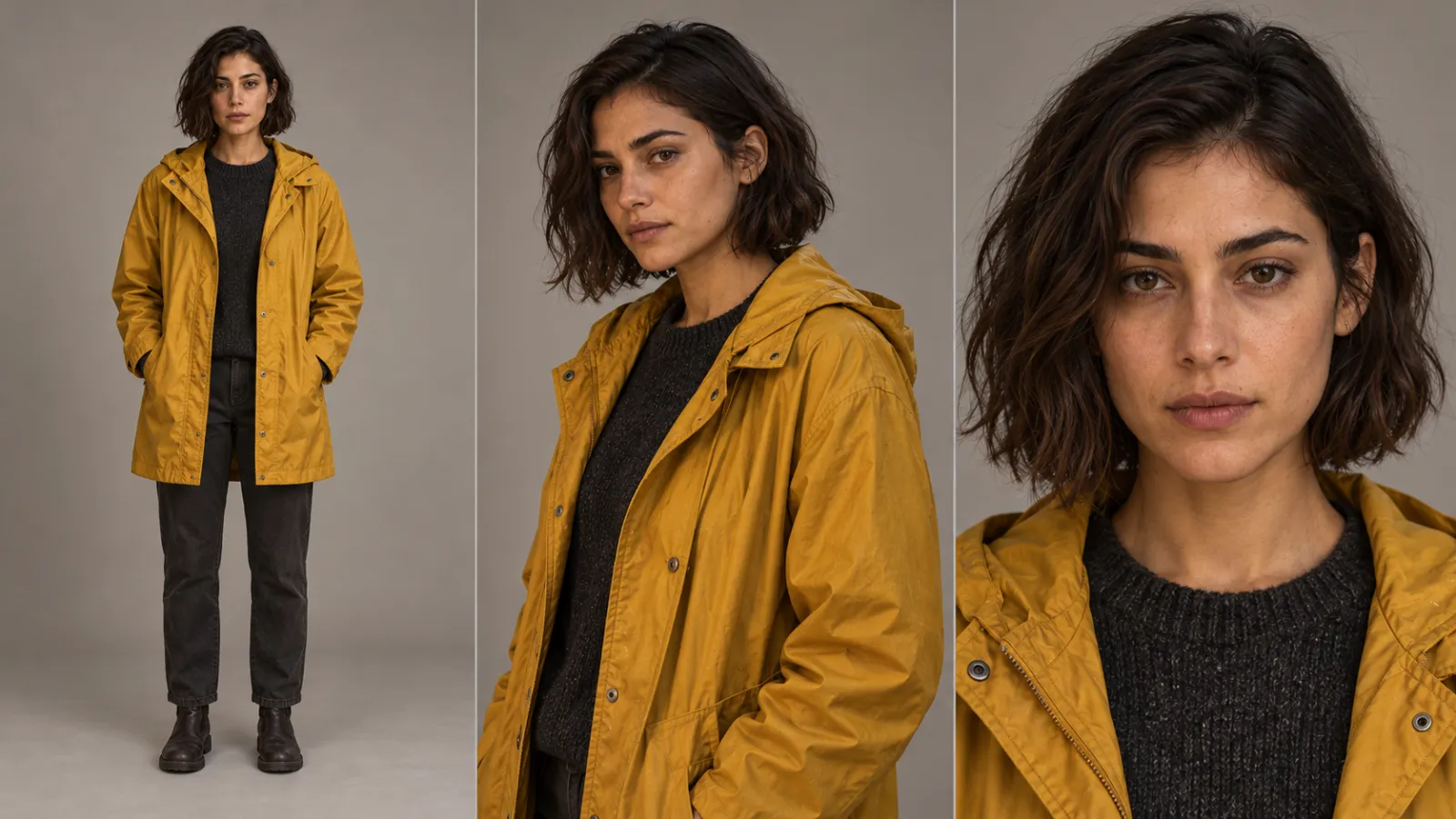
Approve the character before generating motion. Use clear references that show the face, hair, clothing, and proportions. Keep this master set throughout production; comparing a new shot only with the previous generation can let small changes accumulate.
Lock the location, palette, and prop positions too. Write down what must stay fixed and what changes during the scene. A lantern that turns on halfway through the story should remain off in earlier shots. Check each transition against these rules before generating the next batch.
Use a clean individual reference when a shot needs one face; a multi-panel character sheet is useful for review but may not be the best model input. Keep screen direction readable across cuts. If Mara approaches the pot from the left, a reverse angle must still make the greenhouse layout understandable.
How to Make Your Short Film with PixTV
PixTV combines generation tools in an infinite-canvas workspace. Keep the script, references, storyboard frames, and shot variations together so the same production decisions carry through each stage.
Use image generation to build your reference set and starting frames. AI Storyboard helps plan the sequence before you spend on motion. Inpainting can support image corrections; approve the corrected frame before using it as a video input.
Choose a video model for the inputs and shot duration your scene needs. Model support varies, so confirm reference-image and output options before committing the whole sequence. Audio generation and editing then help turn selected shots into a continuous scene.
Stage | Production role |
|---|---|
Images | Character, location, and starting frames |
Storyboard | Shot order, framing, and continuity |
Video | Action within each approved shot |
Audio and editing | Ambience, timing, and final assembly |
Move approved assets forward, not every discarded version. Keep a clear shot number on each starting frame and its video variations. This makes it easier to replace one take without accidentally changing the reference used for another shot.
Step-by-Step Guide
Step 1: Write a story with a visible change
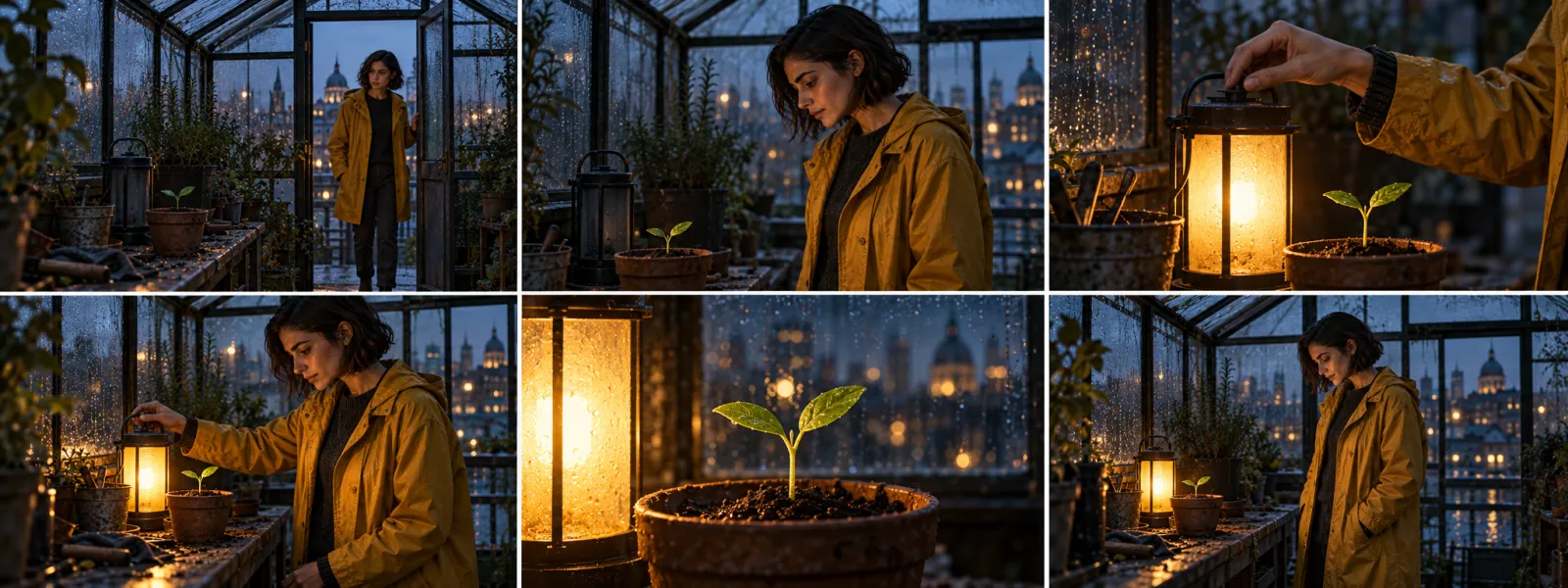
Our fictional example, The Last Light, is a 45-second film without dialogue. Mara enters a rain-darkened greenhouse, notices a seedling, lights a lantern, and places it beside the pot. She stays. The plant does not transform; the story changes because Mara chooses to care for it.
Step 2: Fix the look and approve references
Choose a photoreal look, a 16:9 frame, and cool evening light with warm lantern light after the switch. Create character references showing Mara’s dark bob, mustard raincoat, and charcoal sweater. Approve the greenhouse, black lantern, and two-leaf seedling as separate assets.
Step 3: Build and check the storyboard
Give each shot one job. Keep the bench and pot in the same places, with the lantern ending to the pot’s left. Play the still frames in order. If the choice is unclear without narration, revise the sequence before animating it.
Shot | Edit length | Action |
|---|---|---|
1 | 6 sec | Mara enters the greenhouse |
2 | 7 sec | She notices the seedling; lantern off |
3 | 8 sec | Her hand switches the lantern on |
4 | 8 sec | She places it to the pot’s left |
5 | 8 sec | Close-up holds on the lit seedling |
6 | 8 sec | Wide view shows her staying |
The edit lengths total 45 seconds; they are not a promise that every model offers those exact durations. Choose an available generation length that covers the action and leaves a little settling time. Trim the excess after you have checked whether the physical movement reads clearly.
Step 4: Approve a starting frame for each shot
The starting frame should leave room for the action. In shot four, Mara still holds the lit lantern above the bench. Check the hand, handle, face, and pot before animating. With the relevant approved references attached where supported, try:
Photoreal medium shot, 16:9. Mara, matching the supplied character reference, holds the lit black lantern above the wooden bench, left of the terracotta pot. Match the greenhouse reference. Same two-leaf seedling, mustard raincoat, charcoal sweater, dark bob. Cool rainy evening, warm lantern light. Hand and handle clearly separated from the pot. No added objects or text.Step 5: Generate one physical action at a time
Open video generation and choose a model that accepts your intended input. Generate enough duration for the beat, then trim to the planned edit length. Test the lantern placement first: contact and release are harder to fix than a static close-up.
Animate the starting frame as one continuous shot. Mara lowers the lantern until its base touches the bench, left of the pot. She releases the handle and withdraws her hand. The lantern stays still and lit. Locked camera. Preserve the character, seedling, props, and lighting. No cuts, plant growth, or new objects.Step 6: Review and repair before expanding
Watch the complete action. If the hand merges into the handle or the lantern floats, simplify the framing or movement and test again. Change one input at a time. Carry the approved references into the remaining shots, checking each result against the master set.
Compare the last frame of one shot with the next starting frame. Check object count, hand position, and light direction. A beautiful isolated clip can still create an impossible transition in the cut.
Step 7: Add sound across the sequence
Build a continuous rain bed with audio generation, then add a switch click and a soft lantern contact sound. Replace generated clip audio that changes ambience between cuts. Add music after the picture timing works; this story needs no dialogue or lip sync.
Step 8: Assemble and export the final film
Use video editing to select and trim the clips, or export them to your usual editor for additional controls. Check that the lantern turns on once, stays lit, and ends in the same place. Review faces, hands, reflections, audio cuts, and the final aspect ratio before export.
How Much Does an AI Short Film Cost?
Estimate attempts rather than runtime alone. Six accepted shots at an assumed average of three attempts require 18 video generations. This is a planning example, not a measured success rate. Apply each shot’s current displayed price, then add references, repairs, sound, and editing.
Item | Budget basis |
|---|---|
References | Approved assets plus discarded attempts |
Video | Attempts × displayed price for each setting |
Finishing | Repairs, audio, and editing time |
Record the model, duration, resolution, and audio options with the price. A cheaper attempt can cost more per usable shot when it needs extra retries. Check the current PixTV price before committing to the full sequence.
Test the hardest shot before producing all six. Record how many attempts were rejected and why. That gives the next budget a useful basis, rather than assuming every generation becomes part of the final film.
Create your first short film with PixTV
Questions About Making an AI Short Film
Can you make a complete short film with AI?
AI can support the script, references, shots, and sound. A complete film still needs selection, continuity checks, and editing. Treat generation as one stage of production, with a clear plan for assembling the accepted material.
How do you keep the same character across shots?
Approve a master reference set and reuse the relevant images where the model supports them. Keep wardrobe and hair descriptions stable. Review the face during movement as well as in the starting frame; a consistent still does not guarantee a consistent clip.
Should you generate one long scene or separate shots?
Separate shots let you replace a weak moment without regenerating the entire sequence. Use a longer generation when the model supports the connected action and the result remains easy to edit. Test the difficult transition before choosing.
How much should you budget for a first film?
Start with the shot count and expected attempts, then use current prices for your chosen settings. Include images, rejected takes, repairs, and sound. Replace the initial assumptions with actual costs from your first difficult test shot.
How long does an AI short film take?
Allow time for planning, rejected takes, sound, and editing as well as generation. The first difficult shot gives a better scheduling estimate than the length of the finished film.
Can you use the result commercially?
Check current platform and model terms, and clear the rights to source images, music, voices, and real people’s likenesses. Keep those permissions with the project.
Visuals are original OpenAI-generated concept illustrations, not PixTV screenshots or generated video results. The Last Light is a fictional planning example; the complete workflow has not been production-tested.
