

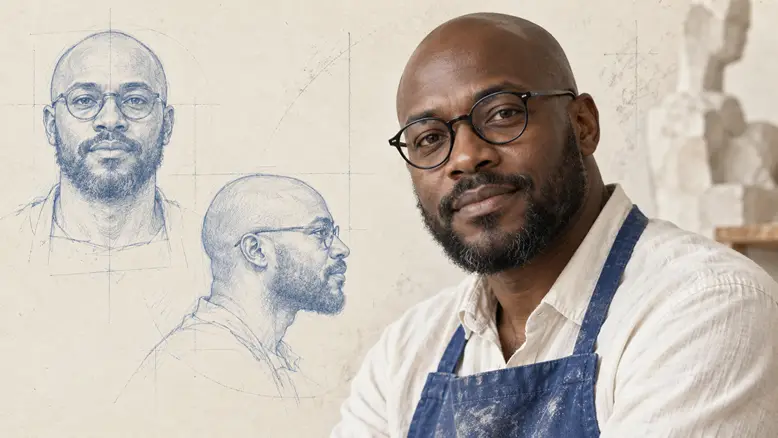
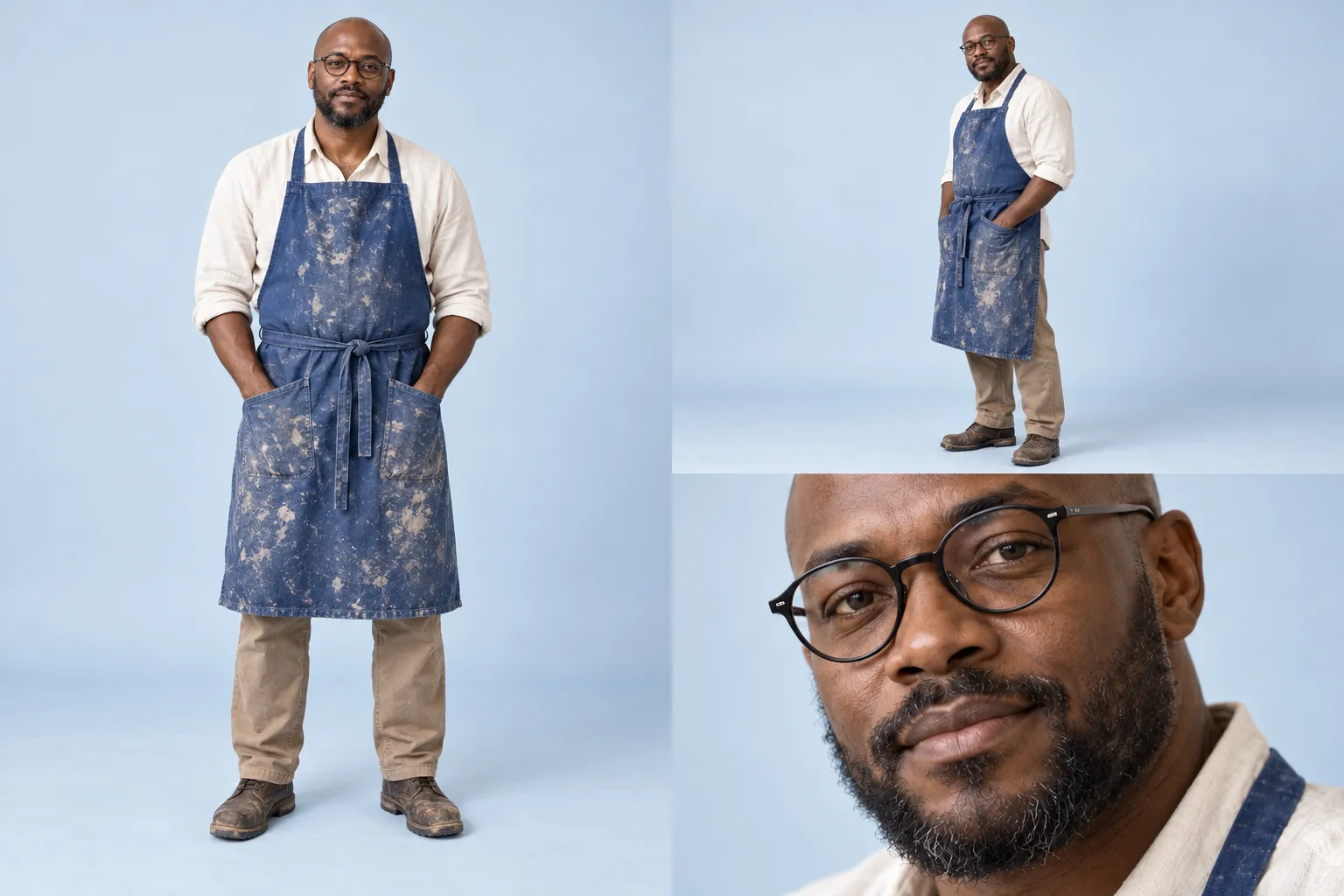
An AI character reference sheet should establish the same person across useful views before you generate a sequence. Prepare a clear front view, a three-quarter view, a readable face detail, and the recurring wardrobe or props. Check that the views agree, then export clean individual images for models that need them. In PixTV, keep those approved assets together and use them as the basis for shot planning.
Why a Reference Sheet Can Still Produce Inconsistent Characters
A sheet is a set of visual decisions, not a guarantee. If its front view has one jaw shape and its three-quarter view has another, the next generation has conflicting information. Small disagreements in hair, wardrobe, or proportions become more difficult to diagnose after they have entered several shots.
Mismatch | What to resolve before video |
|---|---|
Different faces across views | Choose one approved identity and correct the outlier |
Changing hair or coat | Fix the design and repeat its visible details |
Unclear proportions | Use a readable full-body or medium view |
Conflicting light or style | Separate identity reference from a new shot’s lighting |
Five Rules for a Useful Reference Set
1. Define the Character Once
Write a short identity brief containing stable visible traits: age range, head shape, build, and wardrobe. For Jules, the useful details are an adult Black man, a shaved head, round glasses, an ivory shirt, and a cobalt apron. His feeling in one scene belongs to that performance, not to his permanent identity.
2. Choose Views That Answer Different Questions
A front portrait establishes the face; a three-quarter view tests its structure; a wider view shows proportions and clothing. Add a profile or hand-and-prop reference when a planned shot actually needs it. More images are not automatically more useful if they introduce a conflicting design.
3. Keep the References Easy to Read
Use uncluttered framing and enough light to see the design. Avoid strong blur, heavy accessories over the face, and extreme expressions in the master identity set. A dramatic lighting reference can be stored separately so it does not become the only evidence of what the character looks like.
4. Separate Review Sheets from Model Inputs
A multi-panel sheet helps a person compare the views. A model may work better with one clean image of the face or the intended body view. Keep both the overview and the individual files, and check the selected model’s input support rather than assuming the entire sheet is always the right attachment.
5. Compare New Assets to the Master
Keep the approved original available throughout the project. Do not replace it with the latest attractive generation without reviewing the change. Otherwise a chain of small differences can become a new character while each neighboring pair still appears reasonably similar.
How the Reference Workflow Fits PixTV
Start in image generation to create or refine the views, and keep the identity brief beside them on the canvas. Review each result as an asset. The aim is a reference set whose images agree, not a large collection of variations that happen to share an apron color.
Use the approved files in video generation only where the selected model supports the relevant reference input. A public image tool does not establish that every video model offers identity training or a reusable character slot. The practical requirement is to carry the right visual evidence into each supported shot.
Asset | Use during production |
|---|---|
Review sheet | Compare face, wardrobe, and proportions |
Individual portrait | Guide a readable face where supported |
Wider character view | Guide body and wardrobe |
Prop or location reference | Keep recurring objects and setting recognizable |
The Full Workflow Step by Step
Step 1: Write the Identity and Shot Requirements
List the recurring views and actions the script needs. A quiet sculpting sequence needs a readable face, glasses, an apron, and a hand near a clay model. It does not automatically need a running pose, several ages, or unrelated outfits. Build the sheet around the actual production.
Step 2: Generate and Approve the First View
Create a clear front reference of Jules, the same fictional adult Black male sculptor: shaved head, neat short beard, round black glasses, ivory shirt, cobalt-blue apron, natural proportions, neutral expression. Simple neutral background, even readable light. No lettering, extra people, or decorative props. Keep the glasses and apron neckline visible.This is an illustrative brief for an invented character. Once a view is accepted, use it to guide the other views where supported. Do not ask text alone to independently invent the same face again and then treat the results as an already consistent set.
Step 3: Build the Views and Check Agreement
Compare brow shape, nose, jaw, beard outline, and face proportions. Check the glasses, apron straps, sleeve length, and shirt neckline as well. Correct the disagreement before creating a dramatic starting frame; the sheet should establish what persists when pose and lighting change.
Step 4: Prepare the Shot-Specific Input
For a medium shot, choose a reference that shows the face and upper wardrobe clearly. For a close-up, avoid feeding a tiny face buried in a full-page sheet when a clean portrait is available. Keep the original reference separate from the new scene frame so you can inspect both identity and composition.
Step 5: Test a Small Movement
Begin with a restrained gaze or head movement before a complex performance. Watch the face during the movement, not only in the thumbnail. A still reference can be consistent while the generated cheek shape, hairline, or expression changes halfway through the clip.
Step 6: Keep Accepted Assets with the Edit
Use video editing to place the accepted clip beside its neighboring shots and check whether the person still reads as the same character. Save the reference version and shot number with that take. Editing reveals continuity issues that are easy to miss when reviewing clips in isolation.
How to Fix a Reference That Is Not Working
If the character differs before motion starts, fix the image input. If the identity changes only during a large turn, reduce the action, improve the needed view, or test another supported model. If the face is stable but the outfit changes between scenes, inspect the wardrobe references and the shot brief separately.
Do not invent a precise reference count as a universal requirement. Different models accept different inputs, and an unclear collection can be worse than a small coherent one. Record the reference, model, prompt, and attempts for each test so a successful setup can be reused deliberately.
Prepare your character references in PixTV
Questions About This Workflow
How many views should a character sheet contain?
Start with the views your shots require: a clear front view, a three-quarter view, and a wider wardrobe view. Add details when needed. The selected model’s supported inputs matter more than a universal image count.
Should I upload the whole sheet to a video model?
Check the model’s requirements. A sheet is useful for human review, while a clean individual portrait or body view may be a clearer generation input. Keep both versions available instead of assuming that one format suits every shot.
Does a reference sheet guarantee the same face?
No. It gives the workflow clearer visual evidence, but generated movement can still change the face, hair, or proportions. Review the complete clip and compare each shot with the master reference rather than relying on the opening frame.
Can I use a real person as the character?
Use images and likenesses you are permitted to use for the intended project. Keep permissions with the assets, and avoid implying that a real person endorses a product without authorization. An invented character can simplify an original planning example.
Should expressions and lighting be part of the master sheet?
Keep a neutral, readable identity set, then add expression or lighting references for specific shots. This distinguishes a deliberate performance change from an unwanted change in the character’s underlying design.
Is it worth correcting references before video?
Yes. A reference mismatch can affect every later shot. Correct the asset, document the approved version, and test a small movement before expanding the sequence. This reduces avoidable downstream work without guaranteeing a particular pass rate.
Illustrations are original OpenAI-generated planning concepts, not PixTV screenshots or video results. Prompts and production plans are illustrative; no measured success rate or completed PixTV production is claimed.
