

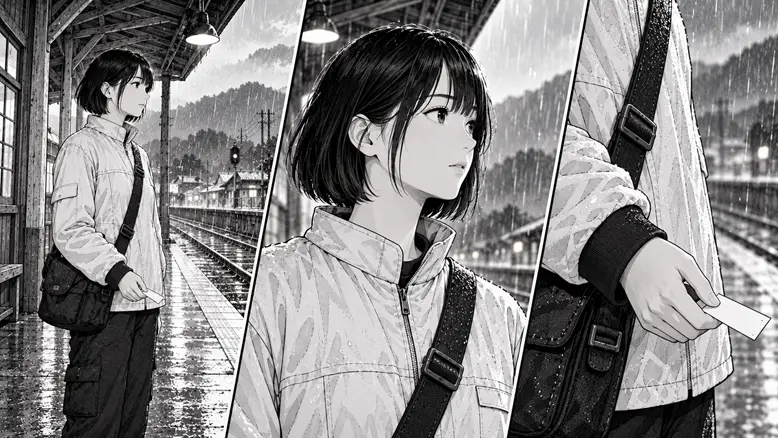
To animate manga panels, separate the drawing’s essential features from the movement you want to add. Prepare clean individual panels, choose one small action or camera move for each, then assemble the accepted clips in an editor. An AI route can generate motion from a supported image input; a layered editing route can keep the original drawing intact. Start with your own artwork or material you have permission to adapt.
Why a Manga Panel Can Change During Animation
A still panel fixes its linework and composition. A generated video has to fill the moments between frames, which can introduce a different face, extra folds, or changing background detail. A small motion brief gives the generation fewer uncertain changes to invent. It also gives you a result you can inspect.
What changes | What to check first |
|---|---|
Face or hairstyle | A clear crop and an unchanged character reference |
Linework or tone | A consistent style reference and a smaller action |
Jacket, bag, or prop | An approved asset visible in the starting panel |
Background geography | Stable framing and an explicit fixed environment |
Five Ways to Preserve the Drawing
1. Export One Clean Panel at a Time
Remove page borders that do not belong in the shot and separate speech balloons from the image when you plan to add text later. Keep an untouched original. If panel extraction leaves an empty region, repair it deliberately rather than allowing the video model to reinterpret the whole page.
2. Keep the Visual Style in a Reference
Use the same line weight, screentone, face design, and rendering treatment across the reference set. “Make it anime” can ask for a different visual language than the original manga. If the objective is to animate the drawing, describe the movement while preserving that drawing’s established style.
3. Choose the Smallest Useful Action
A slight head turn, a blink, or rain outside a station can make a panel feel alive. A full walk, changing pose, and a new camera angle at once require much more unseen drawing. Save those demands for a shot with references that establish the required body and space.
4. Keep Recurring Assets Together
Save the character, jacket, bag, platform, and ticket as the approved set. Reuse the relevant views where the model supports them. Compare later outputs to these originals; a panel that matches the previous generation can still drift progressively away from the source drawing.
5. Check Motion and Style Separately
Watch once for the action, then again for the drawing. Check the face through the turn, the linework around the eyes, and the shape of the ticket through the hand movement. A smooth clip can still redraw the character in a way the project does not accept.
Which PixTV Tools Fit the Task?
Use image generation for reference preparation and deliberate image corrections, keeping the source artwork available for comparison. Plan the shot order before generating motion. The canvas can keep these assets together, but the selected video model determines the actual image-input and generation options.
Choose video generation for a shot whose motion needs to be inferred from the panel. Use video editing for timing, crops, simple movement of preserved layers, and final assembly. A conventional layered editor is useful when the original lines must remain unchanged and the movement does not require redrawing.
The Full Workflow Step by Step
Step 1: Plan Three Different Shot Jobs
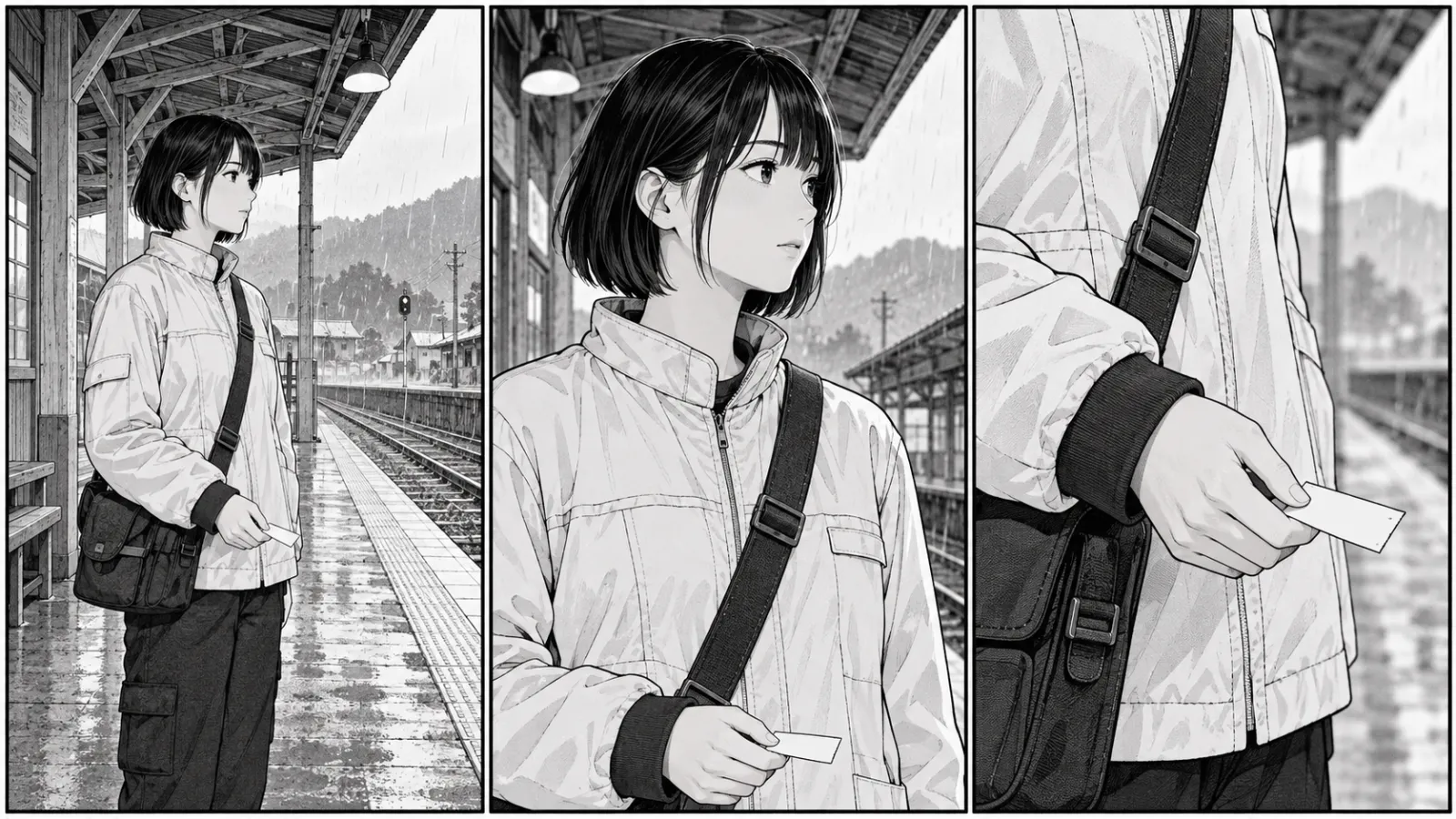
Our fictional scene shows an adult courier waiting on a platform with a blank ticket. The wide panel establishes the station; the medium panel carries a slight look toward the tracks; the detail holds on the ticket. The story can read through those cuts without a complicated generated performance.
Step 2: Prepare the Panel and Starting Position
For the head turn, use a panel that already shows the face clearly and leaves room in the intended gaze direction. Keep the ticket held low in the starting image. Do not ask the same shot to raise the hand, turn the body, and reveal a different side of the station.
Step 3: Generate One Limited Motion
Animate the supplied black-and-white manga panel as one continuous medium shot. The adult courier makes a slight head turn toward the tracks while holding the blank ticket down at waist height. Keep her body still. Preserve the face, bob haircut, white jacket, dark cuffs, bag, ink linework, screentone, and station. No color, new angle, speech balloons, or extra characters.This is an illustrative brief. Review the whole face through the turn and reject a take that changes the design, even if the motion looks attractive. If the turn needs too much reconstruction, make it smaller or use a held panel and a simple editing move.
Step 4: Use the Editing Route Where It Fits
For a restrained push on the wide panel, a small digital crop movement can preserve the existing drawing. A layered workflow can move foreground and background separately after the hidden areas are prepared. These are editing choices; do not describe them as evidence of new three-dimensional geometry.
Step 5: Assemble and Add Text
Use video editing to arrange the accepted clips and held panels. Add speech balloons, subtitles, or titles as separate verified elements when needed. Leave time for a viewer to read. A quiet station sound bed can connect the cuts without asking every panel to generate its own different ambience.
Step 6: Review Against the Original Panels
Compare the final sequence with the source drawings. Check face design, prop count, hand position, linework, and screen direction. Review text at the intended display size, then listen across the cuts. Keep the planned style consistent even when one generated shot looks more detailed than the others.
How Do You Fix a Panel That Drifts?
Return to the earliest point of disagreement. A bad starting frame needs an image correction; a correct frame that drifts during a turn may need a simpler action or another model. A sequence whose timing feels wrong may need editing rather than another generation. Fix the failing stage rather than rebuilding every asset.
Budget from accepted shots and attempts. Three usable moving panels at an assumed three tries each means nine video generations, plus reference work and finishing. Held panels and layered editing can be appropriate creative choices; there is no requirement that every image become a generated moving shot.
Plan your first moving manga sequence in PixTV
Questions About This Workflow
Can I animate a manga panel without AI?
Yes. A conventional editor can use crops, camera moves, separated layers, and timing while preserving the existing drawing. An AI workflow is useful when you want new motion, but it also requires checking how the model redraws the subject.
Do I need to separate every layer?
Not for every approach. A clean flat panel can be an image input where supported. Layer separation is useful for controlled parallax or independent movement in an editor, especially when the original linework must remain intact.
How do I stop the character changing?
Use a clear approved panel and consistent character references, keep the requested action limited, and compare the complete clip to the original. These inputs reduce ambiguity, but they do not guarantee that every frame preserves the design.
Should speech balloons be in the generated video?
Separate text when it needs exact spelling and stable placement. Add it during editing and allow enough reading time. Existing balloons can also distract from the motion input, so prepare the panel around the final presentation you want.
Can I use published manga panels?
Use artwork you own or have permission to adapt and publish. A generated animation does not establish those permissions. For a portfolio, tutorial, or advertisement, original panels make the source and adaptation rights easier to document.
How much motion should a first attempt contain?
Begin with one small action or one simple camera choice. Review the face, linework, and props before increasing complexity. A coherent sequence of restrained panels can communicate more clearly than several shots that redraw the story inconsistently.
Illustrations are original OpenAI-generated planning concepts, not PixTV screenshots or video results. Prompts and production plans are illustrative; no measured success rate or completed PixTV production is claimed.
