

To create a longer AI video, plan the full timeline first, divide the story into scenes and shots, then generate and edit the accepted clips into one sequence. Keep recurring characters, locations, and props in an approved reference set. A longer finished video does not require every model to generate the entire runtime in one pass. The main work is making the clips connect and giving each shot a reason to remain on screen.
How Do Short AI Clips Become a Longer Video?
The process is a production pipeline: write the whole story, decide the scene order, prepare references, generate the shots, then assemble and finish the timeline. Treating the script as one enormous prompt can leave the model to invent the pacing and transitions. A shot plan makes those decisions visible before generation.
Duration alone is not the objective. Repeating an attractive clip or holding a reaction longer than it needs does not add story information. A longer video needs additional beats, coverage, explanation, or performance. Decide what the audience learns in each section before deciding how many generations to buy.
Use PixTV’s canvas to keep the script, references, and shot variations together. The selected model determines the actual supported clip lengths and inputs. Choose those settings for each shot, then use editing to make the accepted material fit the intended timeline.
How Do You Prepare the Full Script?
Write the beginning, the change, and the ending before generating the middle. For a product explainer, these can become a problem, a demonstration, and a next step. For a short story, they can become a situation, a choice, and its consequence. Each scene needs a visible purpose and a clear place in the sequence.
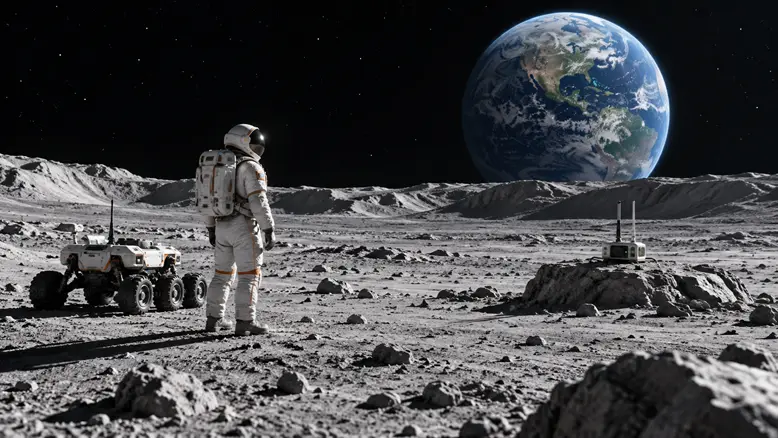
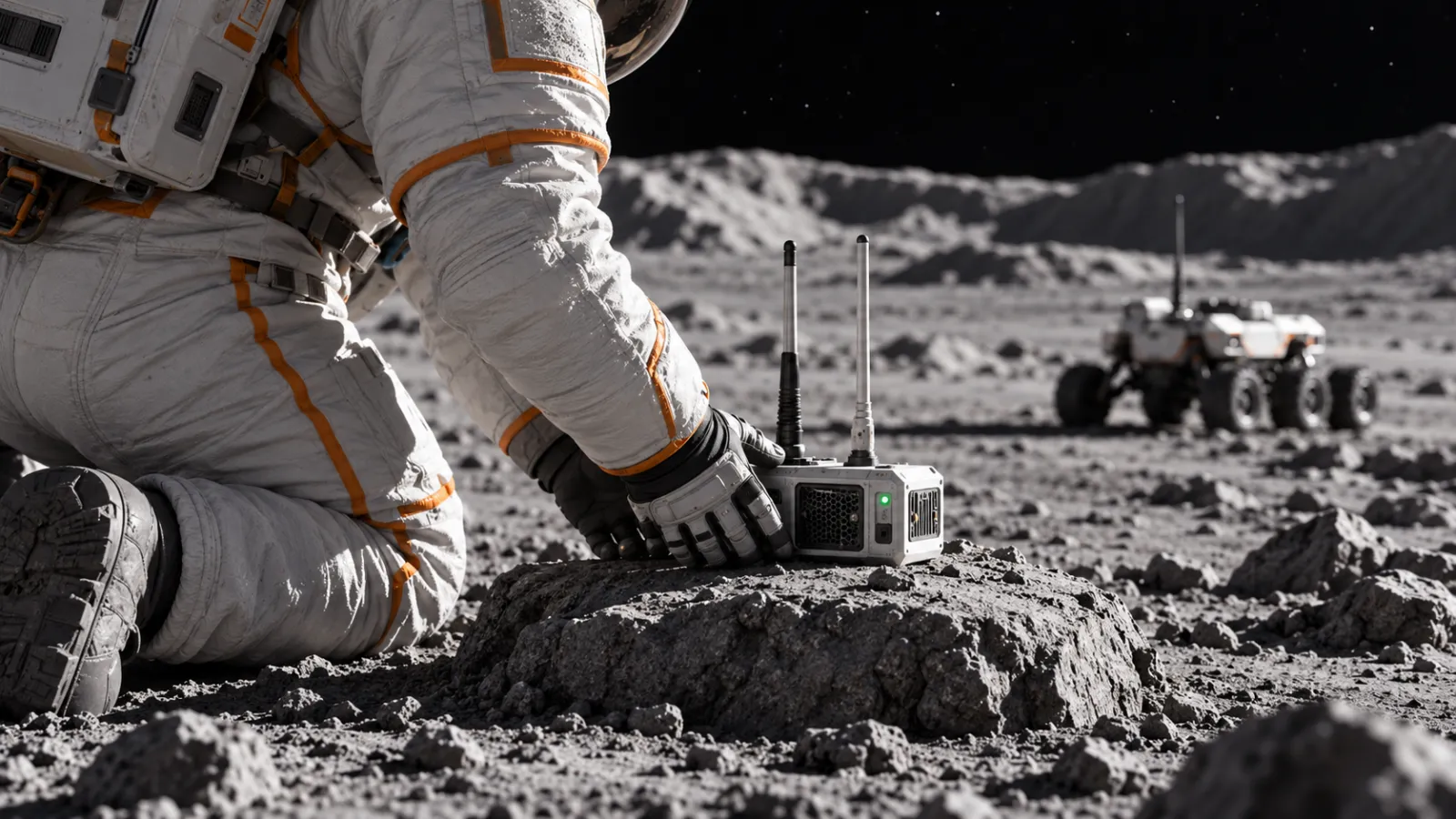
Our fictional example, The Signal, follows astronaut Ari finding a failed lunar relay and restoring its transmission. A planning version uses four sections of about 24 seconds. It can become a 96-second edit if twelve shots each use eight seconds and are joined with straight cuts. These are edit targets, not promised model durations.
Section | Story job | Possible coverage |
|---|---|---|
Arrival | Establish Ari and the lunar site | Crater wide view, rover, landing area |
Attention | Reveal the failed radio relay | Indicator, antenna detail, helmet reaction |
Action | Make the repair understandable | Gloved hands, relay base, connector |
Resolution | Confirm the restored transmission | Green indicator, released hands, final wide view |
Read dialogue or narration aloud and time it before allocating the pictures. Leave room for pauses and visible action. For this quiet story, the action sets the rhythm instead. If a beat does not justify its planned time, revise the plan rather than stretching the generated material to fill a spreadsheet.
How Do You Build a Connected Shot List?
Give every shot a number, a starting state, a main action, an intended end, and a target edit length. Add the character, location, camera relationship, and sound dependency. This list is the bridge between the complete story and the small pieces you will generate.
Prepare the character and environment with image generation, then compare every new starting frame with the approved set. Keep the rover and relay rock in a stable relationship. Add a clear reference for any new viewpoint required by the longer story instead of asking one distant crater view to define hidden equipment.
Continuity item | Before the choice | After the choice |
|---|---|---|
Radio relay | Disconnected; indicator dark | Secured on rock; green indicator lit |
Rover | Parked behind the relay site | Same position and six-wheel design |
Ari | Same helmet, suit and orange seams | Same suit and equipment through the final scene |
Check the planned cut as well as each individual image. A hand reaching from one side cannot naturally continue from the opposite side without an understandable change of angle. A close-up can help bridge the edit, but it still needs the same prop, light, and story state.
How Do You Generate the Shots?
Step 1: Test the Hardest Action
Start video generation with the event most likely to limit the plan. For the lunar story, securing the relay base and releasing the gloves matters more than an empty crater wide shot. Select a model and duration that support the intended input and leave enough time for the action to settle.
Step 2: Keep Each Generation Manageable
Give a shot one main event. The action can contain a simple physical sequence, such as lowering an object, touching a surface, and releasing it. Several locations, camera moves, and emotional turns in the same brief are harder to review and replace than a focused shot.
One continuous medium shot at the approved lunar site. Ari lowers the small two-antenna radio relay onto the flat rock, presses its base into the mounting slot, releases both gloved hands, and draws them away. The green indicator stays lit. Preserve the white suit, orange seams, rover position, and hard sunlight. Fixed camera, no cuts, floating equipment, or new objects.Step 3: Save the Accepted Take with Its Inputs
Record the shot number, prompt, references, model, relevant settings, and accepted version. Keep rejected attempts separate. A folder containing twelve attractive clips is not yet a reliable sequence if no one can identify which reference and story state each clip follows.
Step 4: Review Neighboring Shots Early
Place each accepted clip beside the preceding one while the project is still small. Check the transition, then compare with the master references. This catches a prop changing sides or a face drifting before the same problem is repeated across several scenes.
A Practical Timeline and Attempt Budget
The 96-second plan is a starting structure, not a requirement to keep every shot exactly eight seconds. A hand action may need less time and a final wide view may need more. The edit should follow the story. Any overlapping transitions also change the total timeline length and need to be included in the timing calculation.
Twelve accepted shots at an assumed average of three attempts mean 36 video generations. Apply each attempt’s displayed model price and chosen settings, then add reference generation, corrections, sound, and editing. This is a budgeting scenario, not a measured pass rate or a fixed price for a 96-second film.
Do not upscale or produce several versions of every take before checking the sequence. First establish usable movement and continuity. Then decide which accepted shots need a higher-quality pass and recheck those new outputs; a final render can introduce changes that were absent from the test.
Assembling and Finishing the Longer Video
Keep a sequence record with the scene number, intended story state, accepted take, usable duration, and sound dependency. This makes later changes specific: a revised voice line may affect timing, while a new character reference can affect identity across several shots. Update the dependent material deliberately instead of regenerating unrelated scenes.
Leave editing handles where possible, with a little usable material before and after the essential action. These extra moments give you room to choose a cut without interrupting contact, speech, or a reaction. Count the usable duration after trimming when deciding whether the sequence needs more coverage.
Use video editing to build the timeline in story order. Trim lead-ins and holds where the action remains clear, and replace missing beats with planned coverage rather than repeating unrelated footage. Export to an editor with the required timeline controls when the available workspace is not sufficient for the finish.
A consistent sound design can help the cuts feel connected. Use audio generation for an appropriate score or radio texture, or use permitted recorded sound. Add designed effects at the connector and switch actions. Lunar exteriors are a vacuum; do not present wind or unfiltered exterior impact sounds as realistic on-location audio.
Review the full film without music, then with the final sound. Check faces, props, screen direction, light, dialogue timing, and text. The sequence should communicate its change without an explanation of the production plan. Confirm the final runtime and aspect ratio only after the edit is assembled.
Build your next connected sequence in PixTV
Questions About This Workflow
Can I generate a whole long video with one prompt?
Some workflows support connected or longer generations, but their actual limits and controls vary. For a planned film, separate shots give you clearer review and replacement options. Check the selected model rather than assuming unlimited single-pass duration.
How do I keep characters consistent across clips?
Use an approved master reference set, keep the relevant wardrobe and scene rules stable, and compare each new shot with the original assets. Review identity during motion as well as at the cut; matching thumbnails are not enough.
How many clips do I need?
Start with story beats and the edit, not a universal clip count. Estimate the usable length of each shot, account for pauses and transitions, then generate the coverage required. Replace initial estimates with actual accepted material as production progresses.
What if the clips do not connect?
Find the mismatch in story state, geography, identity, sound, or timing. Correct the affected shot or add a planned bridge where appropriate. Editing can improve pacing, but it cannot make contradictory prop positions or actions become continuous.
Illustrations are original OpenAI-generated planning concepts, not PixTV screenshots or video results. Prompts and production plans are illustrative; no measured success rate or completed PixTV production is claimed.
