

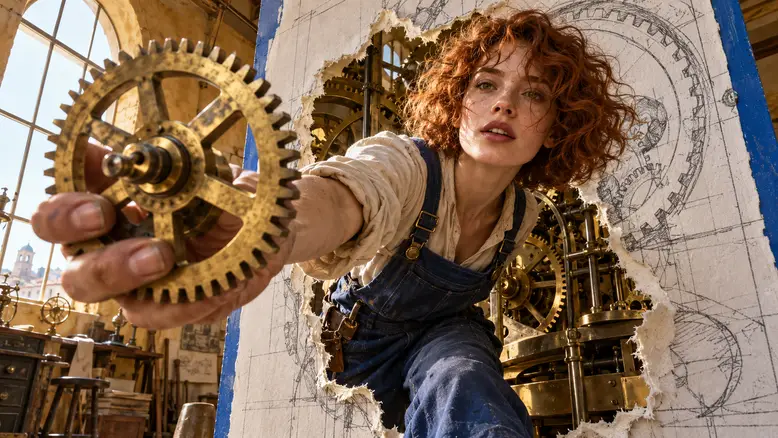
Turn a storyboard into an AI video by giving every panel one action, preparing a clean starting image, and generating each shot separately. Review the clips against the board before editing them together. The important handoff is the motion brief: it explains what changes after the still frame, what stays fixed, and where the shot needs to end.
Why the storyboard needs approval before motion
A panel can establish a composition without explaining how to reach the next one. If the first panel shows a closed mechanism and the next shows it running, the missing action still needs directing. Asking for both states in one vague prompt leaves the model to invent the repair.
Approve three things first: the action is readable, the recurring assets match, and the ending gives the editor a usable cut. A beautiful panel that hides the important hand position needs revising before it becomes a video reference.
This guide uses an original scene plan: Nora, a clock restorer with copper curls and indigo overalls, inspects a brass gear, fits it into a stopped mechanism, and watches the clock resume. The board below defines the intended coverage.
How the work moves through PixTV
Use PixTV image generation to prepare the approved visual assets, then move to video generation for each motion brief. Choose a model that accepts the input you have. A board does not automatically become a continuous, finished sequence.
Keep the character, location, panel, and motion description together in your production notes. If your selected model accepts a starting image, supply the clean panel intended for that shot. If it accepts only text, describe the approved composition and expect more visual variation.
For the earlier planning stage, follow the AI short film workflow. Here, the task begins with a board and ends with an edited sequence.
Build the sequence one shot at a time
Step 1 Give each panel a production job
Separate establishing, action, detail, and reaction shots. Nora's story needs the audience to understand the stopped clock, see the repair, and recognize the result. Three attractive portraits would leave the repair off screen.
| Shot | Planned edit length | Starting composition | Main action | Cut condition |
|---|---|---|---|---|
| 01 Establish | 3 seconds | Nora beside the stopped mechanism | She studies the gear | Her gaze settles on its teeth |
| 02 Inspect | 3 seconds | Gear held below eye level | She tilts it toward the window | The damaged edge becomes visible |
| 03 Repair | 4 seconds | Gear aligned beside its axle | She seats it with a small movement | The gear rests in position |
| 04 Resolve | 3 seconds | Nora beside the repaired clock | She looks toward the moving mechanism | Her reaction settles |
These are editing targets, not claims about a model's duration settings. Generate an available clip length with room around the action, then trim it.
Step 2 Export clean starting images
Separate the panels into individual image files. Remove panel borders, handwritten arrows, timestamps, and shot labels from the image used for video. Keep those instructions in the shot list, where they cannot become visible objects in the scene.
Check the final framing before generating motion. If the action involves the gear's axle, include that axle in the starting composition. An image showing only Nora's face gives the model very little information about the repair.
Step 3 Fix the recurring assets
Choose one approved Nora reference, one gear design, and one tower layout. Keep the window on the same side of the mechanism. For a more complete identity packet, use the character reference sheet guide.
Treat new angles as new coverage of the same place. Compare the shape of the gear, the overalls, and the clock housing before accepting a panel. A mismatch at this stage becomes a harder continuity problem once everything moves.
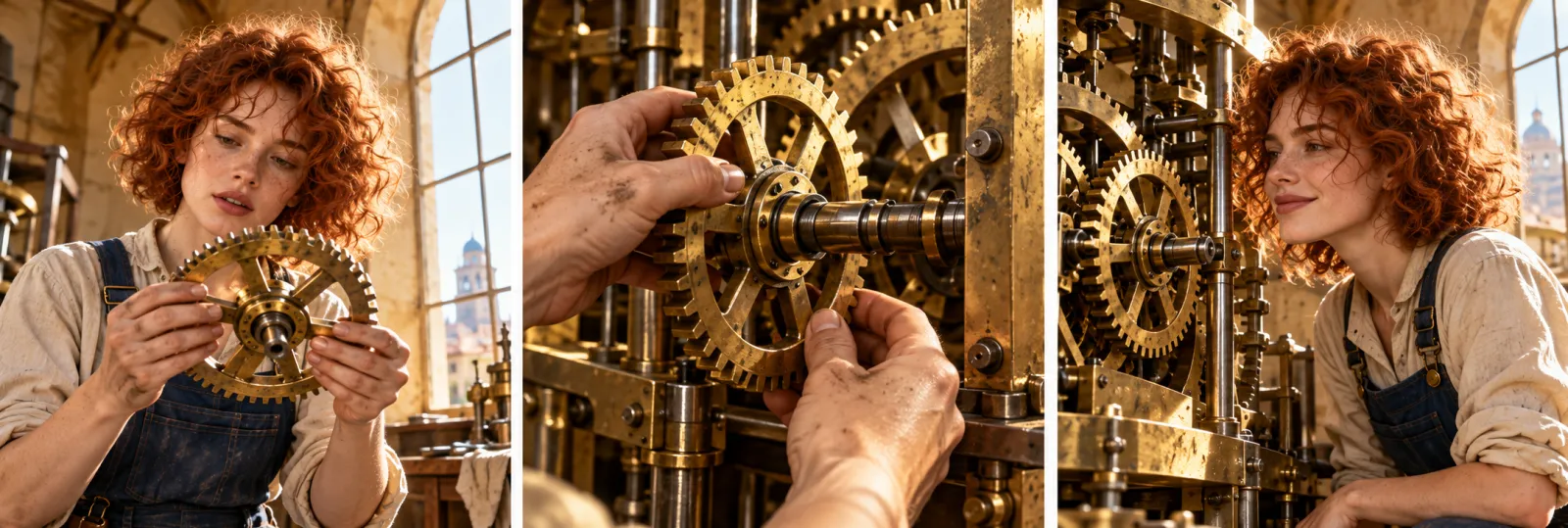
Planned coverage for Nora's scene: inspection, repair detail, and reaction. Each frame has a different editing purpose.
Step 4 Describe the change after the first frame
Write the action, camera behavior, fixed elements, and ending. Keep one dominant event in the shot. For the inspection panel, use this example:
Medium close shot of Nora holding the brass gear below eye level in the clock tower. She slowly tilts the gear toward the window on screen-right, then holds it still. The camera stays at face height with a slight forward move. Keep her copper curls, indigo overalls, the gear's circular shape, and the window direction unchanged. End with the gear steady and her eyes on its teeth. One continuous shot.
This is a shot brief, not a guaranteed result. Inspect the actual clip for finger placement, gear shape, and unwanted camera movement.
Step 5 Generate the hardest shot first
The repair insert carries the greatest risk because a hand, gear, and axle must meet correctly. Start there. If the movement repeatedly fails, redesign the coverage: show the gear approaching the axle, cut to a seated gear, then show the mechanism running.
That edit preserves the story while reducing the amount of precise contact required in one generation. Keep the simpler shots waiting until the critical action has a workable route.
Step 6 Review the cuts before finishing
Watch the full clip, then compare the frames around each intended cut. Check screen direction, prop state, eyeline, and light. Use the longer AI video guide when the sequence needs additional coverage.
Record which take is approved. Four required shots with two planned attempts each means eight generation attempts; it is a budgeting assumption, not a prediction. Add reference preparation, rejected takes, sound, and editing to the workload.
Carry the board into the final edit
Arrange the accepted clips in PixTV video editing or your usual editor. Trim to the planned beats, leave space for the reaction, and add a continuous room tone so the tower feels like one location.
For ads, judge whether each shot advances the product message. For narrative scenes, judge whether the viewer can follow the action without explanation. If a cut needs a paragraph to make sense, revise the coverage.
Who this workflow suits
Use this approach for a short scene, a product reveal, or a small campaign with approved boards. Start with four connected shots, solve the difficult action, and expand after the sequence reads clearly.
Open PixTV with one approved panel and write the motion brief that belongs to it.
Frequently asked questions
Can I upload an entire storyboard as one image
A contact sheet is useful for planning, but it can confuse a model about which panel should move. Prepare one clean starting image per shot when the selected model supports image input. Keep the complete board nearby for continuity checks.
Do storyboard panels need to be polished illustrations
They need to communicate framing, identity, and important objects clearly. Rough drawings can establish the plan, but a detailed video shot may need a cleaner approved starting image. Resolve missing hands, props, and spatial relationships before requesting motion.
Should every panel become a separate clip
Not necessarily. Two panels may describe the beginning and end of one simple action. Keep them together only when the model and inputs support that transition. Separate shots give you more control when the action or viewpoint changes substantially.
How do I keep the same character between shots
Reuse the approved identity material and wardrobe description, then inspect every result. Compare faces, hair silhouettes, and clothing around cuts. A consistent reference reduces ambiguity, but it does not remove the need to reject a visibly different character.
What if the model ignores the ending
Reduce the shot to one action and make the ending observable. You can also choose an earlier usable cut, prepare a better starting image, or divide the movement into two clips. Avoid adding several new instructions to the same retry.
Can this workflow produce a complete film automatically
The workflow organizes separate production tasks. You still approve references, select takes, check continuity, and edit the sequence. Start with a short scene so those decisions stay manageable before applying the same process to a larger project.
