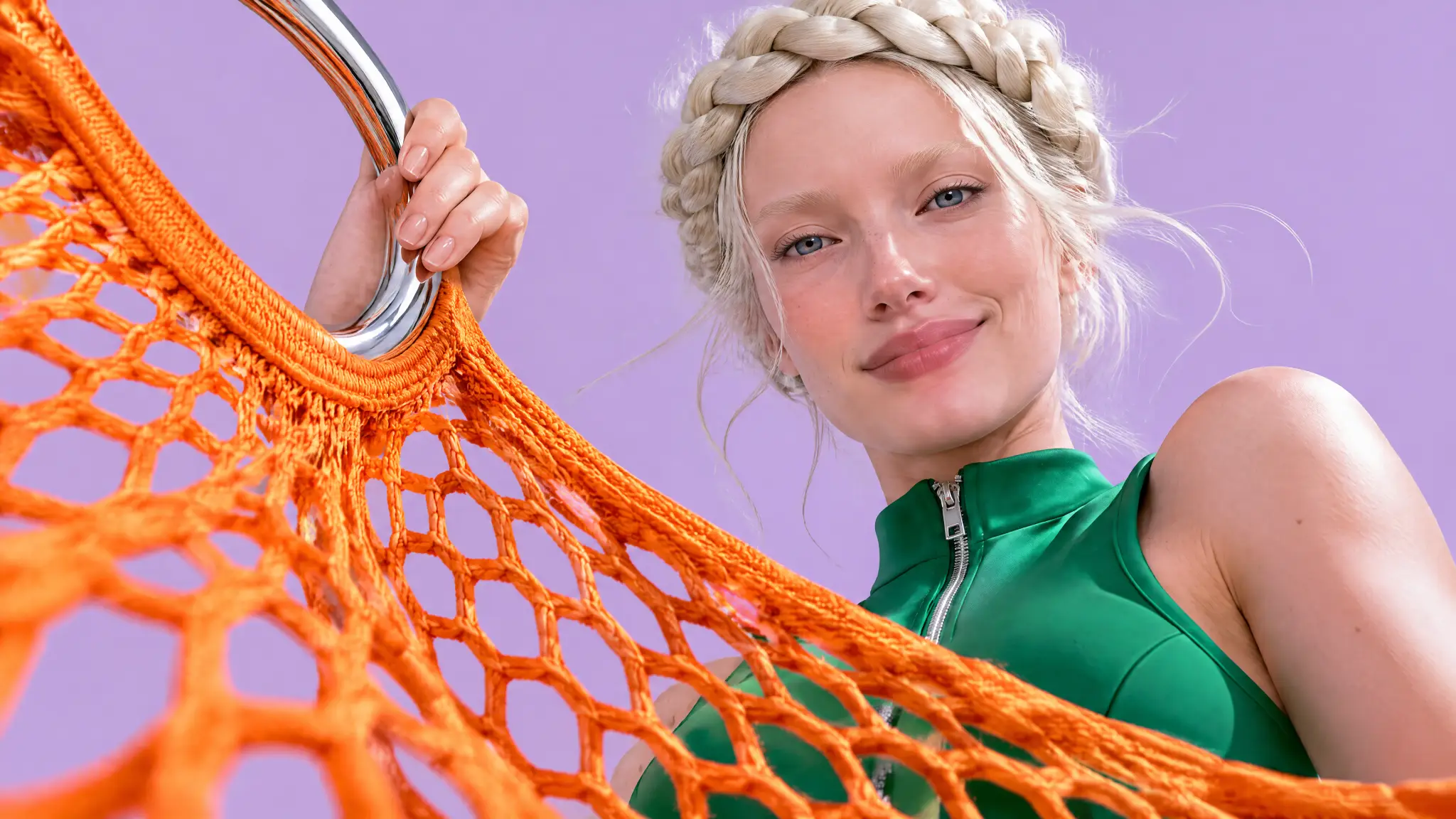
A useful transparent product image must survive a background change. The outside silhouette needs to be clean, but so do the spaces inside a handle, a mesh opening, or a loose strand of material. A white-background image can hide those problems until you place it on a dark design.
Use GPT Image 2.6 to create a clear source, then produce and inspect an RGBA cutout before building your layout. This tutorial follows an orange mesh tote with silver ring handles. Its open weave makes the difference between a convincing preview and a usable transparent asset easy to see.
Decide where the cutout will be used
A product page, a campaign banner, and a video overlay need different framing. Decide the placement before generating the source. Leave enough surrounding space to isolate the whole object, and keep essential edges away from the canvas boundary.
Choose a view that explains the product. For this tote, a front three-quarter angle reveals the open weave, bag depth, and both ring handles. A straight frontal view would make some overlapping strands harder to distinguish. An extreme angle could make the handles harder to separate.
Also decide what belongs in the foreground asset. The bag and its handles do; the tabletop and its ground shadow do not. A contact shadow can be prepared separately for a particular surface. Keeping it out of the reusable cutout gives you more control over later placement.
Build a source with readable edges
Open the PixTV image canvas, select GPT Image 2.6, and create a clean source with a background that separates from the product. Avoid a wall whose color matches the fine material you want to retain.
One orange open-mesh market tote with two polished silver circular handles. Empty bag standing upright on a pale blue-grey tabletop, front three-quarter view. Preserve clearly open rectangular weave holes and coherent chrome reflections. Soft white directional light, gentle contact shadow, no contents, person, logo or writing. Leave space around the complete bag.
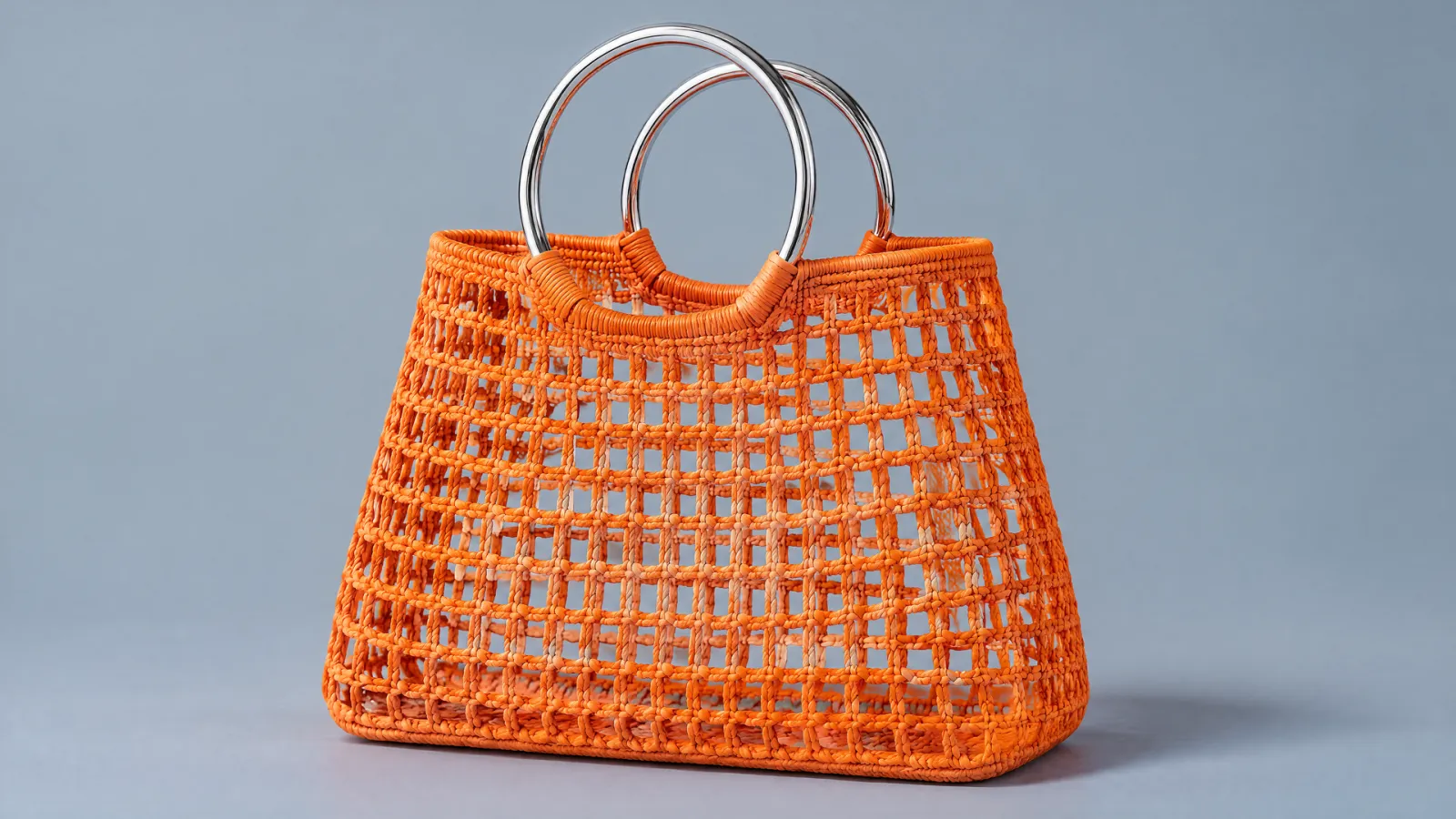
Source photograph. The background remains visible through the handles and open weave.
Inspect the source before removing its background. A cutout cannot recover a strand that was never generated or correct a handle that joins the bag incorrectly. Fix those structural problems first, then save the accepted source as its own file.
Separate the background from the subject
If your current image-generation surface exposes a transparent-background setting, test the downloaded PNG rather than trusting the preview alone. A prompt asking for transparency can still produce a flat background in a particular workflow. Genuine transparency requires an alpha channel with transparent pixels.
When a generation route does not give you a usable cutout, use a background-removal step on the accepted source. The supplied reusable tote cutout was produced with PixTV's background-removal tool. That operation is separate from the GPT Image 2.6 source generation; it should not be described as native layered output.
Keep the original dimensions in your production notes. This source was generated at 3840 × 2160. The background-removal output is 1672 × 941. Those are different files with different resolution limits. Do not label the smaller cutout as native 4K or enlarge it silently for a large placement.
Check transparency on light and dark backgrounds
Place the same cutout over a light background, then a dark one. This is a practical test of the file you plan to use, not a request to regenerate the product twice. Keep the product pixels unchanged while changing the background underneath.
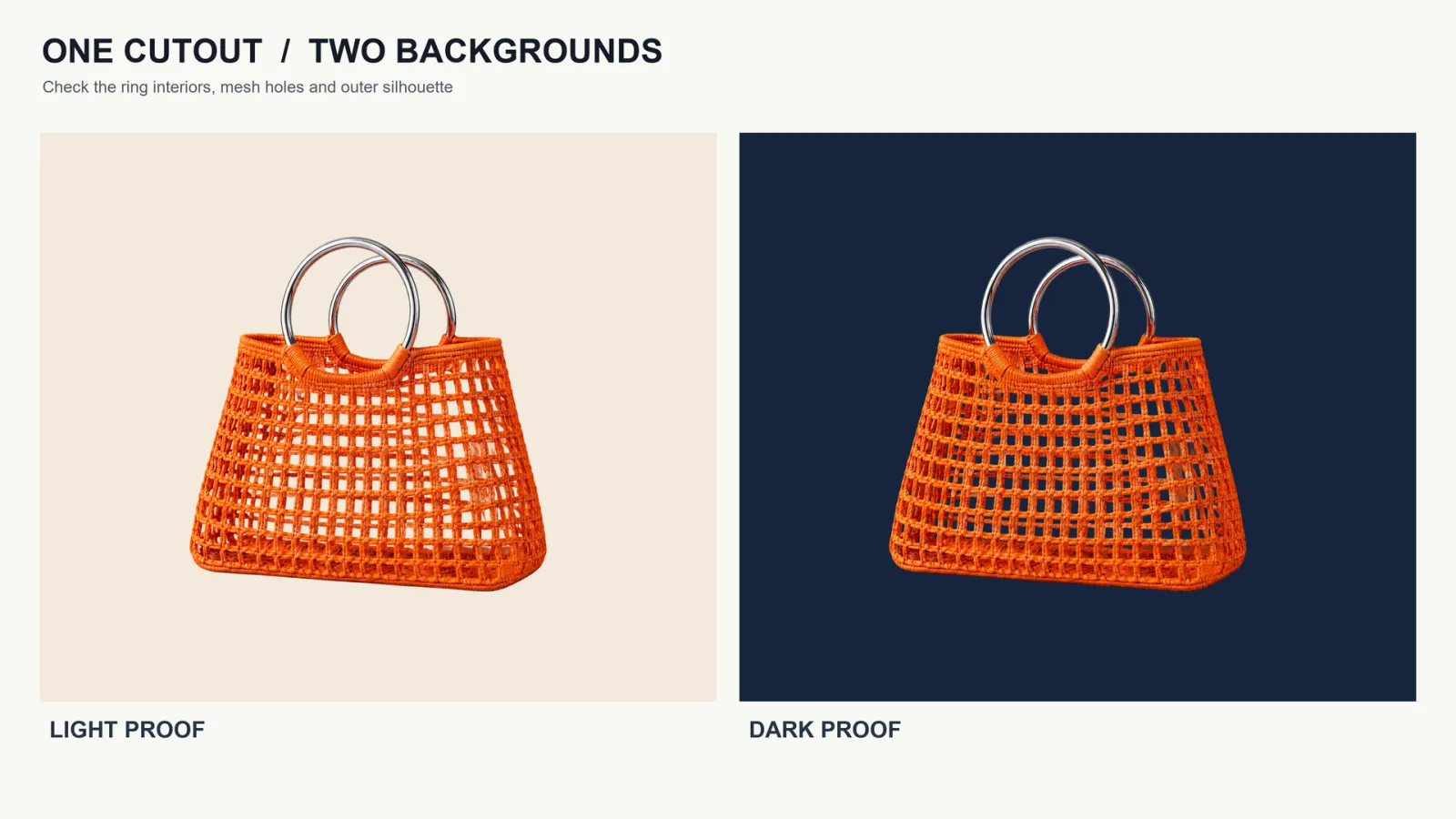
Two composites from the same cutout. Inspect open holes, silver handle edges, and orange strands on both backgrounds.
Look for a pale fringe around the metal rings. Check whether the space inside each handle is actually empty. Follow several mesh holes from the top of the bag toward its base. The distant background should show through the openings; an old blue-grey patch indicates a missed area.
Transparency can be partial at fine edges. Those intermediate alpha values help a strand blend into a new background. The goal is a clean material boundary, not a harsh outline with every edge forced fully opaque.
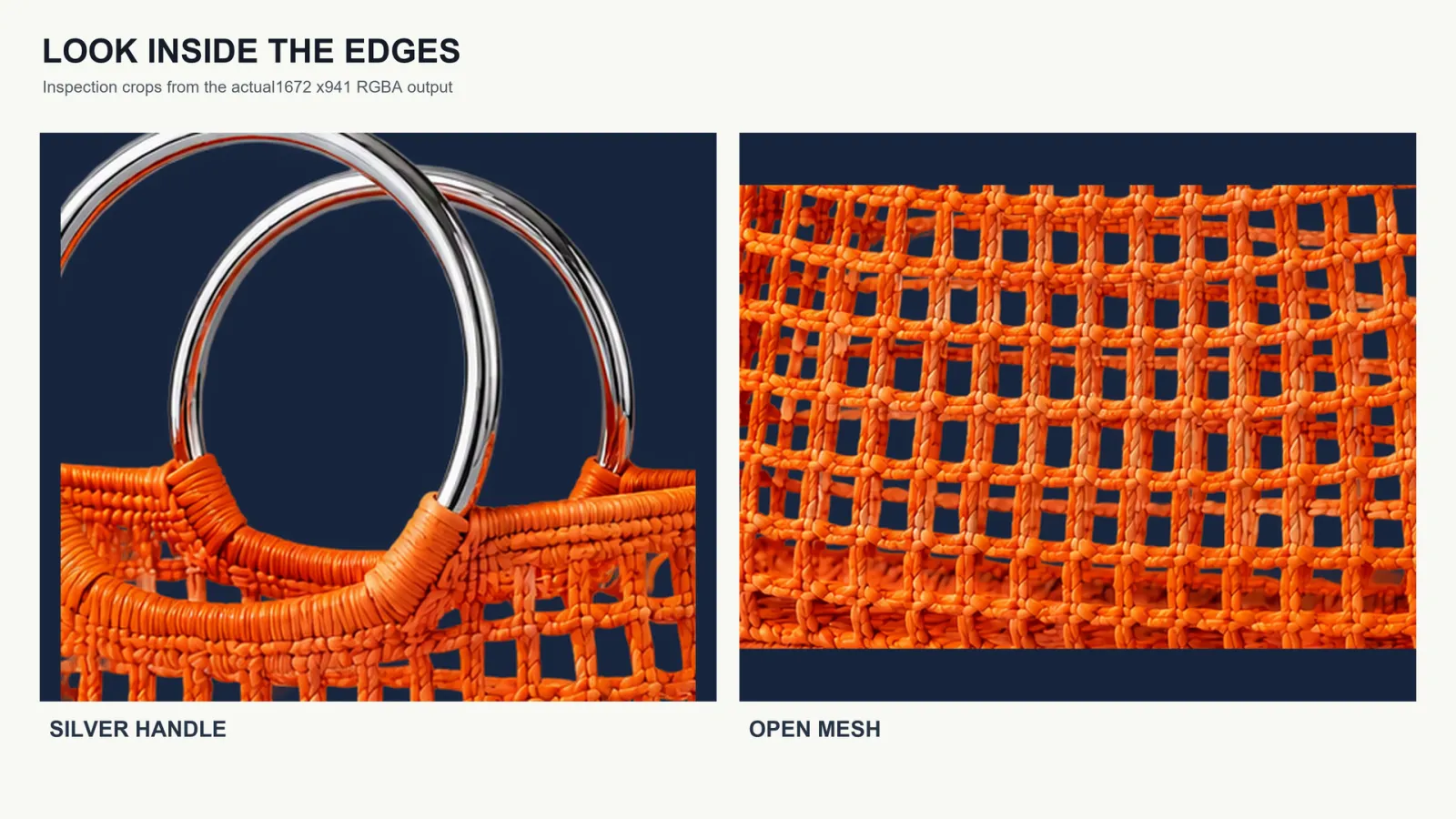
Enlarged inspection crops. Magnification reveals edge behavior; it does not add resolution to the cutout.
Assemble a layout without repainting the product
Choose a background whose light direction and perspective fit the bag. A flat studio color is a useful first test because it does not create a misleading floor relationship. A realistic tabletop needs more attention to the bag's contact, scale, and shadow.
Place the accepted cutout once, then change the surrounding design. Keep typography, price information, badges, and campaign text in editable design elements. Asking the image model to rebuild the entire finished advertisement can change the bag while you are only trying to alter the layout.
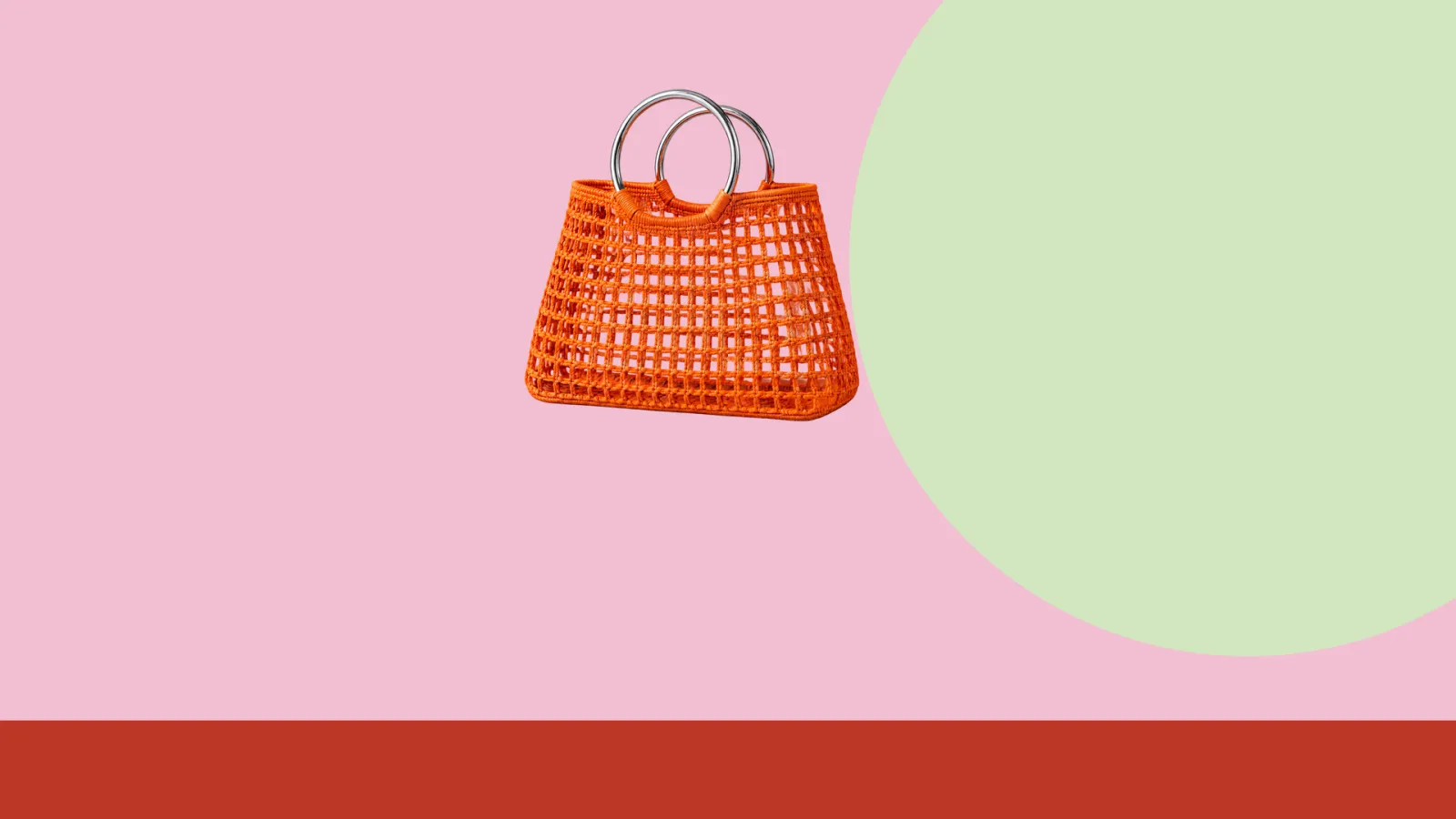
A new background underneath the same foreground pixels. Any final campaign text can be added separately in a layout editor.
For a grounded composition, create a shadow that belongs to the new surface and matches the key light. Keep it separately adjustable. A shadow from the original tabletop can look like a grey stain when carried into a different environment.
Export a small reusable asset set
| File | Purpose | Approval check |
|---|---|---|
| Original source | Future edits and comparison | Product structure and materials |
| RGBA PNG | Reusable foreground | Alpha, holes and edge quality |
| Light and dark proofs | Transparency inspection | No old background remnants |
| Final composition | Placement-specific delivery | Scale, contact and legibility |
Keep the checkerboard out of the deliverable pixels. A checkerboard is a viewing aid; a picture of that pattern is not a transparent background. Open the exported PNG in another compatible viewer to confirm that it still composites correctly.
Choose the export format according to the job. PNG can retain the alpha needed for this cutout. A flattened JPEG can be useful for a finished opaque layout, but it cannot preserve that transparency. Save both only when their purposes are clearly labeled.
Prepare motion from an approved composition
For a product animation, bring the accepted composition into the PixTV video canvas. Describe the intended motion and keep the product details explicit. A transparent source PNG does not automatically make the generated video transparent.
Use the PixTV clip editor when arranging several approved shots. Confirm the input and export capabilities of the chosen editing workflow before promising a video overlay with alpha. Check the final exported video rather than carrying a still-image assumption into motion delivery.
Plan resolution and cost before producing variations
Keep the highest-resolution accepted source and record the actual cutout dimensions. For a larger placement, obtain a suitable higher-resolution cutout or revise the composition. Upscaling may change apparent sharpness, but it does not make the original extraction native 4K.
Budget separately for source generation, background removal, corrections, and final design. Test one cutout thoroughly before making a large campaign set. Repeating a weak edge across ten backgrounds creates ten files that still need the same repair.
Create one cutout you can reuse
Start with a readable source in the PixTV image canvas. Approve the structure, produce the transparent asset, and test it on two backgrounds before building the final design. A reusable foreground is valuable because its product details survive those placement changes.
Frequently asked questions
Is a white-background PNG transparent
Not necessarily. PNG is a file format; transparency depends on its alpha data. Place the file over a dark background and check whether the white area disappears. A visible checkerboard printed into the image also does not count as transparency.
Does this prove a new native transparency feature in PixTV
No. This tutorial uses GPT Image 2.6 for the source and a separate verified background-removal output for the reusable cutout. Interface options and native output support should be checked for the route you actually use.
Why are some mesh openings still filled
Background removal can miss enclosed spaces or confuse overlapping strands. Inspect those areas on contrasting backgrounds, then refine or replace the cutout. An attractive outer silhouette alone is not enough for an open-mesh product.
Can I export the final design as JPEG
Yes, when a flattened opaque composition is the required delivery. Keep the original RGBA PNG separately if you need future background changes. JPEG cannot preserve the transparent foreground used for those revisions.