
Create product B-roll by finding the information missing from your main edit, planning a supporting shot for that gap, and generating it from accurate references. Match the product, light, and action to the surrounding footage before cutting it in. Useful B-roll answers a visual question; it does not need to become a second advertisement inside the first one.
What does the main video still need to show?
B-roll supports the main line of a video. It can establish a setting, show a detail, or make an action easier to understand while a presenter or narration continues. Start by watching the existing edit and marking the exact place where a picture would help.
The original plan here uses an ochre ceramic coffee dripper on a clear glass server. The main footage introduces the object. Supporting shots show where it sits, the glazed ribs, and water entering the filter. Each view earns its place by adding information. Three more versions of the same hero shot would add less.
Prepare references, motion, and the edit together
Use image generation to prepare a clean starting composition from your product materials. Check the dripper rim, ribs, base, and server handle before proceeding. A changed product is not a usable reference just because its color matches.
Move the approved composition into video generation if the selected model accepts that input. Use the video editing workspace to organize accepted shots, checking which finishing controls are available. The full video workflow explains the wider asset handoff.
Build the supporting shots in playback order
Step 1: Assign one job to each shot
Write “place,” “detail,” or “use” beside the gap in the edit. For the coffee scene, place means a morning tabletop, detail means ceramic texture, and use means a short pour. Leave out a shot that has no clear relationship to the message.
Step 2: Match the surrounding image
Note the main footage's light direction, product scale, background, and camera height. A warm window-lit introduction followed by a cold overhead insert can feel like a different product session. Match the important relationships before adding stylistic variety.
Step 3: Direct a small movement
For the detail shot, use a brief such as:
Close view of the ochre dripper's glazed ribs. A slow, small camera slide reveals the surface. Keep the ceramic shape, base, and glass server unchanged. Morning light continues from the left.
For the pour, prioritize the stream entering the filter and the stable vessel. If contact or liquid behavior breaks, simplify the action or use accurate recorded footage for that insert.
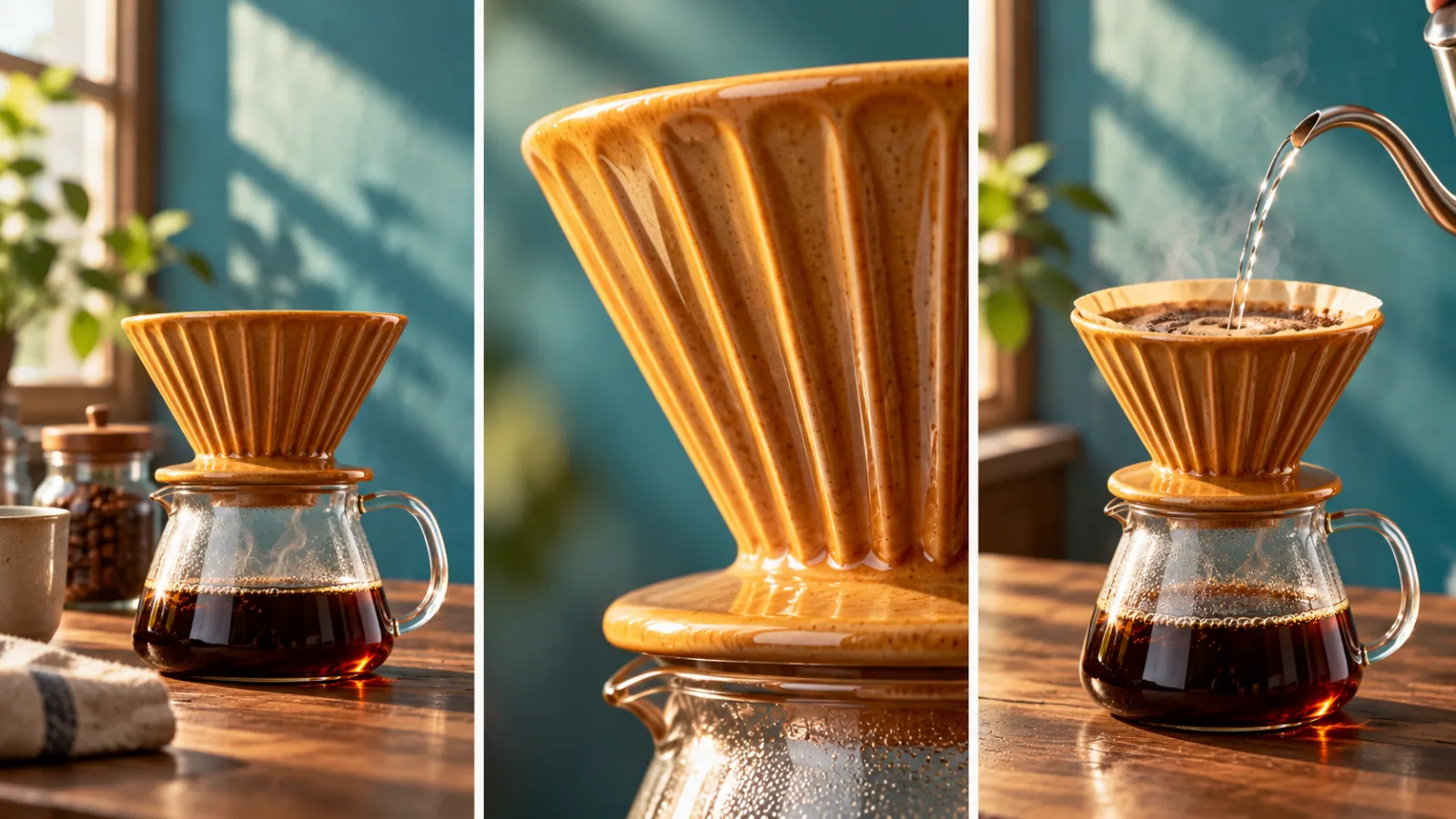
Supporting-shot plan: establish the setting, reveal the surface, and show use. The three frames illustrate different editorial jobs.
Step 4: Review the whole usable interval
Check the beginning, movement, and ending. The dripper may look right at first and change at the rim halfway through. Keep a short interval that holds together rather than forcing every generated second into the finished edit.
Step 5: Cut to the information being discussed
Place the rib detail when the narration describes the surface. Place the pour when it discusses use. Maintain the main audio where appropriate, and review whether new generated sound distracts from it. Useful cutaways stay connected to the same message.
Budget by editorial job
| Work item | What to count | Approval condition |
|---|---|---|
| Reference | Preparation and corrections | Product matches the source |
| Context shot | All generation attempts | Place and light fit the main edit |
| Detail shot | All generation attempts | Important geometry stays stable |
| Action insert | All generation attempts | Contact and motion are readable |
| Assembly | Editing and audio work | Each cut adds relevant information |
Use the selected model's displayed cost for a real estimate. Reject an unnecessary shot while planning; it saves more work than making an irrelevant shot look better.
Who benefits from this approach?
Use it when a product demonstration needs closer coverage, a creator video needs a visual explanation, or an existing ad needs a short cutaway. Keep the original hero footage when it already answers the question. B-roll should make the main edit easier to understand, without forcing the viewer to learn a new setting at every cut.
Start one supporting shot in PixTV and judge it inside the edit it was made to support.
Frequently asked questions
How is B-roll different from a hero shot?
A hero shot introduces or emphasizes the product. B-roll supplies context, detail, or action for another part of the edit. The same clip can serve either role, depending on its position and the information the viewer needs.
Can I start from one product photo?
Yes, for a view close to the known angle. Large moves and hidden surfaces may need more references; otherwise the model invents them. Inspect the moving result for changed details rather than approving only its opening frame.
Do I need a person in the shot?
No. A surface detail, environmental view, or simple object action may explain enough. Include hands only when use needs showing. That adds anatomy and contact checks, so the interaction should solve a specific communication problem in the edit.
How long should a supporting shot last?
Long enough to recognize the relevant detail or action, then return to the sequence. Narration and rhythm determine the duration. Leave handles around the intended interval so the editor has choices rather than using every generated second.
Should every insert have new sound?
Only when the edit needs it. Continuing narration or room atmosphere can connect the cutaways. Check current model audio options and listen separately to returned sound; a new voice or music cue may interrupt the main message.
What if the product changes during movement?
Reject the affected interval and identify the first change. Try a smaller move, clearer start image, or supported additional references. Use reliable recorded material when accuracy still fails; an unrelated close-up does not repair a changed product.