An effective animated GIF needs one readable movement and a clean return to its starting pose. GPT Image 2.6 gives you a way to describe that short sequence directly. In PixTV, the current Sunburst text-to-image configuration includes a GIF output option with frame-count and frame-duration controls. Start there when you want a compact generated loop rather than a longer video.
This guide builds a small wind-up fish animation. You will define the motion, choose a timing combination, inspect the loop boundary, and prepare a version for its actual placement. The accompanying material includes separate generated poses and assembled previews, so you can also examine what happens when neighboring frames change more than intended.
What should your first GIF do
Choose an action that can return naturally: a tail swishes, a light pulses, or a small object rocks back into place. A character walking across a large scene introduces more opportunities for changing anatomy, shifting backgrounds, and an obvious jump when playback restarts.
For this example, the orange fish remains planted on its pedestal. Its cobalt tail performs one small wag. The black eye, blue side fin, mint key, tabletop, camera, and lighting should stay stable. That gives you a specific inspection task: follow the tail, then check whether anything else moves.
Choose the placement before generating. A short loop above a product description may need a different crop from a square social post. Leave room around the moving part, especially if the website will crop the image on mobile. Do not place essential detail at the far edge.
Prepare a brief you can actually test
Open the PixTV image canvas. Select GPT Image 2.6 Sunburst and the text-to-image route. Write down the subject, fixed elements, moving element, and return condition before choosing an output format.
| Part of the brief | Fish example | What to inspect |
|---|---|---|
| Subject | One orange wind-up fish | Same silhouette and parts |
| Motion | One small tail wag | Movement remains readable |
| Fixed scene | Yellow wall and blue table | No camera or background jump |
| Loop boundary | Tail returns to neutral | Last-to-first transition |
Keep the first attempt visually simple. Fine patterned fabric, tiny lettering, changing reflections, and several moving subjects make it harder to tell whether the timing works. Add that complexity after you have a usable motion pattern.
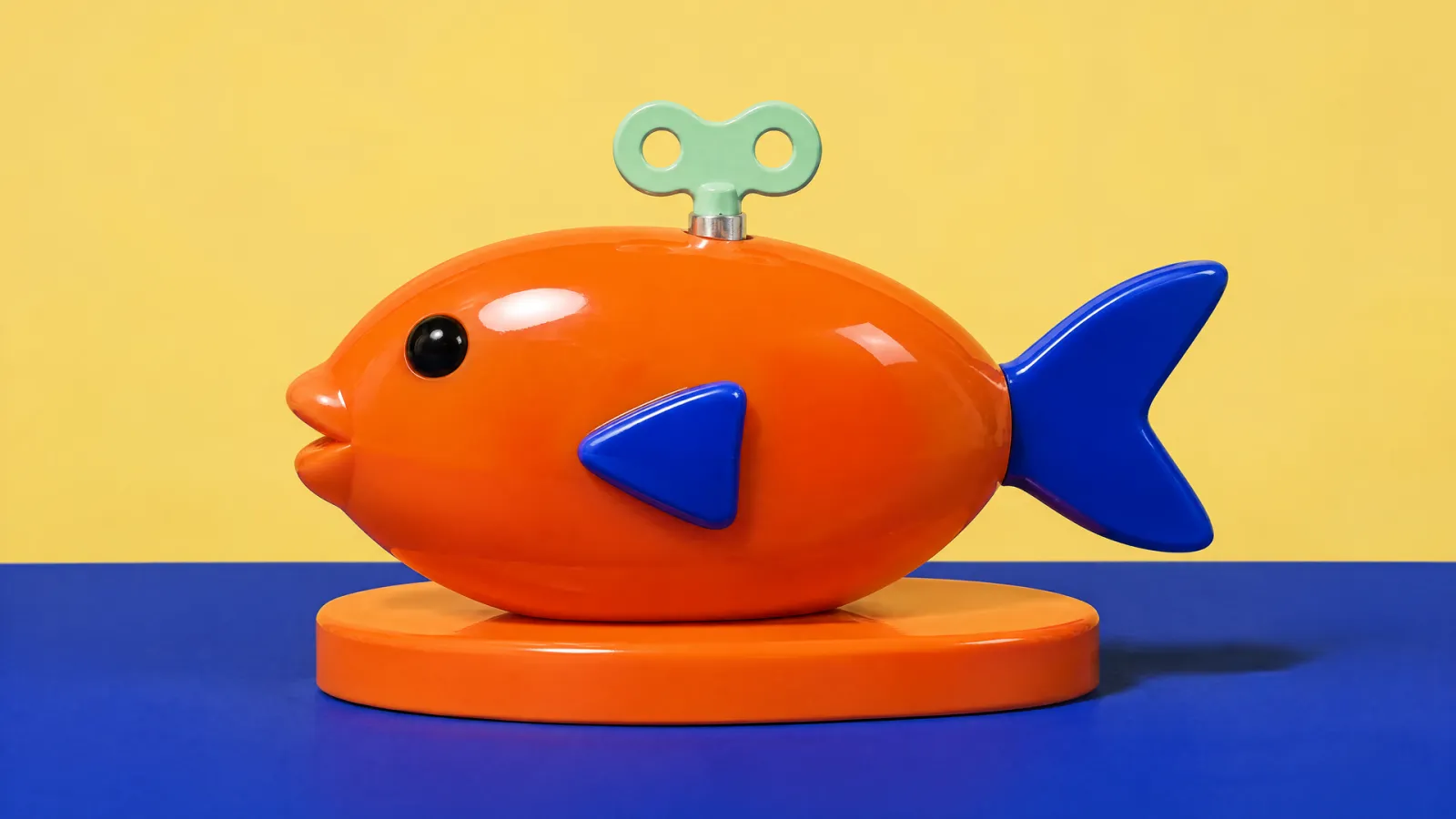
Neutral source pose for the frame-sequence demonstration. Keep the silhouette and fixed scene visible while reviewing motion.
Route one Generate a GIF from a motion description
Select the GIF output
In the current Sunburst text-to-image configuration, switch the output format from PNG to GIF. The available frame counts are 6, 9, 12, and 16. The available frame durations are 50, 100, 200, and 400 milliseconds. Those are the PixTV choices checked for this guide; they are narrower than the upstream API's full range.
The total cycle duration is frame count multiplied by frame duration. Nine frames at 200 milliseconds make a 1.8-second cycle. Twelve frames at 100 milliseconds make a 1.2-second cycle. More frames can describe additional motion states, but a larger count does not automatically produce a better loop.
Choose a moderate setting first. Very fast playback can hide the subject's action; very slow playback can expose each frame as a separate still. Check the resulting file rather than treating the selected values as proof of smoothness.
For a simple comparison, keep the same frame count and change only the duration. Label each download with its settings instead of overwriting the first file. Review the pair side by side, then choose the pacing that makes the tail movement readable. When both versions jump at the same point, the problem is likely in the sequence or its boundary rather than playback speed alone. Fix that issue before trying another timing combination.
Describe one complete movement
One glossy orange wind-up toy fish sits on a low orange pedestal on a cobalt tabletop against a butter-yellow wall. The camera is locked. Only the cobalt forked tail makes one small side-to-side wag, then returns to its starting position. Keep the orange body, black eye, blue side fin, mint key, pedestal, background and lighting stable. One continuous repeating movement, no camera movement, added objects, cuts or text.
The prompt identifies both the moving part and the parts that should remain still. “Make it animated” leaves those decisions open. “One small tail wag, then return” gives the sequence an endpoint that can meet its beginning.
Generate one candidate and play several cycles before changing settings. If the fish changes shape, simplify the movement description. If it returns abruptly, revise the return condition. Change one variable per attempt so the next result tells you something useful.
Check what the downloaded file contains
Confirm that the download is an animated GIF, inspect its dimensions, and open it in a browser. A still PNG preview cannot demonstrate animation. Keep the original file alongside the prompt and selected timing so you can reproduce the setup later.
The GIF branch does not expose the same 4K still-image selector in the configuration checked here. Do not infer a 4K GIF from a 4K cover or source image. Use the downloaded animation's actual dimensions when deciding where to display it.
Route two Plan and assemble a controlled frame sequence
A second route helps when you need to understand the movement before committing to a generated animation. Create a neutral reference, then make separate image edits for the forward and backward tail poses. Reuse the neutral source for each edit rather than repeatedly editing the previous result.
Use the source fish as the same object. Preserve body, eye, side fin, key, pedestal, camera and lighting. Change only the cobalt tail to a small forward wag. Keep the fish planted and maintain the original framing.
Make the opposite pose with the same instructions and a backward wag. Place the results beside the source. Check the pedestal edge, tabletop horizon, eye position, and body outline. A plausible new pose can still introduce small shifts in areas you intended to preserve.
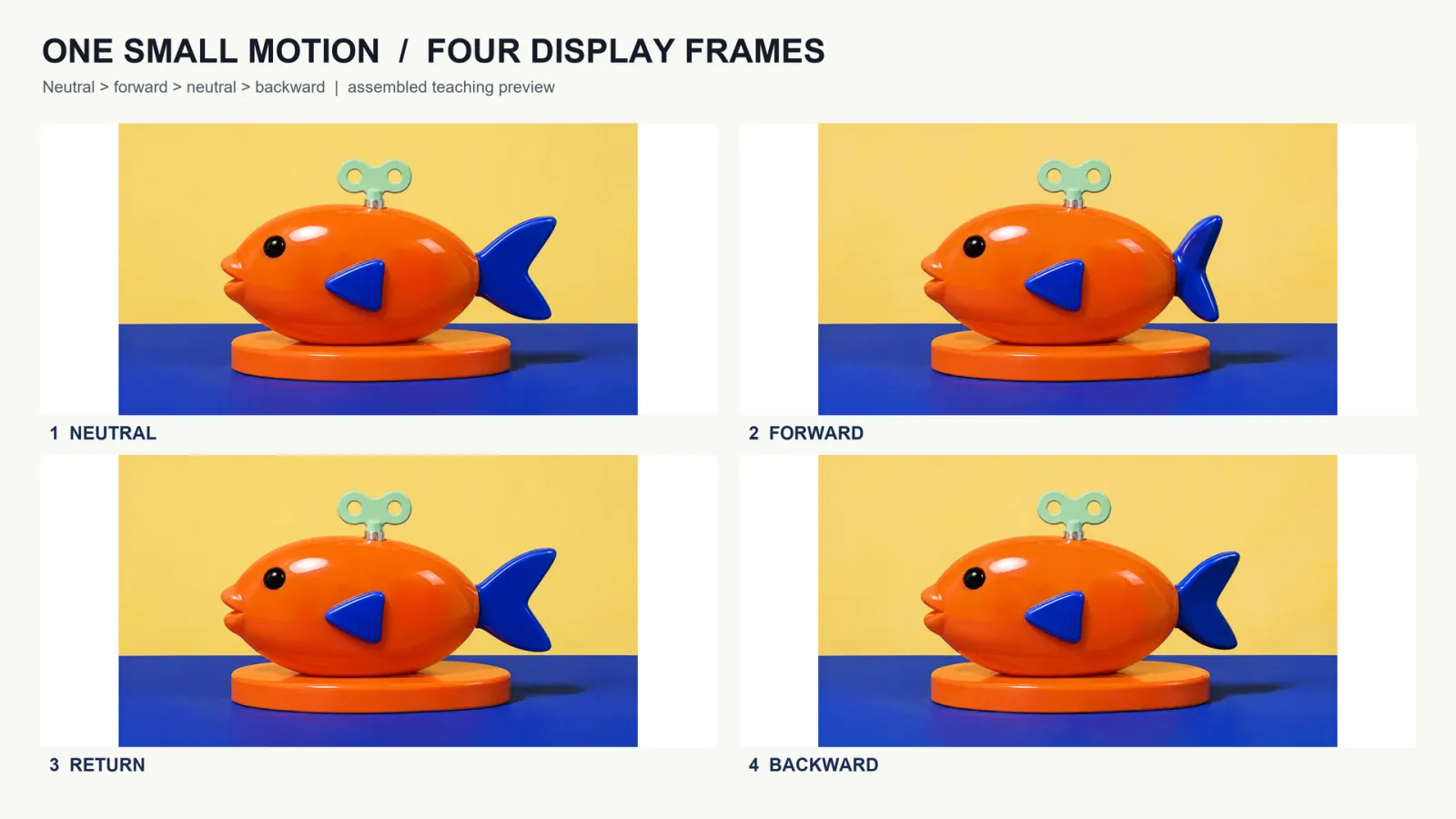
Assembled teaching previews: four frames;200ms or400ms per frame. Not native GIF generation outputs.
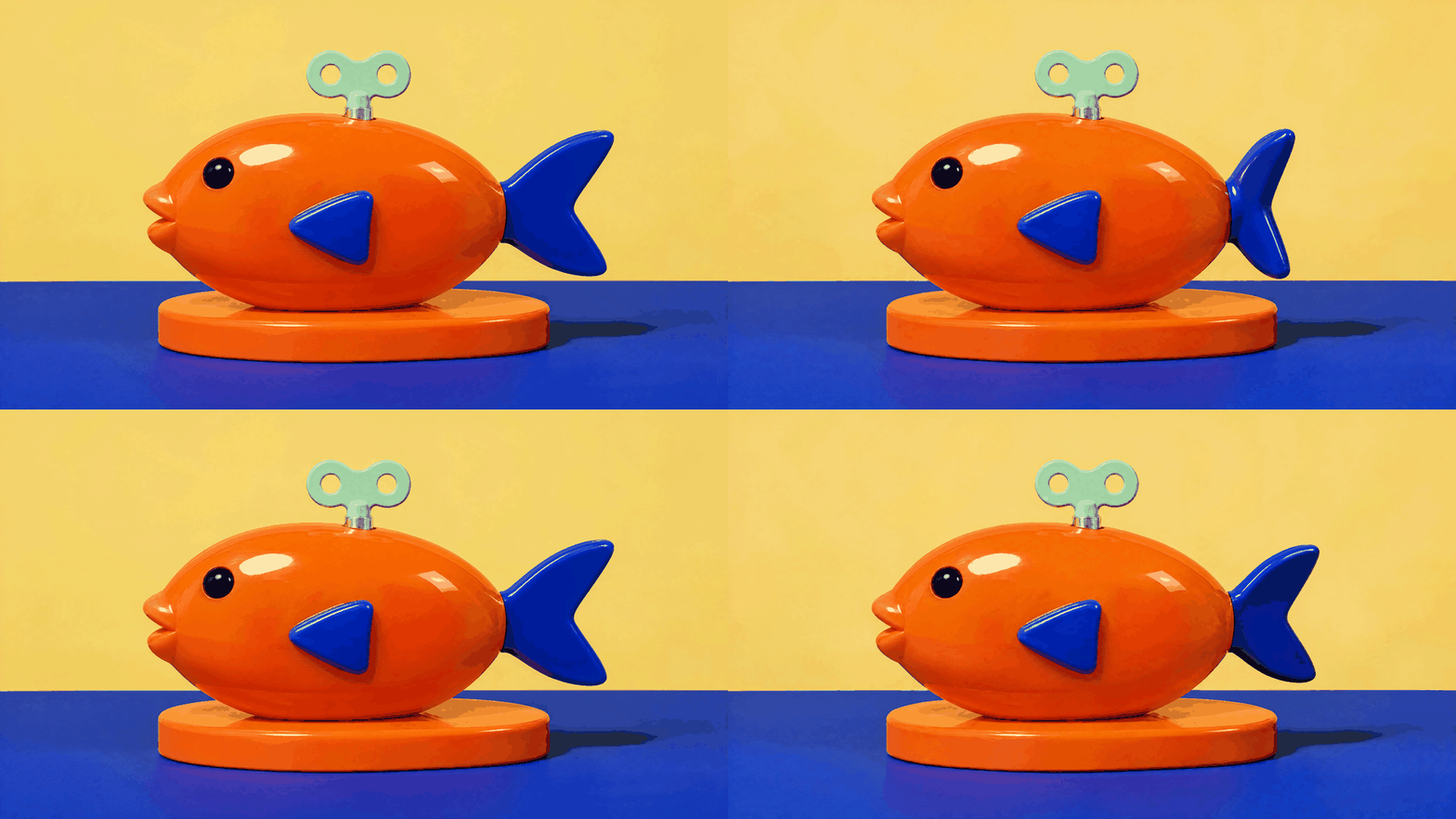
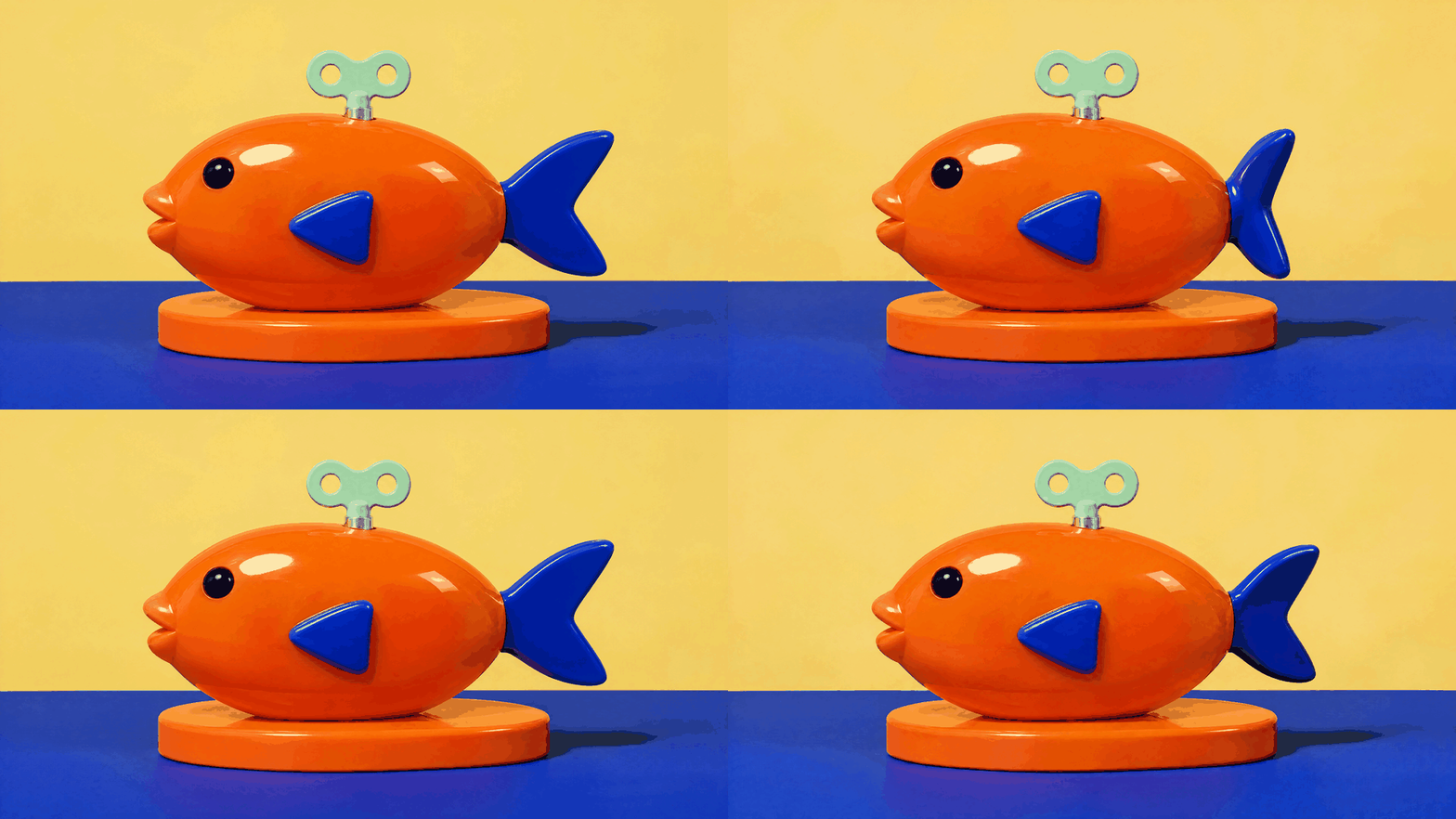
Generated neutral, forward, and backward poses. The numbered sequence explains assembly; it is an instructional board rather than a screenshot of PixTV controls.
The supplied preview files assemble those stills in the order neutral, forward, neutral, backward. They are frame-sequence demonstrations, not downloads from the native GIF route. Play both timing versions to see how the same pose changes feel at different speeds. Small body and reflection changes remain useful inspection targets.
For a production asset, reject an unstable pose or isolate the moving region in an image editor. If you composite a tail region, inspect its boundary and shadow after the edit. A perfectly still background does not help when the moving part has a visible rectangular edge.
Route three Use video when the movement needs more room
Some ideas outgrow a short GIF: a camera orbit, a changing expression, or a product reveal with several distinct beats. Take an approved still into the PixTV video canvas and build a short video instead. Describe the camera and subject motion separately.
Review the result in the PixTV clip editor when your project needs timing and assembly. If the final placement requires GIF, use a compatible conversion tool and inspect its exported file. A video download and a GIF download are different deliverables; conversion can change color, size, and playback.
Keep video as the delivery format when sound, longer storytelling, or efficient playback matters more than embedding a small repeating image. Choose the format for the placement rather than forcing every motion idea into GIF.
Review the seam before you optimize file size
Pause near the last frame, then compare it with the first. Look at the tail angle first, followed by the eye, pedestal, horizon, and shadow. A noticeable camera shift often reads as a jump even when the tail completes its action.
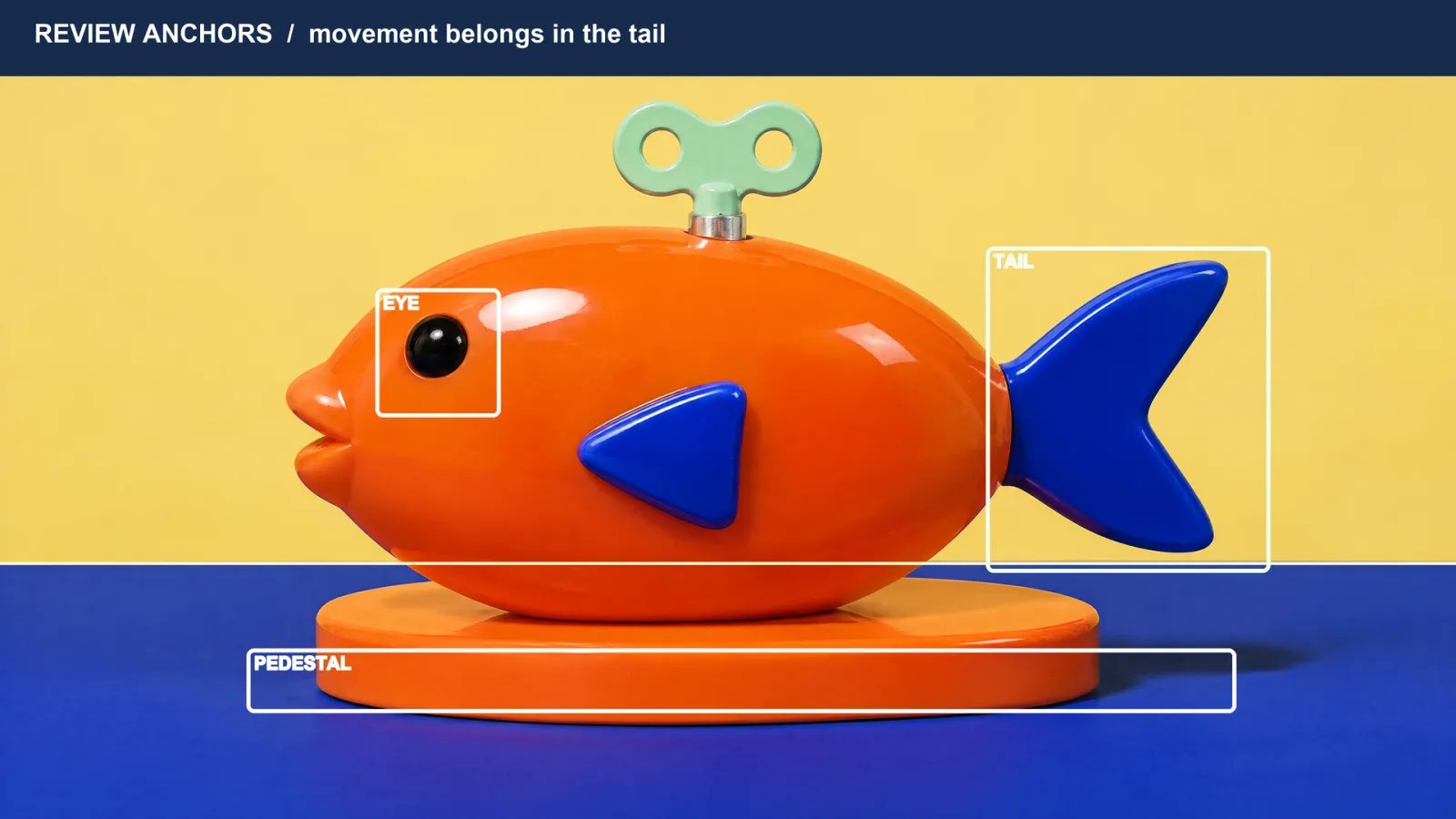
The tail is the intended moving region. The eye, pedestal, and horizon are comparison anchors, not guaranteed pixel locks.
Check the actual display size as well. A detail that looks attractive in a large preview may disappear inside a narrow email column. Reduce dimensions or colors gradually, compare the new export with the original, and keep the smaller version only when the action and edges remain clear.
Avoid endlessly regenerating a composition that already works because its file is large. Export optimization and generative revision solve different problems. Preserve the approved movement while testing delivery settings separately.
Plan the cost around usable candidates
Budget for the source, motion attempts, rejected candidates, and final export work. A single successful download does not represent the total effort if several attempts were needed to stabilize the scene. Check current credits in your account before running a batch; this guide does not assume a fixed price per completed GIF.
Save the prompt, timing, original output, optimized output, and a short review note together. That record makes the next loop easier to build and prevents an attractive preview from being mistaken for an approved production asset.
Build one small loop first
Start with one subject, one movement, and a fixed camera in the PixTV image canvas. Approve the motion before adding more visual detail. You can then decide whether the final asset belongs in a GIF, a video, or a longer edited sequence.
Frequently asked questions
Can GPT Image 2.6 create an animated GIF directly
The current PixTV Sunburst text-to-image configuration exposes GIF output, frame count, and frame duration. Use it for native generation. The supplied teaching previews were separately assembled from generated still poses.
Can I animate an uploaded image with that exact GIF control
The verified GIF options belong to text-to-image. Check the image-edit interface separately. For an existing picture, another option is a video workflow followed by GIF conversion.
Does a larger frame count always look smoother
No. Motion spacing, subject stability, playback speed, and the loop boundary all matter. Extra frames can also add unwanted variation. Compare the actual animation at its intended display size before deciding that a higher count improves it.
How do I calculate the loop duration
Multiply frame count by frame duration and divide milliseconds by 1,000. Nine frames at 200 milliseconds total 1.8 seconds. Check the exported file too, since an encoder or later optimization can change frame timing.
Why does the background move when I ask for a fixed camera
A prompt describes the intended behavior; it does not lock every background pixel. Simplify the scene, reduce simultaneous motion, and compare fixed anchors. Reject unstable candidates or use controlled compositing when the placement requires stricter stability.
Can I call the result a 4K GIF
Only if the actual animated file has the stated dimensions. A 4K source PNG does not establish GIF resolution. The current GIF configuration checked for this guide does not expose the still-image 4K resolution selector.
Is GIF the best format for every product animation
Use it when the placement needs a compact repeating image. Video is often a better fit for sound, extended motion, and longer sequences. Test the website or email system's supported formats and file limits before preparing final exports.
What should I save after approving a loop
Keep the original animation, delivery export, prompt, settings, and an approval note. Include source poses when using frame assembly, preserving enough context for later revision.