
When an AI video changes your product, first identify what moved away from the reference: its silhouette, assembly, material, branding, or relationship with a hand. Then simplify the shot and change one suspected cause at a time. A better reference and a smaller action can reduce ambiguity, but every accepted clip still needs checking against the actual product before it becomes an advertisement.
Five ways a product changes during a shot
The useful question is not whether the video looks expensive. It is whether it still shows the same item. A polished render can be unsuitable if the headband, hinge, or cushion no longer matches what a customer receives.
This guide uses a fictional headphone design for planning: dark green earcups, an angular headband, cream woven cushions, and copper side hinges. The cover uses a curved mirror as a visual metaphor for drift. The separate detail study isolates the structure and materials that the motion brief needs to preserve.
The silhouette changes
A round earcup becomes oval, the band gets thinner, or the two sides stop matching. Compare the outline before studying small textures. If the product is already distorted in the starting image, revise that image before generating video.
Watch apparent shape changes carefully. A three-quarter angle can make one cup look narrower through perspective. A new seam or a changing band profile is a different issue. Compare equivalent views rather than treating every perspective change as a defect.
Components appear or exchange positions
A hinge disappears, a button multiplies, or the left cup grows a feature from the right side. These changes often become visible when the camera reveals a surface the starting photo did not establish.
Add a clear view of the relevant side where the model supports additional references. If it does not, reduce the reveal or create a better starting angle. Asking the prompt to preserve an unseen detail leaves that detail poorly specified.
The material changes while the object moves
Matte plastic can begin to resemble metal, cloth cushions can become glossy, or a moving highlight can look painted onto the surface. Fix the material description and check whether the lighting instructions contradict it.
For the headphones, specify satin green polymer, cream woven cushion fabric, and small copper hinges. A broad soft reflection belongs differently on each surface. Repeating luxury and shiny can obscure the distinctions that make the item recognizable.
Labels and printed details become unreliable
If the real product has lettering, compare the exact spelling and position throughout the shot. A readable opening frame does not establish that the label remains correct when it moves or turns away.
Where exact print is essential, consider preserving the original product layer in a conventional edit or using a photographed product shot. A static text overlay is suitable for an end card; text attached to a moving surface needs tracking and occlusion handling.
Contact changes the object
A hand may pass through the cushion or compress a rigid earcup as though it were soft. Begin with the grip already established and one small movement. A pickup, rotation, folding action, and handover in one clip multiply the relationships that need to hold.
If the scene needs an actual folding mechanism, show a real permitted demonstration or prepare detailed references of its states. A generated fold should not be used as evidence that a product has a feature it does not offer.
Match the first revision to the symptom
| Visible problem | Inspect first | Change for the next test |
|---|---|---|
| Headband becomes thinner | Starting outline and camera reveal | Use a clearer angle and a smaller move |
| Hinge disappears | Whether the hinge is visible in input | Prepare that side before adding motion |
| Cushion turns glossy | Material and light descriptions | Keep woven fabric and broad soft light |
| Printed mark changes | Exact source artwork and moving surface | Preserve original artwork through an appropriate edit |
| Hand penetrates earcup | Grip pose and amount of interaction | Begin with stable contact and reduce movement |
This table is a diagnostic starting point, not a guaranteed repair. Save the original input and compare the same region after the revision. If the behavior remains unsuitable, change the coverage route rather than regenerating indefinitely.
Prepare the reference and test in PixTV
Start with a clear product image. Use PixTV image generation for planned scene preparation where appropriate, while keeping an actual SKU photo as the design authority for a real advertisement. Compare the prepared image with that source before moving on.
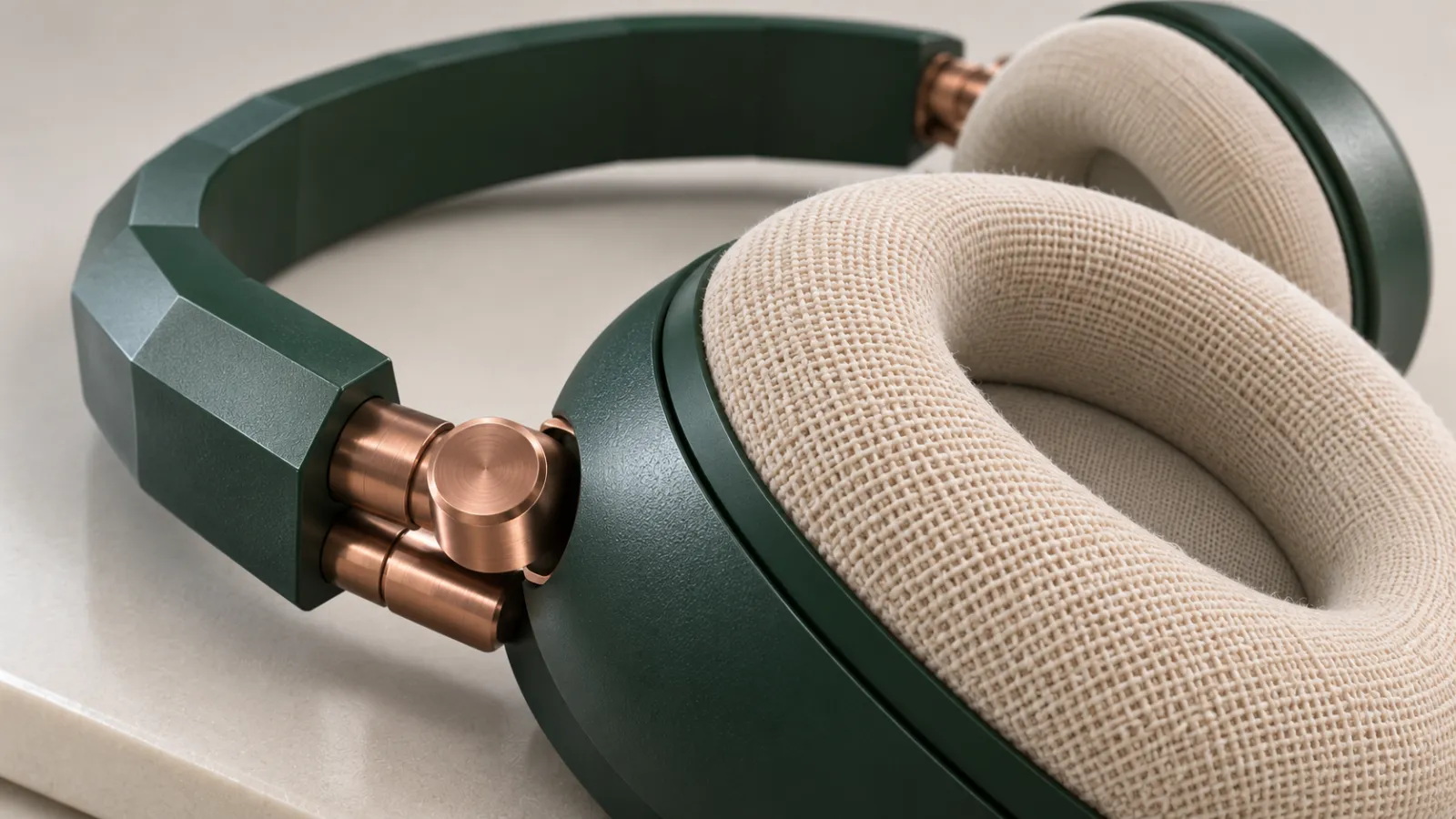
Design-detail study: check the hinge attachment, angular band and woven pad as separate structural and material requirements.
Do not introduce several incompatible product versions. A front photo of one model and a side photo of another can create a contradictory brief. Remove distracting packaging, hands, and reflections when they hide the parts the shot needs to show.
In video generation, choose the supported image-input route if available. For a first test, leave the headphones stationary and request a small camera movement. The product photo to video workflow covers building separate product shots from that input.
Try this example for the fictional design:
One pair of dark green over-ear headphones rests on an ivory tabletop in a three-quarter view. The camera makes a short, slow forward move without revealing the back. Preserve the angular headband, two matching earcups, cream woven cushions, copper side hinges, and original proportions. The headphones remain stationary and grounded. A broad soft light stays camera-left. End with the whole outline still visible. No folding, rotating parts, new buttons, hands, or text.
Inspect the result before adding a person. If the stationary product changes, a more complicated demonstration is unlikely to make the review easier. Revise the reference, framing, or model choice first.
For a more expressive camera shot, use the camera movement guide, but keep the product's design requirements fixed while exploring the move.
Check these details before generating another take
- Confirm that the source shows the actual product variant being advertised.
- Identify the parts that must remain visible in the intended camera move.
- Use one approved description for color, materials, seams, and component count.
- Avoid assigning mechanical behavior that the reference does not establish.
- Match the starting pose to the requested action instead of asking for a difficult pickup.
- Keep an approval card listing the details that would make the clip unusable.
For the headphone example, that card can require two earcups, cream cloth pads, the same band profile, both copper hinges, and no added controls. Make the criteria specific enough that two reviewers can discuss the same defect.
For example, compare a fixed-camera take with a short push-in while keeping the same starting image and product brief. If the fixed version preserves the hinges but the moving version loses one, keep the simpler shot or reduce the reveal. That comparison narrows the next decision without claiming to identify the model's internal cause.
Keep the diagnosis cheaper than the full campaign
Test the highest-risk view before generating a complete ad. If the hinge close-up defines the product, resolve that shot first. A wide decorative shot does not tell you whether a detailed assembly view will work.
For planning, three required shots with up to three attempts each means reserving nine attempts, plus references and finishing. Use the actual settings and displayed generation cost to price that plan. Do not treat the allowance as an observed success rate.
Record each attempt with one rejection reason. If several attempts fail on the same hidden mechanism, stop repeating the same request. Use a photographed detail, a controlled product-layer edit, or a different shot that keeps the design clear.
Accept the product before accepting the visual effect
Play the full clip and inspect the frames around turns, contact, and occlusion. Then compare it with the source image at a similar angle. Review the final crop too: a design flaw may become more noticeable when the product fills a vertical frame.
Use PixTV video editing or your editor to assemble approved footage. Keep the product shot long enough for a viewer to understand it. A rapid cut can conceal a defect during editing without making the representation accurate.
Open PixTV with one approved product reference and one small movement. Expand the ad after the recognizable design survives that first shot.
Frequently asked questions
Can a reference guarantee the exact product
No. Compare the result with the actual item throughout the clip, especially around turns, hands, small parts, and labels.
Should I add more reference images
Add supported views that resolve a missing detail. Inconsistent photos can create a worse brief. Keep the SKU, color, and design version the same.
Does a negative prompt prevent all morphing
No. Exclusions do not specify unseen structures or difficult movement. Improve the reference, reduce the action, and review the output before adding prohibitions.
Can I fix an incorrect logo afterward
Sometimes, with suitable tracking, masking, and occlusion work. A static end-card overlay is simpler than a mark on a turning product. Inspect the full edited interval before approving it.
When should I use real product footage
Use it when exact design, printed details, or mechanical operation must be demonstrated reliably. Generated atmosphere and supporting shots can still surround a photographed product sequence.
Is a small design change acceptable for an ad
Judge against the actual product and the message being communicated. A different control, material, or feature can misrepresent the item. Set approval criteria before choosing the most attractive take.