

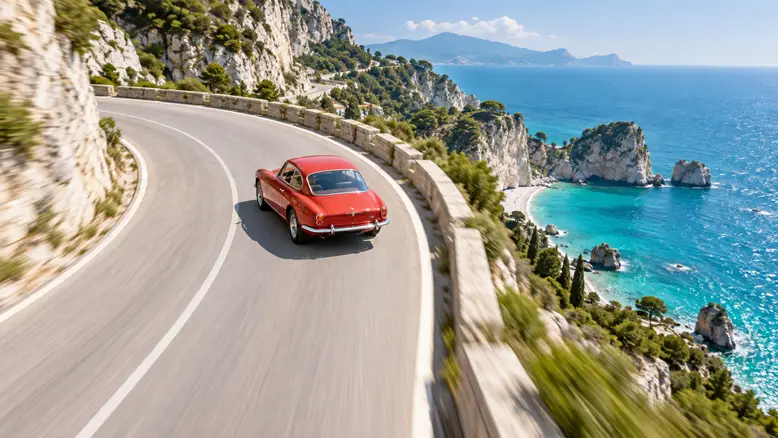
AI camera movement prompts work best when they describe a physical route: where the camera starts, how it travels, and where it finishes. Add the speed, the subject’s behavior, and what must stay unchanged. In PixTV, pair that brief with an approved starting image and a suitable video model. Use any verified camera controls the model provides, then review the movement rather than judging only its first frame.
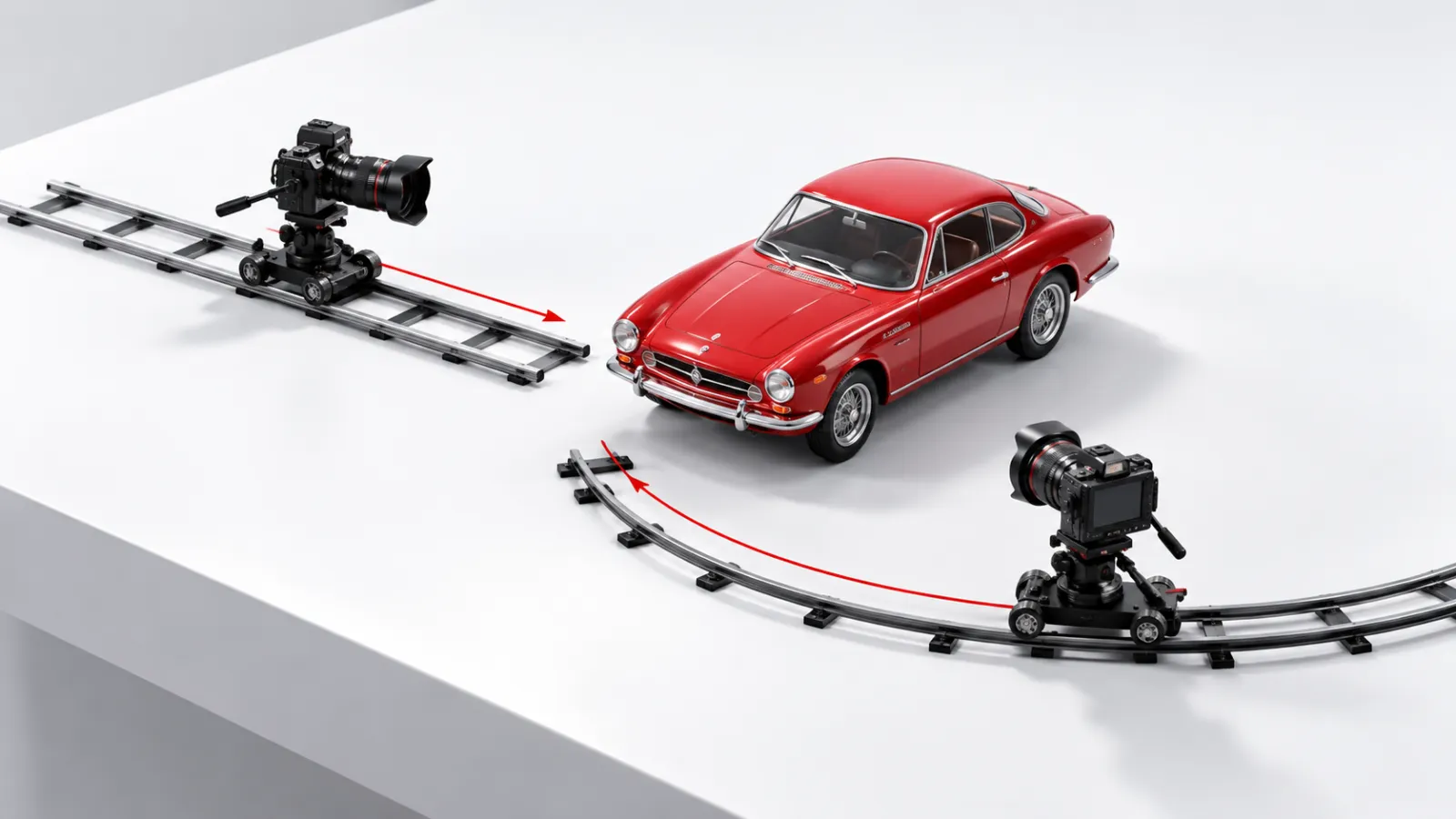
A Camera Move in One Line
Start with a specific movement instead of “make it cinematic.” For a simple product reveal, the request can be short:
The car stays still. The camera slowly moves straight toward it, starting with the whole car visible and finishing in a closer composition. Keep the same height and lighting; settle into a brief hold. No orbit, product rotation, or cut.This specifies the moving object, direction, starting frame, end frame, and a useful stopping point. It is a creative brief to test, not a claim that every model will execute the same path. If the output becomes a zoom or spins the product, the review has identified a concrete error.
What Actually Controls the Movement?
The prompt is only one part of the input. The starting frame establishes what can be seen, reference images can establish the subject and setting, and model settings determine which controls are available. A command that conflicts with those inputs gives the generation several incompatible instructions to reconcile.
Describe the route relative to the scene. “Left” can mean screen left, the character’s left, or a route around the object. “Move the camera to the right while the car stays centered” removes one ambiguity. Adding “a small arc around its front” removes another. Useful detail reduces uncertainty; repeated adjectives do not.
Decide whether the camera, the subject, or both should move. A tracking shot needs a moving subject and a camera that accompanies it. An orbit around a stationary object needs the camera to travel while the object remains planted. Mixing those instructions can make a car turn like a display stand.
How to Set Up the Shot in PixTV
Prepare the starting composition with image generation. Leave visible space along the intended route and make the subject easy to separate from the background. A tightly cropped car cannot support a large reveal of the unseen room without asking the model to invent that room.
Choose the input mode and available duration in video generation. If the selected model exposes a camera control, check what it does and keep it consistent with the written brief. Do not assume that a control offered by a model elsewhere is available in your PixTV workspace.
Keep the camera instructions in one place. If the settings request a static shot while the text requests an orbit, resolve the conflict before testing. Save the approved image, the exact prompt, and the selected settings together so the next attempt changes an intentional variable.
A Camera Prompt Planning Reference
Decision | What to specify |
|---|---|
Start | Subject size, position, and visible surroundings |
Path | Straight travel, rotation, arc, or parallel travel |
Speed | Steady, accelerating, or easing into a stop |
End | Final framing and a short settling hold |
Fixed elements | Subject identity, shape, light, and scene geography |
Excluded motion | The competing movement that would spoil the shot |
Use these fields as a planning checklist, not a requirement to fill every prompt with technical measurements. Distances or angles are useful only when they explain the intended image. They are creative direction rather than calibrated motion-control coordinates unless the actual tool explicitly provides that capability.
The Camera Movement Dictionary
Pan: Rotate from a Fixed Position
A pan turns the camera horizontally while its position remains fixed. It is useful for following attention across a setting or revealing something just outside the opening frame. The camera does not move sideways through the room, and the subject does not need to move at all.
One continuous shot from a fixed tripod position in the white studio. Slowly pan right from an empty area of the platform to the red model car at its far end. Keep the horizon level, camera height unchanged, and wheels still. Finish with the whole car visible and hold. No sideways travel, zoom, or cut.Look for a continuous reveal of neighboring space. If the foreground slides rapidly against the background as though the camera were walking sideways, the result may be a lateral move instead. If the car changes size without a corresponding reveal, check whether a zoom has replaced the requested rotation.
For a first test, use a modest reveal rather than a complete sweep around a room. The longer the route, the more unseen material the generation has to construct. A smaller move makes it easier to judge whether the subject and background remain plausible.
Dolly: Travel Toward or Away from the Subject
A dolly changes the camera’s physical distance from the subject. A push-in can direct attention to a product detail or a character’s reaction. A pull-back can reveal the surrounding situation. The relationship between foreground and background changes as the camera travels through the scene.
Keep the red model car stationary on the platform. Begin with the full car and some tabletop visible. Move the camera slowly forward in a straight line at an unchanged height, ending in a closer three-quarter view. Use a steady approach and a gentle stop. Preserve the roof, car body, and background. No zoom or orbit.Watch the relationship between the platform edge and the background. A useful dolly should feel like travel through space rather than a crop getting larger. Reject takes where the camera appears to pass through the table, where the car expands independently, or where the framing never reaches a usable endpoint.
Zoom: Change Framing from a Fixed Camera
A zoom changes the field of view while the camera remains in place. It can isolate an existing detail without revealing a new side of the object. In generation, the word “zoom” is sometimes interpreted as a general approach, so explicitly keep the camera position fixed when that distinction matters.
Camera fixed on a tripod facing the car. Slowly tighten the framing from the whole car to the roof and windshield, with the vehicle remaining still. Keep the viewing angle, background relationship, and camera position unchanged. End on a readable detail and hold. No forward camera travel, rotation, or transition.Compare the opening and final angles. A new view of the side or top suggests that the model has moved the camera instead of simply tightening the field of view. If the exact optical behavior is essential, use footage and editing tools that give you the control required rather than treating the prompt as a precise lens mechanism.
Orbit: Move Along an Arc Around a Fixed Subject
An orbit moves the camera around the subject. It works for a product reveal when the visible geometry is well established. A short arc across the front is a better initial request than a full revolution based on one photograph, because the photograph does not establish the hidden side.
The car stays planted on the white platform. Move the camera along a small clockwise arc across the front, keeping a similar height and distance and holding the car near frame center. Reveal only a little more of its right side. Preserve the car, roof, and lighting. No turntable rotation, full revolution, zoom, or cut.Check that the background changes continuously while the car remains fixed in the world. A stationary background with a rotating car is a different shot. Inspect the roof silhouette and the contact with the platform throughout the arc; a plausible first frame does not establish an accurate side view.
Tracking: Accompany a Moving Subject
A tracking shot travels with a subject rather than merely watching it cross a fixed frame. The prompt needs a route for the subject and a relationship for the camera. “Follow her” leaves both open; “travel parallel beside her” gives a clearer starting decision.
The red model car rolls slowly along a straight white studio lane from left to right. The camera travels parallel beside it, maintaining a medium side view and a similar distance. Keep the wheelbase, red paint, windows, and lane consistent. The wheels turn naturally without sliding. One continuous movement, no orbit, zoom, or cuts.Watch wheel speed, tire contact, and background movement together. If the car stays frozen while scenery slides past, simplify the move or improve the reference. If the camera races ahead or falls behind, define the desired relationship rather than only adding the word “smooth.”
A moving car introduces wheel and body-geometry checks as well as camera checks. Test this separately from a complicated road setting or a second vehicle. Combining several difficult events makes it harder to identify which part of the input needs revision.
Tilt: Rotate Vertically from a Fixed Position
A tilt turns the camera up or down without raising or lowering its physical position. It can reveal a tall object or connect a detail to a face. A crane move changes the camera’s height; a tilt changes where a stationary camera points.
Camera fixed at a low tripod position in front of the model car. Begin on the front tires and their contact with the platform. Slowly tilt upward across the hood to reveal the red roof. Keep the car still, background stable, and camera position fixed. Finish with the roof fully visible. No upward camera travel or zoom.Look for a change in viewing direction rather than a floating rise through space. The car should not stretch as the camera points upward. Keep enough of the object in the reference for the model to understand its continuous shape, and avoid asking a single detail photograph to establish the entire object.
Crane: Change the Camera Height
A crane raises or lowers the camera through space, often revealing a broader arrangement. The framing can stay directed at the same subject while the perspective changes. It is useful when the height change communicates geography, such as revealing the tabletop around a product.
Begin with a medium view of the car at tabletop height. Slowly raise the camera above the platform while keeping the car in view, ending at a gentle downward angle that reveals the surrounding tabletop. Keep the car upright and the scene unchanged. One steady rise, no orbit, product movement, sudden overhead cut, or zoom.The tabletop should become more visible because the viewpoint rises. A sudden replacement with a top-down image is a cut, not continuous travel. Review the space around the car for newly invented objects or changing edges. Reduce the height change if the scene cannot stay coherent.
How to Review and Repair a Camera Prompt
Review the entire clip once for the movement and again for the subject. Name the first failure you can observe: wrong route, wrong endpoint, unwanted rotation, changing shape, or inconsistent light. Change the relevant input and keep the other conditions stable. A new background and a new prompt at the same time create a poor comparison.
Observed problem | Next test |
|---|---|
The car spins | State that it stays planted; reduce the orbit |
A push-in becomes a crop | Clarify camera travel and the intended perspective |
The camera cuts midway | Request one continuous shot and a simpler route |
The subject changes shape | Improve the reference or reduce the revealed angle |
Use video editing to trim the accepted take only after its route works. A short settling hold gives the cut somewhere to land. Trimming can remove dead time, but it cannot turn an incorrect physical relationship into a faithful camera move.
Keep the Same Camera Logic Across a Sequence
Test the movement against a simple background before adding several moving layers. A nearby table edge and a more distant wall give you visible relationships to compare. Save the opening and ending frames alongside the clip, but return to playback to inspect the path between them; two convincing stills can hide an abrupt transition.
Separate a production budget from the apparent simplicity of the move. A short orbit that must preserve an exact label can require more attempts than a longer background reveal. Record the selected model, available duration, output setting, and displayed price with each attempt. Use the number of accepted takes and rejected passes to plan the next batch, rather than assuming every movement costs the same to deliver.
Reuse the approved reference, movement wording, and available model settings when related shots need the same look. Keep screen direction readable between cuts. Budget for attempts using the displayed model price, and test the hardest camera move before generating several versions of an ad or scene.
Plan your next camera move in PixTV
Questions About This Workflow
What is the difference between a dolly and a zoom?
A dolly moves the camera through space; a zoom changes the field of view from a fixed position. The two may produce similar subject sizes in a still frame, so check the perspective and background relationship throughout the movement.
Why does my orbit make the product spin?
The request may not clearly distinguish camera travel from product rotation. State that the product stays planted while the camera follows an arc. Start with a smaller angle and a reference that establishes the surfaces the move will reveal.
Should I use camera settings or prompt text?
Use verified settings when the selected tool provides the control you need, then use text for the route and scene details those settings leave open. Keep both consistent. Do not assume that every model exposes the same camera controls.
How detailed should a camera prompt be?
Include the decisions that affect the result: start, path, speed, end framing, and what stays fixed. A simple move may take a few sentences. Extra measurements and conflicting movements can make the request less coherent rather than more precise.
Can one image support a full orbit?
A single image can guide visible appearance but does not verify hidden geometry. A full orbit may invent the unseen side. Use additional approved views where supported, or choose a restrained front arc when accuracy matters.
How do I keep camera movement consistent across shots?
Save the exact accepted prompt, reference assets, and available settings. Reuse them deliberately and compare the movement, framing, and light across the sequence. References and repeated wording support continuity, but every generated take still needs review.
Illustrations are original OpenAI-generated planning concepts, not PixTV screenshots or video results. Prompts and production plans are illustrative; no measured success rate or completed PixTV production is claimed.
