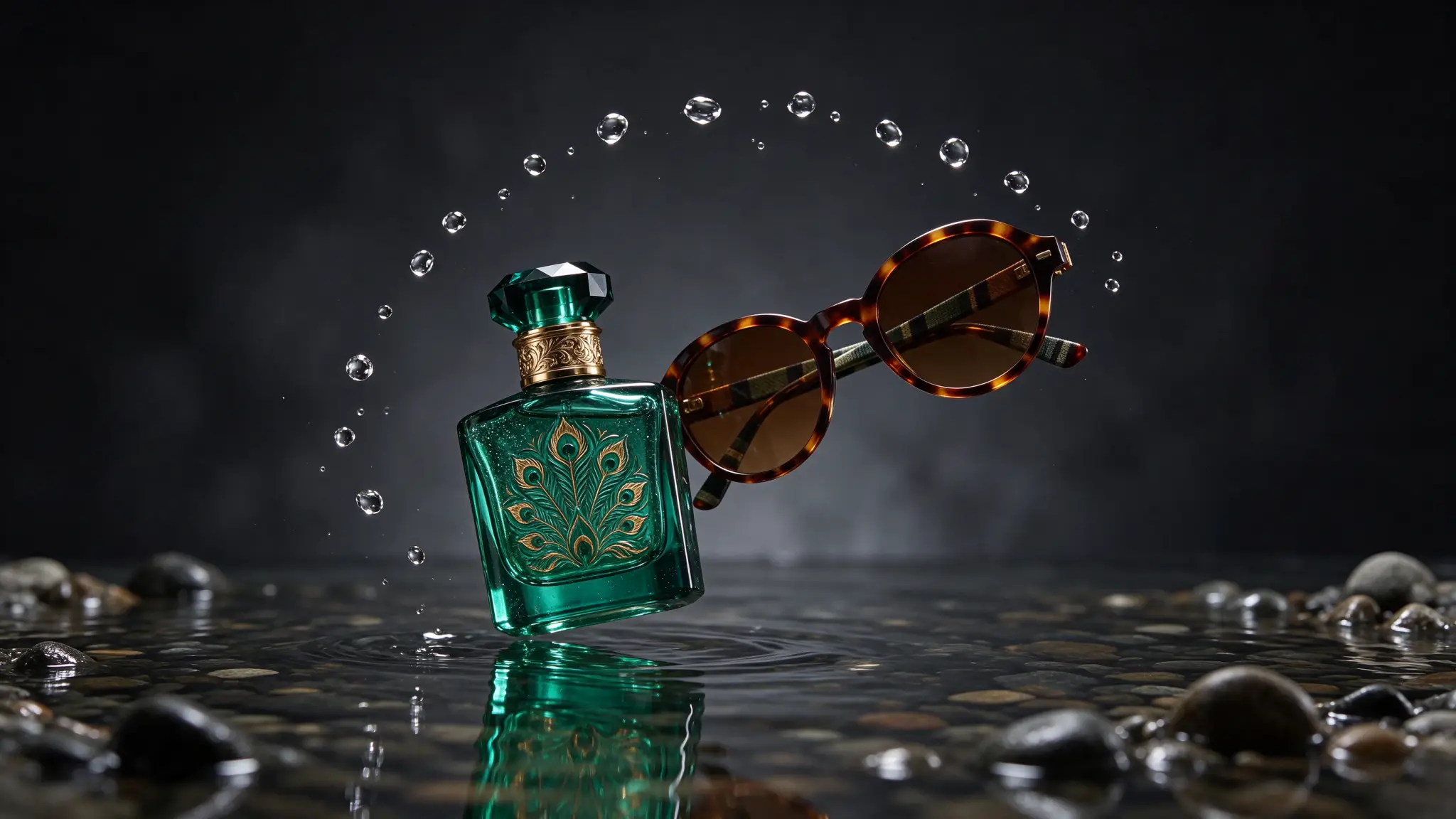
Generating an AI image on a white background and running a one-click background remover works fine for a solid ceramic mug or a vinyl sticker. It falls apart the moment your subject has partial transparency: a tinted perfume bottle, condensation splashes, sheer organza sleeves, tinted sunglasses, or drifting incense smoke. Post-hoc cutouts either slice off the soft edge or bake ugly white pixels into the glass, ruining the composite as soon as you drop the asset onto a dark poster or video timeline.
On PixTV, Seedream 5.5 solves both problems at generation time through native RGBA alpha output and layer decomposition—available at 1K (3 credits) for rapid asset tests and 2K (5 credits, same cost as 1.5K) for final compositing files.
Three Types of Alpha Assets Seedream 5.5 Handles Best
Not every transparent asset behaves the same way in Figma, Photoshop, After Effects, or a PixTV video canvas. Structure your prompt around which of these three alpha behaviors your layout needs:
Asset Type | Alpha Channel Behavior | Example Commercial Deliverables |
|---|---|---|
1. Solid Opaque Cutouts |
| E-commerce footwear, 3D UI icons, game inventory props, character sprites |
2. Partial-Alpha Translucent Materials | Graduated | Glass skincare bottles, ice & liquid splashes, sunglasses lenses, smoke, lace |
3. Decomposed Multi-Layer Scenes | Clean opaque background plate + separable transparent foreground props/text | Seasonal ad banners where copy, hero product, and floating props move independently |
Prompting for Clean Partial-Alpha Glass, Liquid, and Sheer Fabric
When you want genuine translucent refraction rather than a painted gray fill inside a glass bottle, explicitly instruct Seedream 5.5 to isolate the subject on a native transparent RGBA background and avoid describing studio wall colors behind the object.
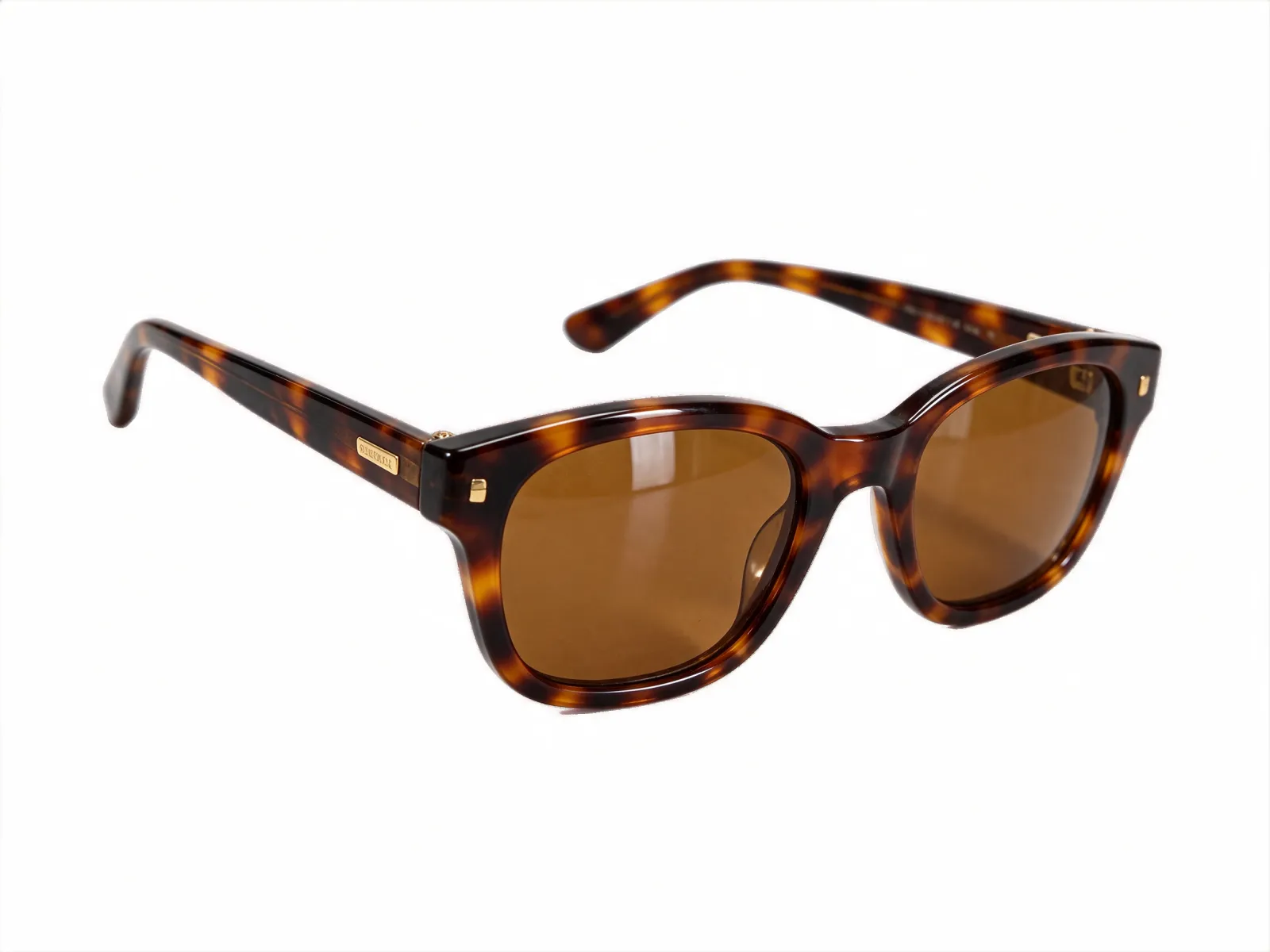
Tested Prompt 1: Tinted Eyewear with See-Through Lenses (2K · 5 credits)
Three-quarter studio product shot of tortoiseshell acetate sunglasses with warm amber-tinted semi-transparent lenses and gold temple hinges, isolated on a native transparent RGBA background. True partial alpha transparency through the amber lenses with subtle crisp specular reflection, clean outer frame edges, zero background color cast.
Tested Prompt 2: Cosmetics Splash Element for Ad Compositing (2K · 5 credits)
Dynamic crown splash of clear micellar water with tiny suspended micro-bubbles curving upward in an arc, isolated on a clean transparent RGBA alpha background. Crisp translucent liquid edges without white fringing, bright studio rim lighting.
Using Layer Decomposition to Turn One Poster Into Five Ad Ratios
Design teams rarely ship a single 1:1 image anymore; the same campaign has to adapt to 9:16 TikTok Reels, 16:9 YouTube headers, and 4:5 feed cards. Flattened AI images make resizing a nightmare because headlines overlap the product when cropped.
With Seedream 5.5's layer decomposition workflow inside the PixTV image workspace, you can separate a rich composition into an unobstructed background environment layer plus independent transparent foreground elements:
Prototype the full composition at
1K(3 credits) until the color harmony between the background podium, hero product, and floating botanicals feels cohesive.Export at
2K(5 credits) and decompose layers so your background stone podium has clean surface continuity behind the bottle, while the bottle, floating citrus slices, and badge graphic sit on independent transparent layers.Reposition or animate layers independently: Re-stack those layers vertically for
9:16mobile ads, or feed the separated layers into a parallax camera move inside PixTV video editing and Seedance 2.5.

Troubleshooting Edge Halos Before Compositing
Even with native RGBA output, two prompt habits can accidentally introduce unwanted color spill along object edges:
Remove colored floor/wall bounce words when requesting a pure cutout. Writing "standing on a bright neon pink acrylic floor, isolated on a transparent background" contradicts itself—the model will paint pink bounce light onto the bottom of your glass bottle, which looks jarring when placed over a forest-green banner. Ask for "neutral white studio rim lighting" instead.
Match resolution to final canvas scale. Draft silhouette shapes at
1K(3 credits), then always pull your final cutout at2K(5 credits). If you are compositing onto a massive4Kbillboard plate, compare cutout options in our GPT Image 2.6 transparent background tutorial or check our Seedream 5.5 vs. Nano Banana Pro vs. GPT Image 2.6 guide.
Frequently Asked Questions
What is the difference between native RGBA output and background removal?
Background removal guesses where an object ends after a flat RGB image is already rendered, often leaving jagged edges or opaque gray patches inside glass and hair. Native RGBA generation in Seedream 5.5 calculates alpha transparency alongside color pixels from the start, preserving true partial transparency through glass, water, and smoke.
How much does generating a 2K transparent RGBA asset cost on PixTV?
Generating a 2K asset in Seedream 5.5 costs 5 credits on PixTV (the exact same price as 1.5K), while 1K drafts cost 3 credits.
Can I animate decomposed Seedream 5.5 layers into an AI video on PixTV?
Yes. Separating foreground products from background plates makes it easy to stage clean parallax motion or feed artifact-free 2K product plates directly into Seedance 2.5 or Kling 4.0 on the PixTV video canvas.