

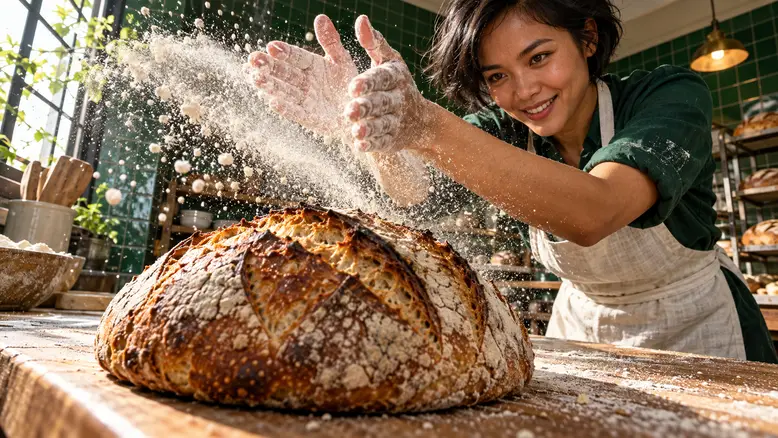
To make realistic AI videos, give the shot a believable light source, a simple action with visible contact, and camera movement that suits the scene. Start from an image whose geometry already works. Then review the entire clip for changing shapes, sliding hands, and inconsistent shadows. More detail helps when it resolves a specific problem; extra cinematic adjectives rarely tell you what to fix.
What makes an AI video feel artificial
Realism breaks when related things behave independently. A hand moves, but the object beneath it does not respond. A face turns, but its shadow stays attached to the camera. A loaf rests on a bench while its lower edge slowly changes shape.
Look for three groups of problems. Lighting problems include competing highlights and shadows that do not follow the source. Motion problems include missing weight, contact, or resistance. Camera problems include unintended zooming, sliding backgrounds, and changing perspective.
Camera stability itself is not a fault. A locked product shot can feel entirely believable. Add handheld movement only when the intended scene needs an operator's movement; artificial shake can make a coherent shot harder to judge.
The working example here is a planned bakery shot: an adult baker in a white apron and green shirt brushes an oval loaf on a beech workbench. The window is on screen-left. Her brush, the crust, and their point of contact provide a clear quality check.
Turn the visible problem into a usable instruction
Give the light a source and direction
Begin with the approved image. Identify the window, the shadow side, and the brightest surface. Carry that arrangement into the motion brief. Asking for morning sunshine while using a flat, front-lit starting image creates a conflicting direction.
For the bakery, describe sunlight entering from the left window, soft reflected light on the opposite cheek, and a brush shadow falling across the crust. Keep the direction consistent as her wrist moves. Avoid asking every surface to glow equally.
Describe contact before adding speed
The brush should meet the crust before its bristles bend. Her wrist guides a short stroke along the loaf; the loaf remains supported by the bench. This gives the shot a readable sequence of cause and effect.
Start with a small movement. A brush stroke is easier to inspect than kneading, lifting, cutting, and serving in the same clip. If a hand disappears behind the loaf, check the frames where it reappears before approving the take.
Choose camera behavior for a reason
A fixed side view makes the brush contact easy to judge. A slow forward move can emphasize texture, but it also changes the relationship between foreground and background. Specify which you want rather than combining orbit, zoom, and handheld directions.
Use the camera movement prompt guide when the camera move itself carries the idea. For this bakery insert, the action already supplies the motion.
| Symptom | First variable to inspect | Practical revision |
|---|---|---|
| Brush floats over bread | Starting hand position | Show bristles touching crust before motion |
| Loaf appears weightless | Base and contact shadow | Keep its base planted on the bench |
| Face looks waxy | Reference texture and exposure | Use natural skin detail and softer highlights |
| Background slides | Camera instructions | Test the same action with a fixed camera |
| Light pulses | Conflicting sources or changing scene | Keep one dominant window direction |
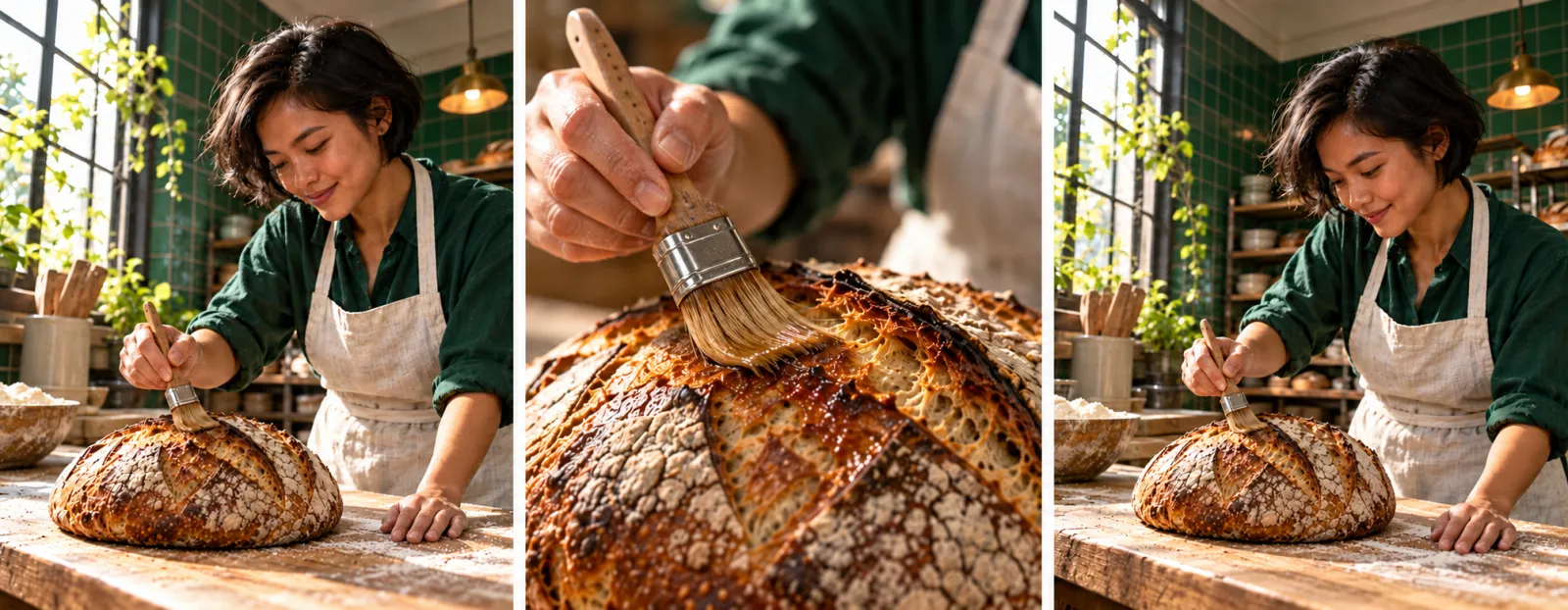
Bakery shot planning: a readable side light, visible brush contact, and enough framing to check the workbench.
Prepare and generate the shot in PixTV
Use PixTV image generation to prepare a coherent starting composition. Check the brush, fingers, loaf, and table edge before requesting motion. Enlarging a flawed image does not repair its geometry.
Move to video generation and select an input mode supported by the current model. If image input is available, use the approved starting frame. Keep the product and action description short enough that the main event remains clear.
For the bakery insert, begin with this motion brief:
Side-view medium close shot in a green-tiled bakery. The baker in a white apron guides one short brush stroke along the top of the oval loaf. Bristles remain in contact with the crust and bend slightly under pressure. Her other hand rests on the bench beside the loaf. Sunlight enters from the window on screen-left. Keep the loaf planted, the apron unchanged, and the background steady. Fixed camera, one continuous action, ending with the brush resting above the same loaf.
Compare the output with the starting image. If the brush misses the loaf, revise its starting position first. If contact works but the background slides, keep the action and test a clearer fixed-camera instruction. The prompt writing guide explains this single-variable revision process.
Keep sound separate from the first visual decision. A convincing brushing sound cannot repair a hand that passes through the bread. Add or edit sound once the picture passes review.
Budget for an accepted shot
Plan around approved footage. For three required shots with three attempts allowed per shot, reserve nine generation attempts, then add image preparation and editing. This is a planning example, not a promise about success rates or PixTV pricing.
Compare the available model settings before starting. A shorter or less expensive test option may reduce exploration cost, but confirm the displayed price. The final configuration still needs review because changing resolution, duration, or model can change the result.
Save the prompt, starting image, model, settings, and rejection reason beside each take. That record prevents you from paying to repeat an idea that already failed for a known reason.
Five checks before the clip enters the edit
- Watch at normal speed for unnatural pauses or sudden acceleration.
- Inspect the moment of contact, including frames immediately before and after it.
- Compare the opening and ending for identity, shape, and wardrobe changes.
- Check the shadow direction against the visible light source.
- Play the shot beside its neighbors to catch mismatched color or movement.
Bring accepted clips into PixTV video editing or your editor. Trim away unstable beginnings and endings only when the remaining shot still tells the intended action. If a defect crosses the whole action, return to the input rather than hiding it with a faster cut.
Open PixTV with one simple action and one visible contact point. Make that relationship believable before adding a more complicated scene.
Frequently asked questions
Does adding cinematic make an AI video realistic
It can suggest an aesthetic, but it does not specify light direction, contact, or movement. Name the visible behavior you want to control. A simple, coherent shot often gives you a more useful starting point than several overlapping style instructions.
Should realistic AI video always look handheld
No. Tripod, dolly, and handheld shots can all be realistic. Choose the camera behavior that belongs to the scene. Extra shake can distract from the action and introduce background movement that makes a product or contact error harder to inspect.
Can a higher resolution fix unnatural movement
More pixels do not establish weight or correct a missing contact. Resolve the movement and geometry first. Review the final resolution separately, because a new generation or processing stage can introduce different details even when the earlier test looked usable.
Why does the first frame look better than the clip
A still image only needs one coherent arrangement. Video must maintain shapes, lighting, and relationships while they change. Review the complete action, particularly occlusions and contact, instead of accepting a clip because its thumbnail matches the reference.
How much should I change between attempts
Change one suspected cause where practical: the starting pose, action size, or camera instruction. Save both versions and compare the same moment. If several major inputs change at once, it becomes difficult to tell which revision made the shot more usable.
Can sound help a generated shot feel more real
Appropriate room tone and synchronized effects can connect the action to its environment. They work best after the visual relationship is sound. Check picture and audio independently, then together, so a convincing sound does not conceal a visible problem.
